On this page
You can have WooCommerce live chat running on your store in about five minutes, with no plugin. Whether that chat can tell a shopper where their order is depends on a different question, and for Talvo the answer is no.
Talvo has no WooCommerce integration. Its chat can't look up an order, a cart or a shipping status. If a customer types "where is my package," a Talvo conversation does not see your store. That is the honest gap, and this post is built around it: what a script-tag install gets you, what it can't, which tools do show orders and carts, and how much of a store's daily chat traffic never needed an order lookup in the first place.
Three levels of WooCommerce live chat
Most "best live chat for WooCommerce" roundups blur three different things together. Separate them and the shortlist gets shorter.
| Level | What it means | What it takes | Talvo |
|---|---|---|---|
| 1. A chat on the store | A widget on your pages; shoppers ask, your team answers | Paste one script tag | Yes, on every plan |
| 2. Agents can see the shopper | Your team sees who they're talking to, plus carts or orders | An integration, or your own code | Partly: signed-in identity on every plan; order facts only through the API, on the Growth plan |
| 3. Chat can act on orders | Order status, refunds or edits from inside the conversation | An integration with write access to the store | No |
WooCommerce itself doesn't ship with live chat, so you're adding a tool at level 1 whichever way you go. Levels 2 and 3 are where the tools really differ, and where the price and the risk climb. A bot that can change orders needs a WooCommerce REST API key with write access, and WooCommerce's API docs describe keys as Read, Write or Read/Write and tied to a WordPress user. That is a lot of trust to hand to a chat widget, so decide whether you need level 3 before you shop.
Level one: the script tag
WooCommerce is a plugin on top of WordPress, so a chat widget installs the way it would on any WordPress site. WooCommerce has more than seven million active installs according to its WordPress.org listing, which is why every chat vendor has a WooCommerce page.
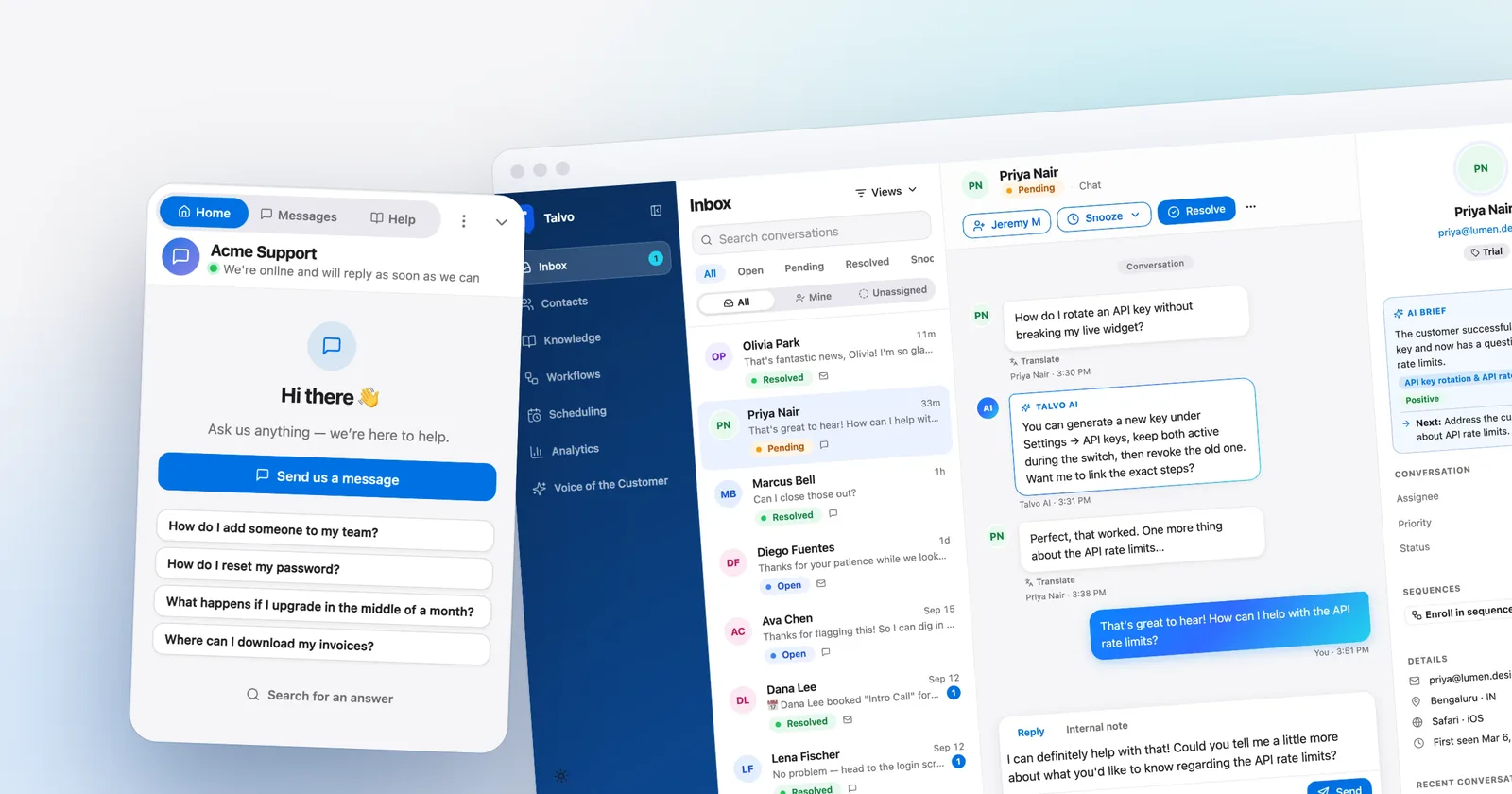
Talvo's install is a single async <script> tag from Settings → Chat widget. We cover the click-by-click for WordPress, including the header/footer plugin route, in how to add live chat to your website, and we won't repeat it here. If you're deciding between a plugin and a tag, WordPress live chat: plugin or script tag is the companion piece.
- Copy the snippetIn Talvo, open Settings → Chat widget and copy the script tag. It carries your workspace's public app ID (guide).
- Paste it site-wideUse your theme's footer scripts setting, or a header/footer code plugin, set to run in the footer on every page.
- Test the pages that matterOpen a product page, the cart and the checkout in a private window. Most questions arrive where someone is deciding, not on the contact page.
- Set hours and an away messageSettings → Inbox → Business hours, so a shopper at 2 a.m. isn't promised a reply in minutes.
Page weight is a fair worry on a store. In our own widget speed test, Talvo's widget, re-measured after an update, downloaded 277.7 KB before anyone clicked and 64.6 KB more when the chat opened, 342.4 KB in all. In the original session the figures were 280.1 KB and 443.3 KB. Before a click, that is mid-pack: lighter than six of the other widgets we tested and heavier than three. We measured vendors' own pages and, for Talvo, a plain test page, not WooCommerce stores, so treat it as a comparison, not a promise about your site.
The honest gap: Talvo can't see your orders
Here it is plainly, because a shopper-facing chat that can't answer "where's my order" is the first thing a store owner will test.
The widget itself can't carry order data either. Its identify command passes only a user ID, email, name and a signed hash. Anything else is dropped.
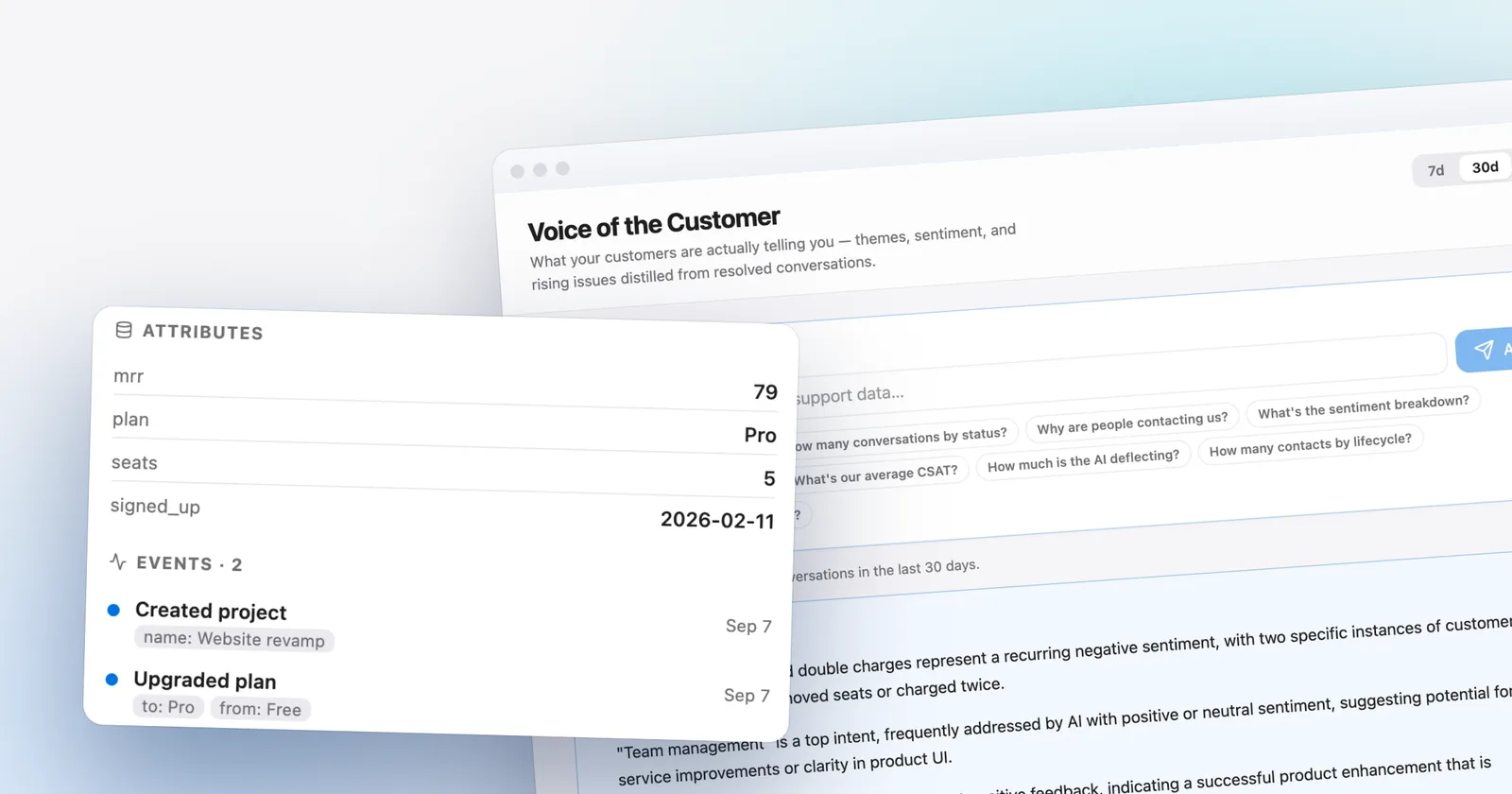
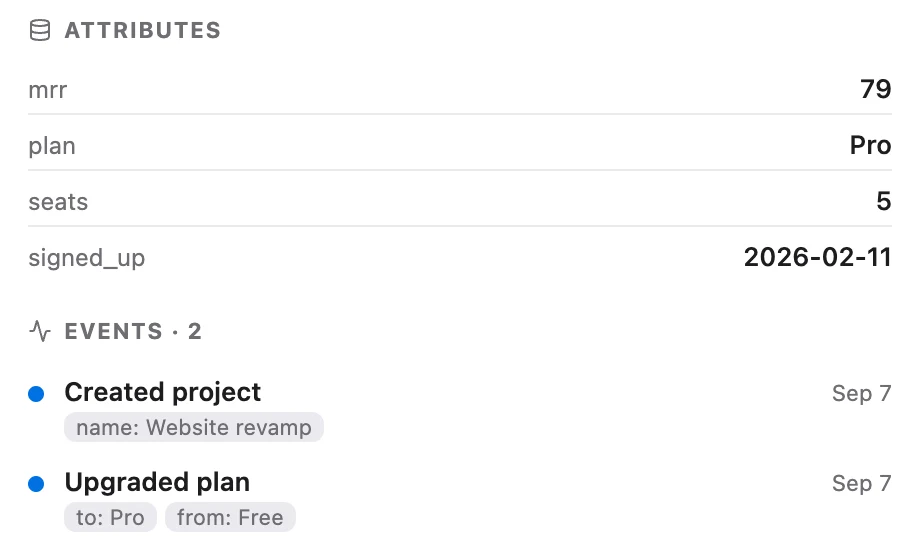
So what does the API route buy you? Your server, on a WooCommerce order event, can send Talvo flat values such as orders_count or last_order_total through /v1/identify, and an event such as order_placed through /v1/track. Both calls need the customer's email and an API key. Attribute values must be simple strings, numbers or booleans, with a cap of 50 keys, and event metadata has a cap of 30. There's no room for a nested list of line items.
What you get on the other end is a contact in the inbox with an Attributes panel and an Events timeline. Your team opens a conversation and sees "orders_count: 4" without asking. That is context for a human, not a lookup for the customer.
Four limits to know before you commission the code:
- It's a developer job. There is no WooCommerce connector and no Zapier integration, so someone writes a small PHP hook (or a bridge service) that calls the API.
- It needs Growth. API keys start on the Starter plan, but the customer-data endpoints are Growth.
- The data isn't reusable elsewhere. Segments in Talvo filter only on search, lifecycle and tag, so you can't build "customers with three or more orders."
- The AI agent answers from your published articles. Don't plan on it quoting order data back to a shopper.
Signed-in shoppers are easier. WooCommerce customers are WordPress users, and Talvo's identity verification article includes a WordPress snippet that attaches a logged-in shopper's chats to their own contact, with name and email, instead of an anonymous "Visitor." That works on every plan. The setup is a small file in wp-content/mu-plugins and a secret in wp-config.php, so it is not a no-code step. If you use page caching, exclude logged-in users, as the article says.
What the order feed costs
The code is your cost, not ours. The platform cost is the cheapest Talvo plan with enough teammates (Starter covers 5, Growth 15), plus $0.49 per AI resolution beyond what's included. For a two-person store team:
| Setup, 2 teammates | Monthly billing | Annual billing |
|---|---|---|
| Chat only, 100 AI resolutions a month | Starter $49 | Starter $39 |
| Chat only, 300 AI resolutions a month | Starter $49 + 200 × $0.49 = $147 | Growth $119 (Starter would be $39 + $98 = $137) |
| Order data via API, 100 AI resolutions | Growth $149 | Growth $119 |
| Order data via API, 300 AI resolutions | Growth $149 (500 included) | Growth $119 |
At 300 resolutions a month, the order feed adds about $2 on monthly billing and nothing on annual, because Growth is already the cheaper plan at that volume. At 100 it is a $100 monthly or $80 annual step up. Plans and rates are on the pricing page.
Tools that do show orders and carts
If the customer or the agent needs to see the store inside the chat, several tools have built it. These descriptions come from each plugin's own WordPress.org listing, read on October 21, 2026, so they are claims by the vendors, not our tests.
| Tool | What its listing says about WooCommerce | Installs |
|---|---|---|
| Chatway | "Deep" WooCommerce integration: visitors' cart and order data for agents, customers can track orders and view order details from the widget, and the AI chatbot can access orders, products and cart information | 30,000+ |
| Tidio | View visitor carts and order history and send product cards in chat; abandoned-cart recovery through chatbot campaigns | 70,000+ |
| Crisp | Order history for previous purchases and cart context while talking to a customer | 20,000+ |
| LiveChat | Cart contents for upsell and cart recovery; a separate "Live Chat Plugin for WooCommerce" | 1,000+ for that plugin |
Chatway's is the clearest order-lookup description of the set. These listings describe seeing carts and orders, not refunds or edits from chat. Other popular chat plugins (Tawk.to, 3CX, Smartsupp, Zoho SalesIQ, JivoChat) list no WooCommerce feature in their descriptions, and Brevo's WooCommerce features are email and SMS cart recovery, not chat. Pricing for the ones above is in Crisp pricing, Tidio pricing and LiveChat pricing.
If your store's chat is mostly "where's my order" and "can you change my address," pick one of these. Talvo is the wrong tool for that job today.
What chat plus AI can still do for a store
Order lookups are one slice of what shoppers ask. A good share of the rest is the same dozen questions about shipping, returns, sizing and product details, and none of those need the order table. They need a good article.
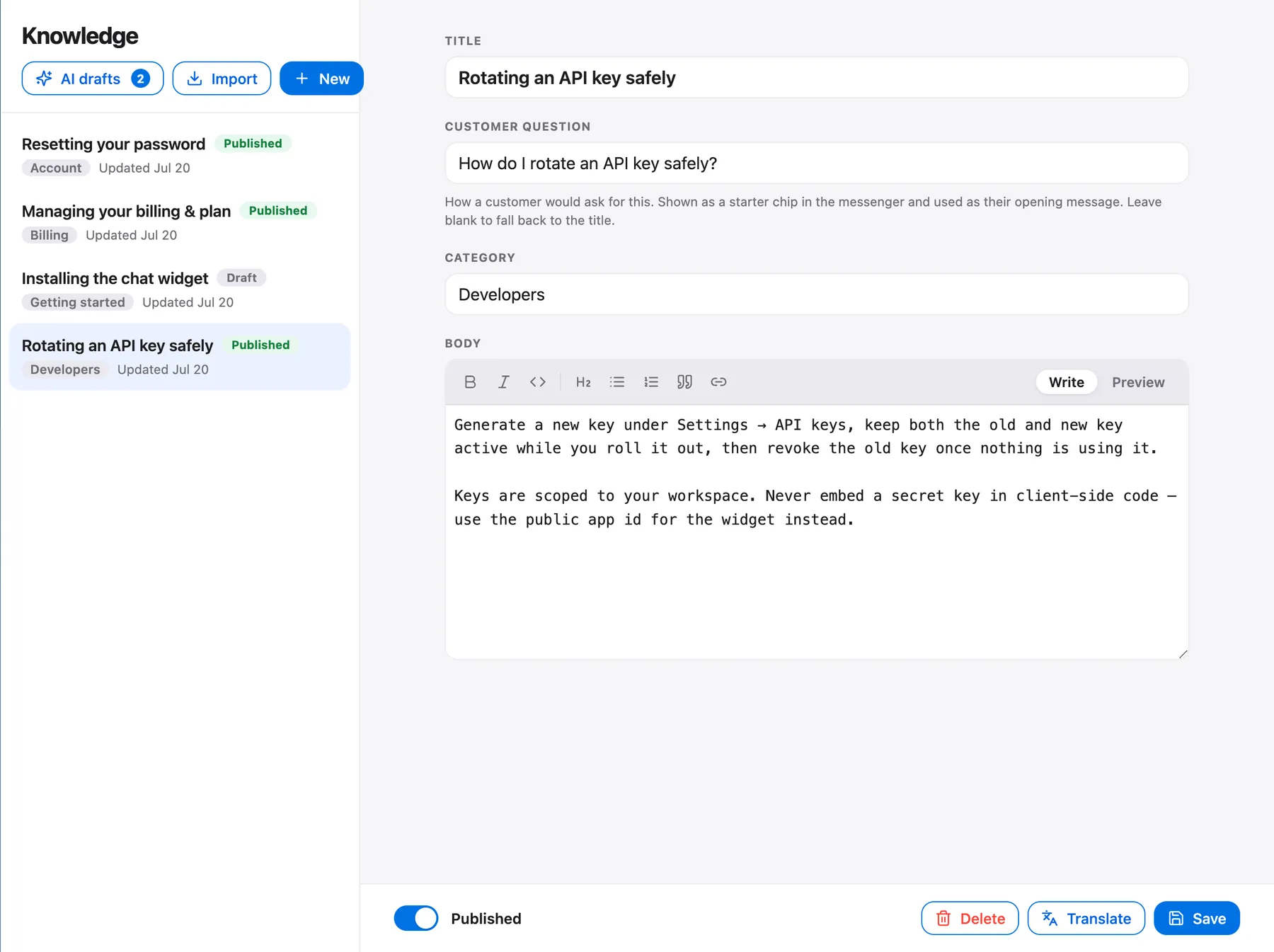
Talvo's AI agent answers only from your published help articles, shows which article it used, and hands the conversation to your team when it isn't confident. It replies in the shopper's language. The groundwork is the same as any knowledge base chatbot: write the answers down once, in plain text.
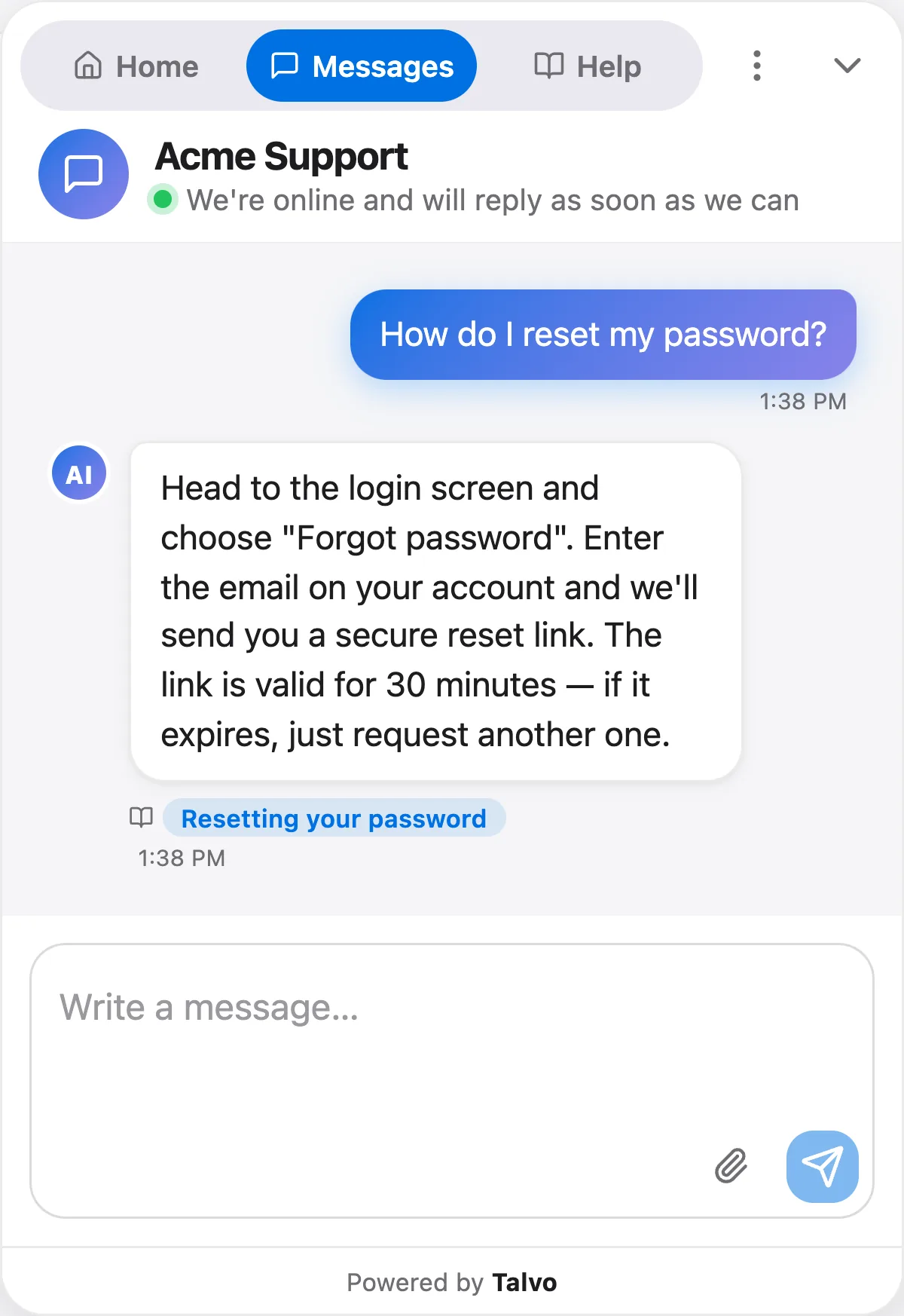
For a store, five articles carry most of the load:
- Shipping: carriers, cutoff times, delivery windows by region, what happens at customs. Say "orders placed before 2 p.m. ship the same day" only if it's true.
- Returns and exchanges: the window, who pays for postage, the condition items must be in, how long refunds take.
- Sizing and fit: put the size guide in the article as text, not only as an image.
- Product questions you get repeatedly: materials, care, compatibility, what's in the box.
- Payment and discount rules: accepted methods, how promo codes work, tax.
Two practical notes. If you import existing FAQ pages with the site crawl, they arrive as drafts, and the AI only reads published ones. Publish them. And read how to write help articles for AI before you assume the agent will infer anything the article doesn't say.
Send the order questions to a person on purpose
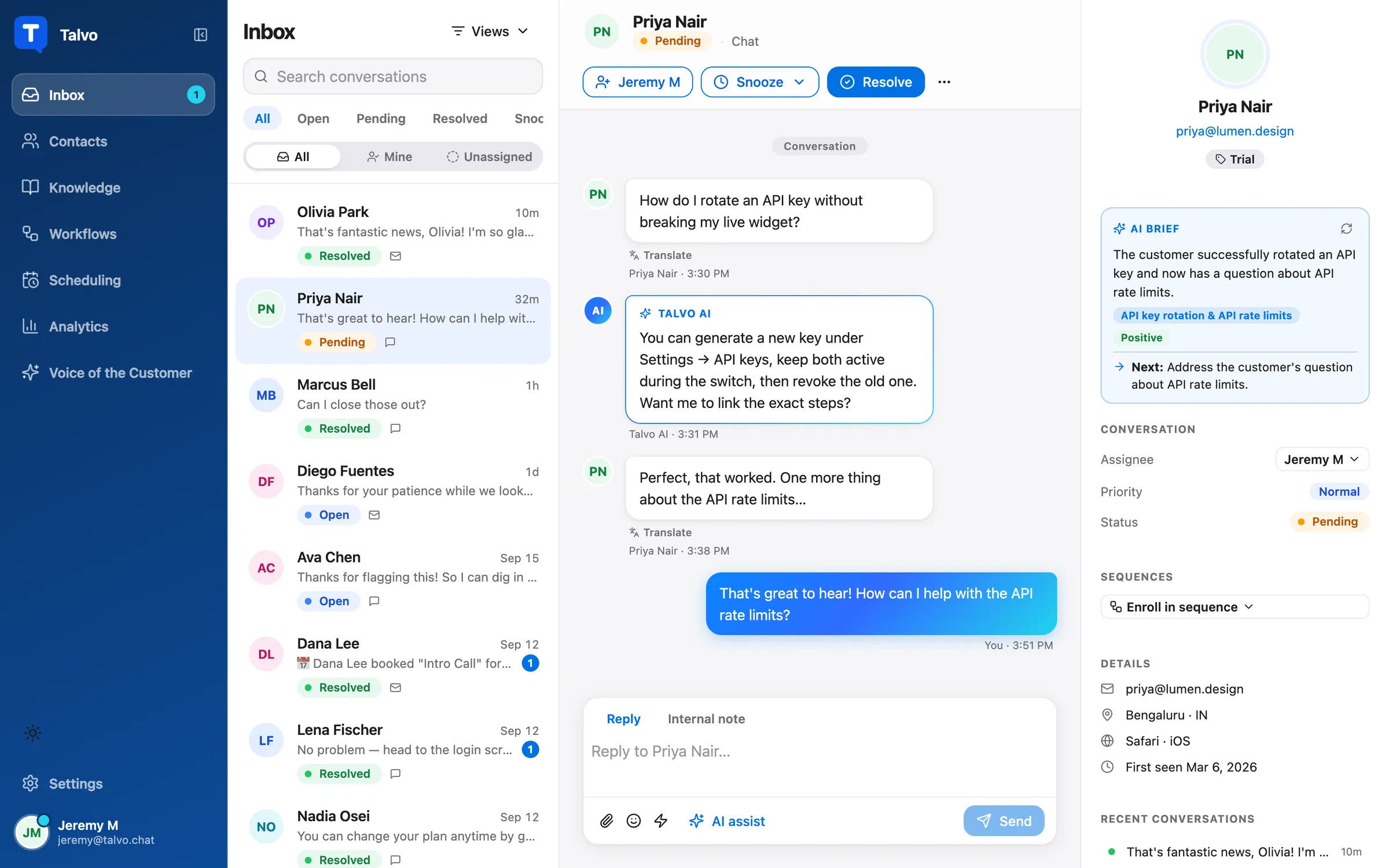
Since the AI can't see orders, route those questions to someone who can. In Settings → General → AI controls there's a list called "Always hand these topics to a person." Add words like refund, tracking, cancel and damaged. Matching is case-insensitive, runs on the customer's latest message, and each topic must start at a word boundary, so refund also catches "refunds" and "refundable." The customer gets the standard hand-off message without an AI answer, and your team gets an internal note and an alert. Your agent then opens WooCommerce in another tab and replies.
Skip a bare order unless you want it: it will also catch "what's the minimum order." More on how hand-off works is in AI to human handoff.
Pre-sale chat and after hours
Pre-sale questions are where chat earns its keep on a store. A proactive campaign (Starter plan and up) can target pages whose URL contains /cart, show after a delay you set, and ask "Questions about shipping before you check out?" It's a plain-text message, shown once per browser. It can't see what's in the cart or detect abandonment, so keep the wording generic.
Outside business hours the widget shows your away message, and by default the AI keeps answering around the clock. You can restrict it to answer only outside hours, or only during them. After-hours customer support goes through the options. Saved replies help the humans too, but their six variables cover only the contact, the agent and the workspace name, with no order fields (canned responses guide).
Talvo on a WooCommerce store, in short
- One script tag, no plugin to update or conflict with your theme
- AI answers shipping, returns, sizing and pre-sale questions from your articles, with citations, in the shopper's language
- Per-workspace pricing: adding a teammate up to the plan's limit never changes the bill
- Signed-in shoppers can be attached to their own contact on every plan
- No WooCommerce integration; the chat can't look up an order or cart
- Order data reaches agents only through your own API code, and only on the Growth plan
- No WhatsApp, Instagram or Messenger channels yet
- "Powered by Talvo" can't be removed
- Talvo is new and in beta, with no customer reviews yet
Five questions to settle before you choose
- Does the shopper need to see their own order in chat, or only your team?
- Do you need to change orders from chat? If yes, are you comfortable giving a tool a write-access API key?
- How many of last month's chats were order status, and how many were shipping, returns or pre-sale?
- Do you have someone who can write and maintain a PHP hook if you want order data in the inbox?
- Have you tested the widget on a product page, cart and checkout on a phone?
Count the third one before anything else. Open your last 50 conversations and tag them. If most are policy and product questions, a script-tag chat with a well-fed AI covers them. If most are order status, you want a store-connected tool, and the comparison to start from is the best live chat software for small business.
Frequently asked questions
Does WooCommerce have built-in live chat?
No. WooCommerce does not ship with live chat, so you add a tool, either as a plugin or as a script tag pasted into your theme or a header/footer code plugin. Which route you pick matters less than whether the tool can see your orders.
Can live chat show a customer's WooCommerce orders?
Some tools can. The WordPress.org listings for Chatway, Tidio, Crisp and LiveChat describe cart or order visibility for agents, and Chatway's also describes customers tracking orders from the widget. Talvo cannot: it has no WooCommerce integration, and order data can reach it only from your own server through its API.
Can Talvo look up WooCommerce orders?
No. Talvo has no WooCommerce integration, plugin or Zapier connector, and it cannot look up orders in a chat. A developer can send order facts from your server to Talvo through POST /v1/identify and POST /v1/track, which needs an API key and the Growth plan, and agents then see them on the contact. The AI agent still answers from your published articles.
Can a chatbot check order status in WooCommerce?
Only a tool connected to your store can. Chatway's listing says its AI chatbot can access WooCommerce orders and cart information. Talvo's AI agent answers from published help articles, so you can route order-status words such as refund, tracking and cancel to a person with the Always hand these topics to a person list.
How do I add live chat to WooCommerce without a plugin?
Copy the script tag from your chat tool and paste it into your theme's footer scripts setting, or into a header/footer code plugin set to run site-wide in the footer. Then test a product page, the cart and the checkout in a private window. Talvo's tag comes from Settings → Chat widget.
Do live chat widgets slow down a WooCommerce store?
Every widget adds weight. In Talvo's own test of ten widgets, the amount downloaded before a click ranged from 49.4 KB to 1,003.8 KB. Talvo's was 277.7 KB after a widget update (280.1 KB in the original session). We tested vendor pages and a plain test page, not WooCommerce stores or plugin installs, so treat it as a comparison.
What can AI chat answer without order access?
Anything written in a published article: shipping times and carriers, the returns window and who pays postage, size guides, materials and care, and payment or discount rules. Talvo's AI cites the article it used and hands off to your team when it is not confident.
Is it safe to give a chat app access to my WooCommerce API?
It depends on the key. WooCommerce API keys can be Read, Write or Read/Write and are tied to a WordPress user, so a tool that changes orders needs write access. Decide whether you need chat that acts on orders before you hand over a key, and give the narrowest permission that works.
Sources
Other products' prices and features change. We checked these pages; if something is out of date, tell us and we'll fix it.
- WooCommerce on WordPress.org (checked Oct 21, 2026)
- WooCommerce REST API docs
- Chatway Live Chat on WordPress.org (checked Oct 21, 2026)
- Tidio Live Chat & AI Chatbots on WordPress.org (checked Oct 21, 2026)
- Crisp Live Chat and AI Chatbot on WordPress.org (checked Oct 21, 2026)
- LiveChat Plugin for WooCommerce on WordPress.org (checked Oct 21, 2026)
- Talvo: install the chat widget
- Talvo: identity verification
- Talvo: REST API and webhooks
- Talvo pricing