On this page
- How variables work, and what happens when one is empty
- Five rules every template here follows
- Opening the conversation
- Getting the details you need
- While you work on it
- Giving the answer
- When the answer is no
- Feature requests and bugs
- When the customer is upset
- Handing off to a teammate, to email or to a call
- Sales questions in chat
- Quiet customers and closing the chat
- After-hours pickup (not the away message)
- Where AI drafts fit instead of templates
- Setting these up in Talvo
- Keeping the library alive
- Frequently asked questions
Most live chat scripts fail in the same small way: somebody pastes "Hi [Customer Name]" and forgets to swap the bracket. The customer gets a greeting addressed to a placeholder, and the whole chat starts with a reminder that a template is on the other end.
This guide is a library of 40 live chat canned responses, written from scratch and grouped by the moment in the conversation where you need them. Each one is short enough for a chat bubble, uses real variables with fallbacks where a name belongs, and labels anything the agent has to fill in by hand. Copy what fits, rewrite the rest in your own voice, and delete what you'd never say.
How variables work, and what happens when one is empty
A variable is a placeholder the tool fills in from data it already has. In Talvo you write it between double braces, and you can add a fallback after a bar:
Hi {{contact.first_name | there}}, thanks for writing in.
If the customer's first name is known, that sends as "Hi Maya, thanks for writing in." If it isn't, the fallback kicks in: "Hi there, thanks for writing in." There are six variables, and that is the full list:
| Variable | Fills in | Good fallback |
|---|---|---|
{{contact.first_name}} | Customer's first name | there |
{{contact.name}} | Customer's full name | there |
{{contact.email}} | Customer's email address | your email |
{{agent.first_name}} | The first name of the teammate sending | the team |
{{agent.name}} | That teammate's full name | the team |
{{workspace.name}} | Your business name | none needed |
Spaces inside the braces are fine. The agent also gets "Insert a variable" chips in the editor, so nobody has to remember the syntax.
What if a value is missing and you skipped the fallback? Talvo leaves the placeholder exactly as typed, so the agent sees it in the composer, and it refuses to send until it's fixed. You get "Replace the {{...}} placeholder in your reply before sending" instead of a customer receiving "Hi ,". That safety net is the real difference between a variable and a bracket.
Five rules every template here follows
Short templates beat clever ones. These five rules shaped every line in the library, and they make a decent checklist for your own.
- One job per template: greet, ask, hold, answer, decline, close
- The answer or the next step comes first, the pleasantry second
- Every variable has a fallback, so nobody gets "Hi ,"
- No promise the team can't keep (no hardcoded refund days unless that is your policy)
- Two short paragraphs at most, with a link to a help article for anything longer
One more habit: edit before you send. A saved reply is a starting point. Change one sentence so it answers what this customer actually asked, and the template stops sounding like a template.
Opening the conversation
Greetings do one thing: tell the customer a person is here and invite the problem. Skip "Thank you for contacting {{workspace.name}}, your call is important to us". For proactive greetings that pop up before the customer says anything, see proactive chat examples. The four below are for the moment someone has typed their first message.
1. New visitor
Hi {{contact.first_name | there}}, this is {{agent.first_name}} at {{workspace.name}}. What can I help with?
2. Returning customer
Welcome back, {{contact.first_name | there}}. {{agent.first_name}} here. Is this about the same thing as last time, or something new?
3. Busy queue
Hi {{contact.first_name | there}}, {{agent.first_name}} here. We're a bit busy right now, so I'll be about [number] minutes. Keep typing the details and I'll read them all when I'm with you.
Fill in the wait time yourself, and only if you can hit it.
4. Customer opens with just "hi"
Hi {{contact.first_name | there}}. Tell me what you're trying to do and where you got stuck, and I'll take it from there.
Getting the details you need
Asking for information is where chat starts to feel like a form. The trick is to say why you need it.
5. Order or reference number
Could you send me your [order number / invoice number / booking reference]? I'll pull it up while we talk.
Pick the one that fits. Talvo can't fill this in for you, and the agent looks it up in your own system.
6. Which account
Which email address is the account under? I have {{contact.email | no email on file for you}}, so tell me if that's not the right one.
If the contact's email is on file, this shows it back for confirmation. If not, the fallback reads as "I have no email on file for you".
7. A screenshot
A screenshot would help a lot. You can drop it right into this chat. If you're writing by email instead, just attach it to your reply.
In Talvo, attachments come through on both chat and email, so the same ask works in either channel.
8. Steps to reproduce
Thanks. To track this down, I need three things: what you clicked, what you expected to happen, and what happened instead. Short is fine.
While you work on it
Silence is the worst thing in a live chat. Tell the customer what is happening and when they'll hear from you next, then keep that promise.
9. Quick check
Give me a minute while I look into this. I'll be back by [time].
10. It will take longer
This one needs a bit more digging than I expected. I'll keep this chat open and come back to you by [time] with an update, even if it's only to say I'm still on it.
11. Still working
Still on it, {{contact.first_name | there}}. I haven't found the cause yet, but I haven't dropped it. Next update from me by [time].
Giving the answer
Lead with the answer. If it's long, give two sentences and a link.
12. Pointing to a help article
The short version: [one-sentence answer]. The full steps are here: [article link]. Tell me if anything in them doesn't match what you see.
13. Explaining a policy
Here's how it works: [one-sentence policy]. I know that's not always what you hoped to hear, so if your situation is unusual, tell me and I'll see what I can do.
14. Walking through steps
Here's the quickest way:
1. [step one]
2. [step two]
3. [step three]
Let me know once you've tried it, and I'll stay right here.
15. Did that work?
Did that fix it, {{contact.first_name | there}}? If not, tell me what you see now and we'll try the next thing.
If you have an AI agent answering from your help center, much of this section is already covered. Writing help articles the AI can use is the way to get both humans and the AI giving the same answer.
When the answer is no
Most template lists skip this section, and it's the one agents dread most. A good decline has four parts: say no early, give the real reason, offer what you can do, and don't apologize for the policy as if it were a crime.
16. Refund or exception outside policy
I looked at this closely, and I can't refund it. [One-sentence reason, such as: the refund window closed on [date]]. What I can do is [alternative, such as: switch you to a cheaper plan going forward].
17. Feature doesn't exist
You're right that {{workspace.name}} can't do that today. [One sentence on what it does instead]. I'll pass your request along so the team sees it.
18. Something we can't help with
That one is outside what I can help with here, and I'd rather say so than send you in circles. The right place for it is [place or person].
19. Request needs verification we can't skip
I need to confirm it's really you before I change anything on the account. Can you [verification step]? I know it's an extra step. It's there to protect you.
Feature requests and bugs
Customers feel heard when they see their report go somewhere. If you run a public feedback board, point to it.
20. Feature request logged
Thanks for the suggestion. I've logged it with the team. If you'd like to follow it or add your vote, it's on our feedback board: [link].
21. Bug acknowledged
That looks like a real bug, and thank you for the detail. I've passed it to the team with what you sent. I can't promise a date, but I'll message you here or by email when I know more.
When the customer is upset
Templates are risky here, so these are deliberately short and meant to be edited. Read the customer's message first and echo something specific from it.
22. Acknowledge first
That sounds frustrating, and I understand why. Let me look at exactly what happened so we can fix it.
23. An apology that owns the mistake
I'm sorry. [What we got wrong, in one sentence]. That's on us, not you. Here's what I'm doing now: [action].
24. Empathy without blame
I can see this has taken up more of your day than it should have. I'd like to get it settled in this chat. Can I confirm [one fact] first?
Handing off to a teammate, to email or to a call
Every hand-off has two audiences: the customer, who needs to know what happens next, and the colleague, who needs the context so the customer never repeats themselves.
25. Passing to a teammate
I'm bringing in my colleague [name], who handles [topic]. I've written up what we've covered, so you won't have to repeat it. They'll pick it up here.
26. Moving to email
This needs some time to get right, so I'll continue by email from here. You'll get my reply from {{workspace.name}} to {{contact.email | the address on your account}}. You can answer that email and it will land in the same conversation.
Only use this when Talvo has an email on the contact, or ask for one first.
27. Suggesting a call
This might be quicker out loud. Would [day and time] work for a short call? If you'd rather stay in writing, that's fine, and I'll keep going here.
Talvo handles chat and email, not phone calls, so this one refers to a call you place or book separately.
28. Internal note for the hand-off
Customer: {{contact.name | unknown name}}. Issue: [one line]. Tried: [steps]. Suspect: [cause]. Customer is waiting on: [what]. Promised: [what and by when].
This one is for your team, not the customer. Talvo's internal notes are never delivered to the customer. Keep this outline in a shared team doc and paste it into the note when you hand off.
Sales questions in chat
Pre-purchase chats are the cheapest conversion work you'll ever do, so don't make them wait. Keep prices out of the template unless you want to update every saved reply when a price changes. Link to the pricing page instead.
29. Pricing question
Our current pricing is always on [pricing page link]. Tell me roughly how many people will use it and what you want it to do, and I'll tell you which option fits.
30. Which plan fits
Based on what you've told me ([short recap]), [plan name] sounds like the right fit. The main reason: [one sentence]. If your needs grow, you can move up later without a contract.
Only say "without a contract" if that's true for the plan you're recommending.
31. Trial or free plan
You can try it without a card: [signup link]. If you tell me what you'd like to test first, I'll point you to the right setup guide.
32. Book a demo
Happy to show you. Here's my calendar: [booking link]. Pick whichever slot suits you, and tell me anything you'd like me to cover so I can prepare.
Quiet customers and closing the chat
Many chats don't end. They fade. A polite nudge, then a polite close, keeps the queue honest.
33. Are you still there?
Still with me, {{contact.first_name | there}}? If you had to step away, no problem. I'll keep this open for [time], and you can pick it back up anytime.
34. Closing after silence
I haven't heard back, so I'll close this chat for now. If you still need a hand, reply here or write again and we'll pick up right where we left off.
35. Closing a solved chat
Glad that's sorted, {{contact.first_name | there}}. If anything else comes up, we're here. Take care. {{agent.first_name}}
36. Following up on a low rating
Thanks for the rating. It looks like we missed the mark, and I'd like to understand why. What would have made this better?
Talvo shows its own CSAT prompt when a conversation is resolved, so don't ask for the rating in the closing message. This one is for the follow-up after a poor score.
37. Next-day check-in
Hi {{contact.first_name | there}}, {{agent.first_name}} from {{workspace.name}}. I wanted to check that yesterday's fix is still holding. Reply here if anything's off.
After-hours pickup (not the away message)
The away message itself, the text the widget shows when nobody is online, has its own copy and setup in after-hours customer support. The two below are for the next morning, when you pick up what arrived overnight.
38. First message of the day
Good morning, {{contact.first_name | there}}. Sorry you waited overnight. I've read your message, and here's where we are: [answer or next step].
39. Internal note on an overnight queue
Arrived [time] while closed. Customer has waited [number] hours. Needs: [what]. Priority: [high or normal].
40. The "we saw it, here's the plan" reply
Thanks for your patience. Your message came in after we'd closed, and I want to give you a real answer rather than a rushed one. I'll get back to you by [time].
Where AI drafts fit instead of templates
Templates are good for the 20 questions you answer all the time. They are bad for the 21st. On Starter and up, Talvo's copilot can draft a reply grounded in your published articles, with the sources it used, and you edit and send it. It never sends on its own.
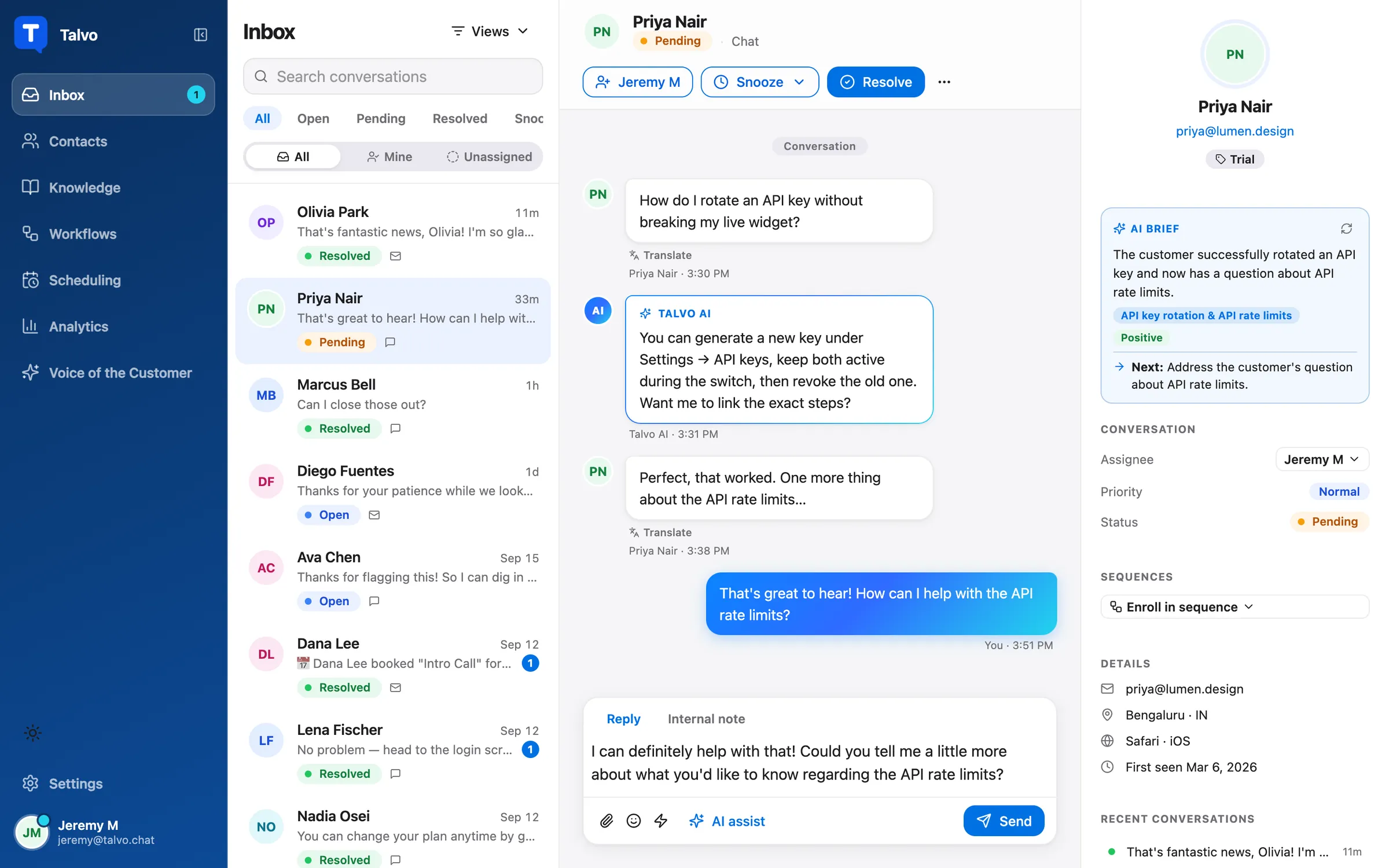
A reasonable split: canned responses for tone and structure (greetings, holds, declines, closings), the copilot for factual answers that change with your help content. Talvo's AI agent that answers visitors directly doesn't use canned responses. It answers only from published articles, which is why the articles matter more than the macros. See knowledge base chatbot.
Setting these up in Talvo
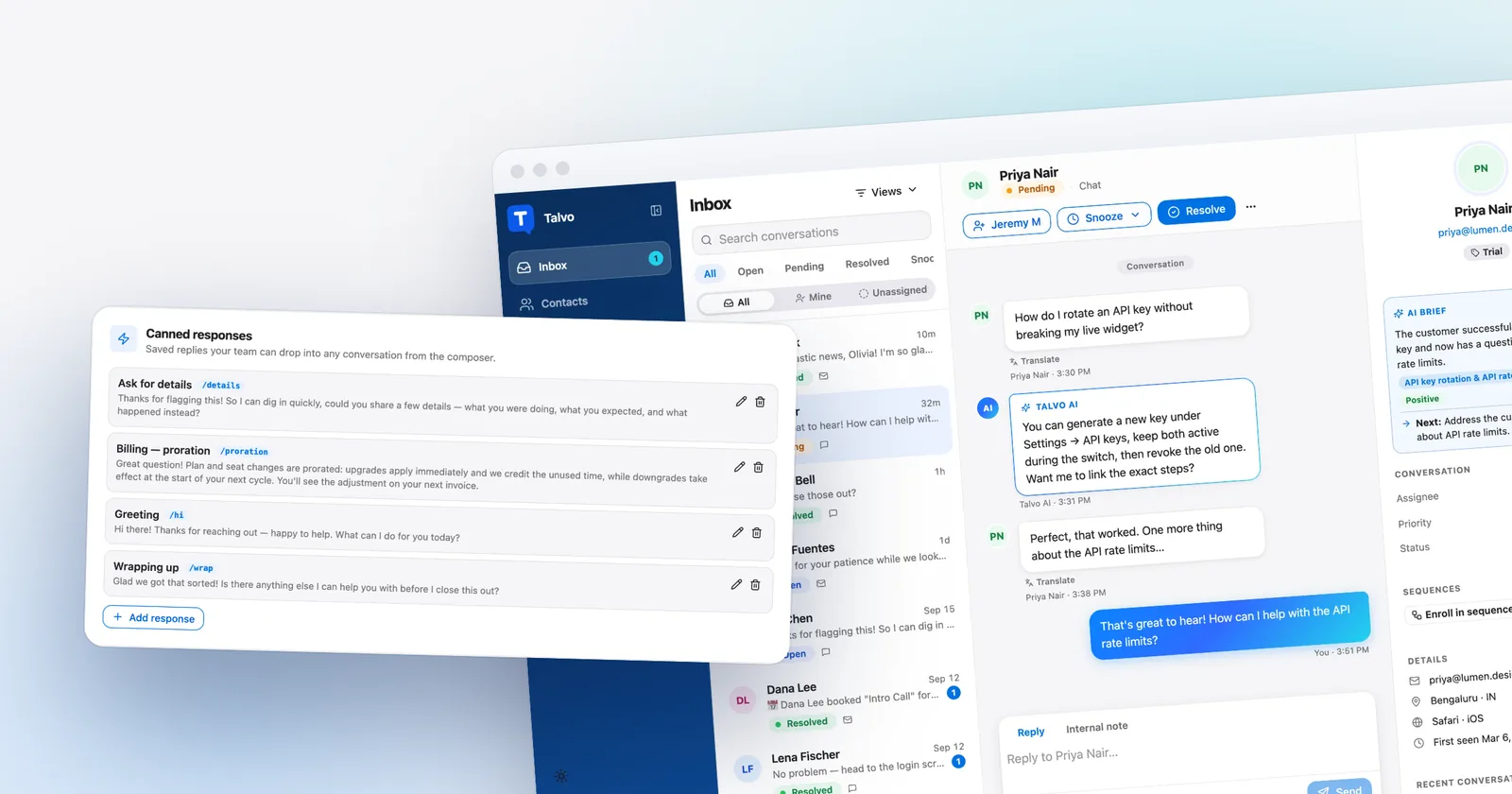
Canned responses work on every plan, including Free. They are shared across the workspace, so everyone sees the same list. There are no personal or private ones, which is another reason to give the library an owner.
- Open the listGo to Settings → Inbox → Canned responses and add a new one.
- Name itGive it a title your team will search for, like "Hold: still working". The optional shortcut field (up to 40 characters) is searchable too.
- Paste the textUse the "Insert a variable" chips for names, and add a fallback after a bar wherever a name might be missing.
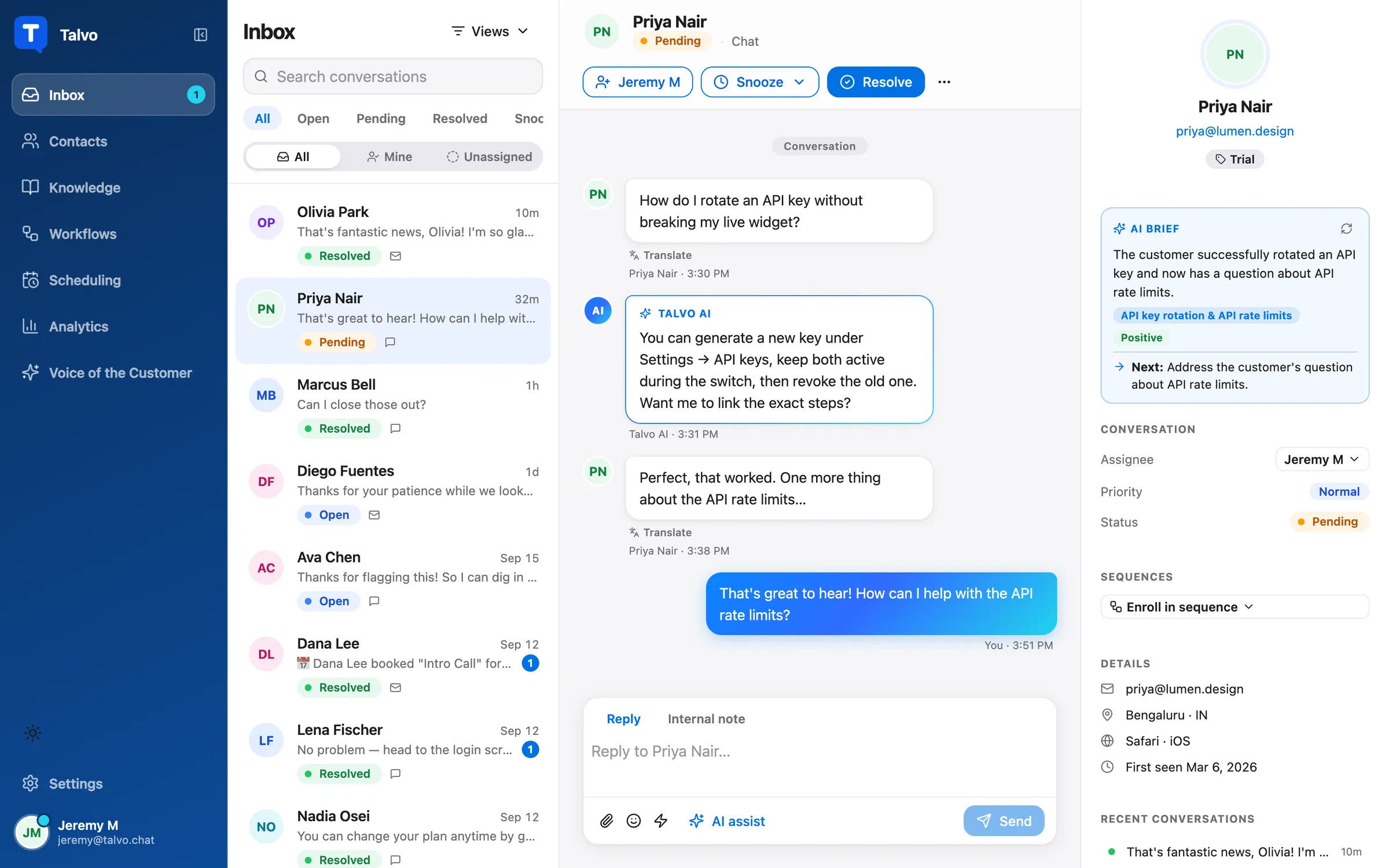
- Insert it in a chatIn the composer, click the "Canned response" button and search by title, shortcut or text, then edit before you send.
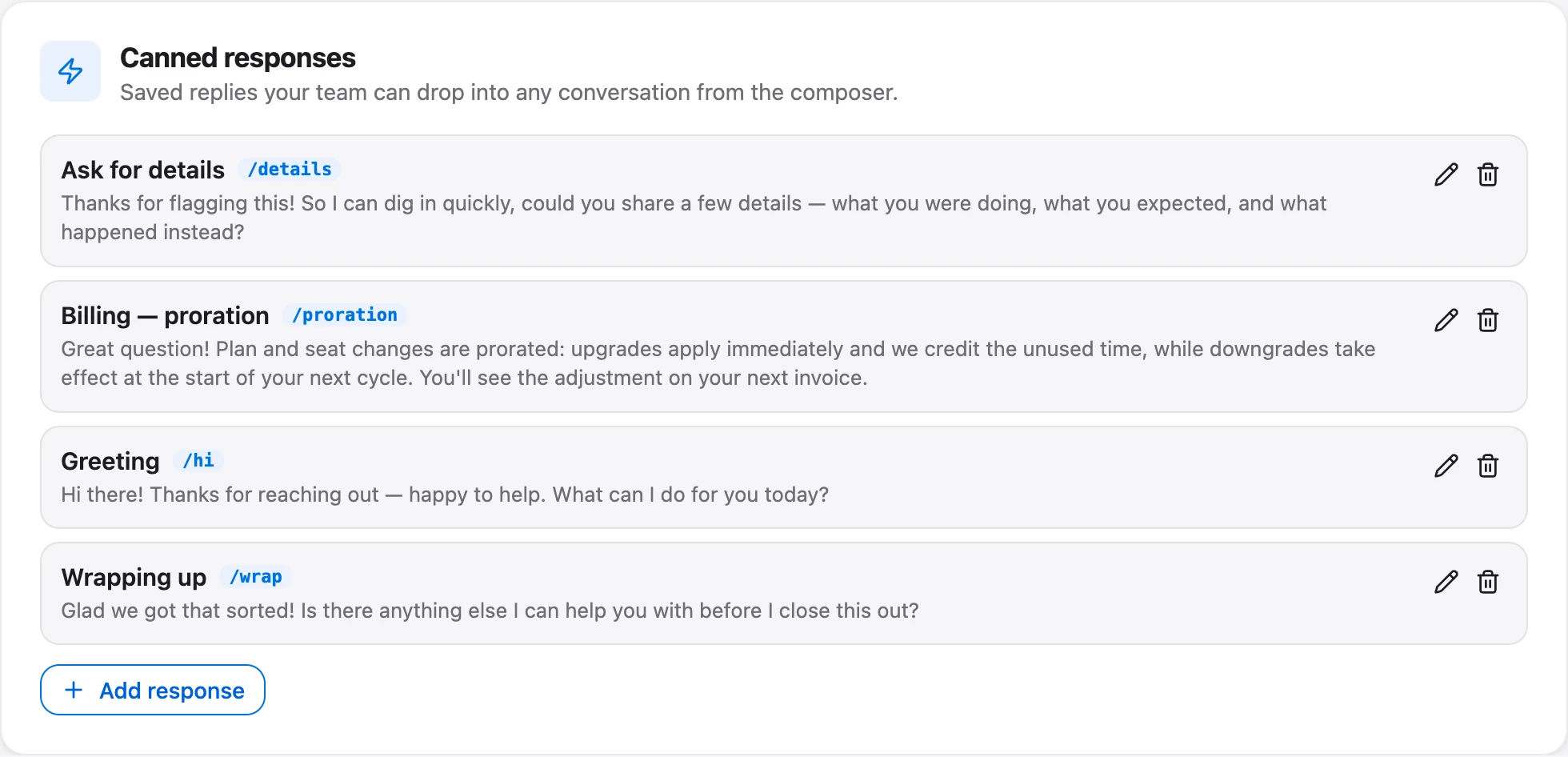
Two limits to know about. Typing a shortcut such as /hi in the composer doesn't expand it, so you find a reply through the picker's search. And for the quarterly review below, keep a simple tally of which replies people actually use.
Keeping the library alive
A library rots the way a help center does. Give it an owner, review it once a quarter, and retire anything nobody has picked up. Name templates by moment ("Hold:", "Decline:", "Close:") so the picker search finds the right one in two keystrokes.
Does it actually make you faster? Freshworks' 2024 benchmark report found a first response time of 9 seconds on conversations that used canned responses, against 22 seconds on those that didn't (chat conversations, timed on the clock rather than in business hours). That is vendor data from its own customers, and it's correlational: teams that use the feature may simply be better organized. Measure your own: note for 30 days which conversations used a saved reply, then compare median first response time and median resolution time against the rest. For the target side of that comparison, see first response time SLAs, and for cutting the volume in the first place, how to reduce support tickets.
Talvo is new and in beta, and we don't have usage data to show you. The templates above are plain writing advice, and they work in any inbox that lets you save a reply.
Frequently asked questions
What is a canned response in live chat?
A canned response is a saved reply an agent inserts into a conversation instead of retyping it. Good ones are starting points that the agent edits before sending. In Talvo they live in Settings → Inbox → Canned responses and are shared by everyone in the workspace.
What are examples of live chat scripts?
Common ones are a greeting, a request for details, a hold message, an answer with a help article link, a polite decline, a hand-off to a teammate and a closing message. This guide has 40 original examples grouped by those moments, each short enough for a chat bubble.
How do I make canned responses sound less robotic?
Keep them short, lead with the answer, and change one sentence to match what this customer actually said before you send. Use the customer's first name through a variable with a fallback rather than a bracket placeholder. Avoid corporate phrases you would never say out loud.
What happens if a canned response variable has no value?
In Talvo, a variable with a fallback uses the fallback, so {{contact.first_name | there}} becomes "there". A variable with no fallback stays as typed in the composer and Talvo refuses to send until the agent replaces it, so the customer never receives "Hi ,".
Can I use the same canned responses for chat and email?
Mostly, but chat versions should be shorter. In Talvo the same saved replies work in both channels. Attachments come through on email as well as chat, so a template that asks for a screenshot works in either.
How often should you update canned responses?
Review them once a quarter, give the library an owner, and retire anything nobody has used. Update any template the moment a policy, price or process it mentions changes. Keeping prices out of templates and linking to a page instead reduces how often that happens.
Do canned responses actually reduce response time?
Freshworks' 2024 benchmark found a first response time of 9 seconds on conversations using canned responses versus 22 seconds on those that did not. That is vendor data and a correlation, not an experiment. Compare your own median first response time on conversations with and without saved replies over 30 days.
How do you end a live chat conversation politely?
Confirm the problem is solved, tell the customer they can reply to reopen it, and sign off with your name. If the customer has gone quiet, send one friendly nudge, then close the chat and say it can be picked up again at any time.
Sources
Other products' prices and features change. We checked these pages; if something is out of date, tell us and we'll fix it.