On this page
- Decide the date before you touch anything
- What actually comes out of Intercom
- Move the help center first
- Review before you publish
- Protect your help center URLs
- Contacts and conversation history
- Map what you have to what you'll have
- Stop here if you depend on any of these
- Run both side by side before you cut over
- Cut over the channels
- Keep a way back
- What it costs on each side
- The short version
- Frequently asked questions
The hard part of leaving Intercom (now Fin) is not the new tool. It's the three things you can't re-create after you cancel: the help center articles your AI answers from, the contacts your team recognizes, and the conversation history somebody will eventually ask about. If you want to migrate from Intercom without losing any of them, the order of operations matters more than the speed.
This is the how-to. If you're still deciding whether to leave, read our guide to the Salesforce and Fin news first; it covers what's confirmed and what to ask your account rep, and we won't repeat it here. What follows is tool-neutral until the Talvo section: what to export, what Intercom's exports do and don't contain, how to map your setup onto a new one, how to run both side by side, and how to roll back if it goes badly. Talvo is the worked example, and we'll be plain about where it can't replace what you have.
Decide the date before you touch anything
Everything hangs on one date: the day your Intercom subscription ends. Find it, find the notice period in your contract, and work backward. Put a named owner on the project, because migrations without one tend to finish at 80%.
A realistic shape for a small team is two weeks of work inside a longer window: export in week one, build and test the new setup in week two, cut over, then keep the old account alive for a fortnight before you cancel. Vendors who sell migration tools quote "20 minutes to a few days" or "hours to days," but those figures are for their own tools moving records, not for your team reviewing articles and rebuilding automations. We found no credible benchmark for average migration time, so don't borrow one. Talvo's own help article says most teams are set up in under an hour, and that's the mechanical import. The review is the real work.
What actually comes out of Intercom
Intercom's exports are uneven. Some things have a button, some need a script, and one important thing has neither. Here's what we could confirm from Intercom's own pages and community as of October 21, 2026.
| What | How it comes out | Limits and catches |
|---|---|---|
| Help center articles | Articles API (an access token and a script); no export button | Intercom's own community lists a native export as an open idea posted October 2, 2026. The API returns 25 per page by default, up to 250, newest-updated first. Community answers say some HTML tags such as div, span, form and script are stripped, and that internal articles have no export endpoint (a 2024 thread; verify). |
| A single conversation | Download as text or PDF | Fine for one, painful for thousands |
| Conversations in bulk | Inbox bulk export | 200 to 300 conversations per operation |
| Conversations via the Export API | API requests | Maximum 90-day time window per request |
| Dataset CSV | CSV download | No message content; 10,000-row browser limit; two years of data |
| Saved-view CSV | CSV download | Up to 100,000 rows; no message bodies |
| S3 export | Delivered to your own bucket | Up to two years; contains no transcripts; can't be imported into a new Intercom workspace |
| Contacts | CSV export | Check which columns come out, including custom attributes and tags |
| Tags, saved replies or macros, workflows, segments, reports | Not covered by our research | Verify in your workspace or ask Intercom support before you rely on them |
Two details change your plan. Internal notes are excluded from conversation transcripts, so if your team keeps important context in notes, capture them another way. And the S3 export and the CSV exports are not archives of what people said to each other. If you need the actual text of conversations for legal or reference reasons, the realistic routes are per-conversation downloads, the Export API in 90-day windows, or a paid migration service. One migration vendor advises moving only the last 12 to 24 months and downloading embedded images before the account closes. That's a vendor's opinion, but it's a sensible default.
- Write down your contract end date and cancellation notice period
- Name one owner for the project
- Export all help center articles, and open the files to check they're complete
- List which articles are internal or private, and copy them somewhere safe
- Export contacts to CSV and check email, name, company and phone columns
- Export tags, saved replies, workflows and segments; note what has no export
- Download conversations you must keep, and the images embedded in them
- Screenshot your Messenger settings, away message and business hours
- List every automation and the one thing each is meant to do
- Record which URLs on your help center get traffic or inbound links
Move the help center first
Articles come first for two reasons: they're the content your AI will answer from, and they take the longest to review. There are three routes, and you can mix them.
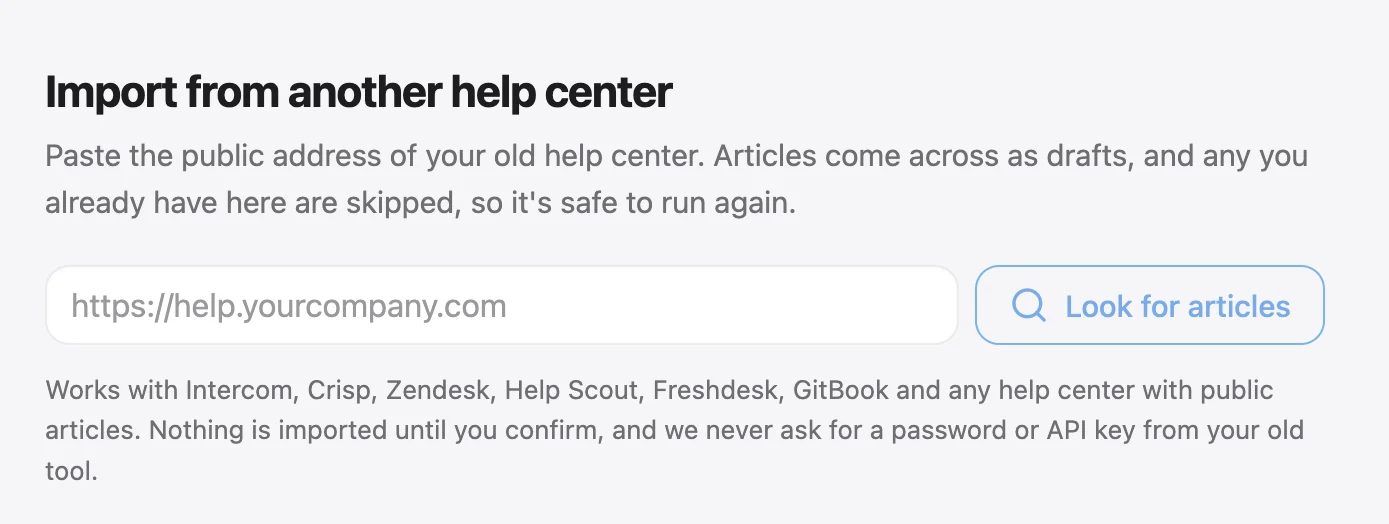
- No API key, token or admin login; it reads the pages customers see
- Fast: Talvo reads about one article per second
- Keeps your wording and carries categories where the page shows them
- Public articles only; private and internal ones are invisible to it
- Pages that need JavaScript to display can't be read
- One language per import
- Gets the article data straight from Intercom, with no scraping
- Gives you a clean copy you can keep as an archive regardless of destination
- Needs a token and a script, and some HTML tags may be stripped
- Internal articles have no export endpoint, per community reports
- You still have to get the content into the new tool
The third route is a paid migration service. Help Desk Migration is one that covers Intercom's Collection, Section and Article structure; a third-party write-up puts its price at about $100 per 1,000 records, which we didn't verify on its site. For a small help center, you probably won't need it.
Whichever route you use, keep an independent archive. Even if the import works, save the API output or a crawl of the public pages. It's your insurance if a translation, a table or an image goes wrong later.
Review before you publish
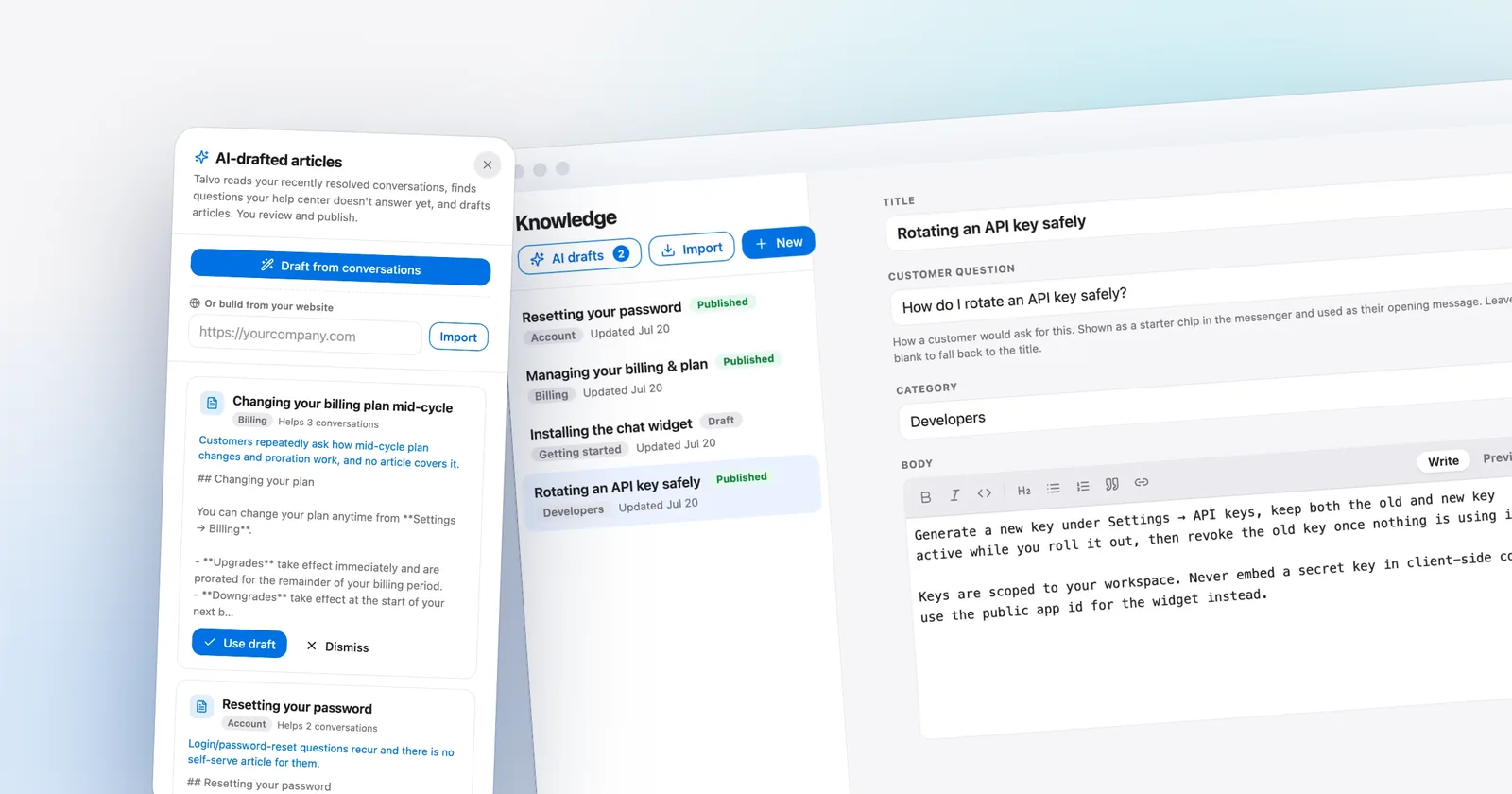
Imports are a starting point, not a finished knowledge base. Everything Talvo imports arrives as a draft, deliberately: a crawler can't tell today's refund policy from a 2023 post about it. Publish what's still true. Edit what's nearly right, usually by cutting marketing language down to the answer. Delete anything stale. A stale article is worse than a missing one, because an AI will cite it with confidence.
Be harsher than feels comfortable. Five accurate, detailed articles will do more for an AI agent than fifty thin ones. Our guide to writing help articles an AI can answer from has before-and-after examples, and the knowledge base chatbot guide explains why the AI is only as good as this review.
Protect your help center URLs
This is the step almost every checklist skips. If your help center sits on a custom domain such as help.yourcompany.com, it probably points at Intercom with a CNAME record (Intercom's docs name custom.intercom.help as the target). When your subscription ends, those URLs stop working. Articles that rank in search, links in old emails, links in your product and links on other sites all break at once.
Make a spreadsheet of old URL, new URL and traffic, and focus on the pages that get visits or have inbound links. Then plan 301 redirects from the old paths to wherever the content now lives. A redirect needs something to answer at the old address, so you'll have to keep control of that domain and point it at something that can issue redirects before you cancel. That could be your own site or a redirect rule at your DNS or CDN provider.
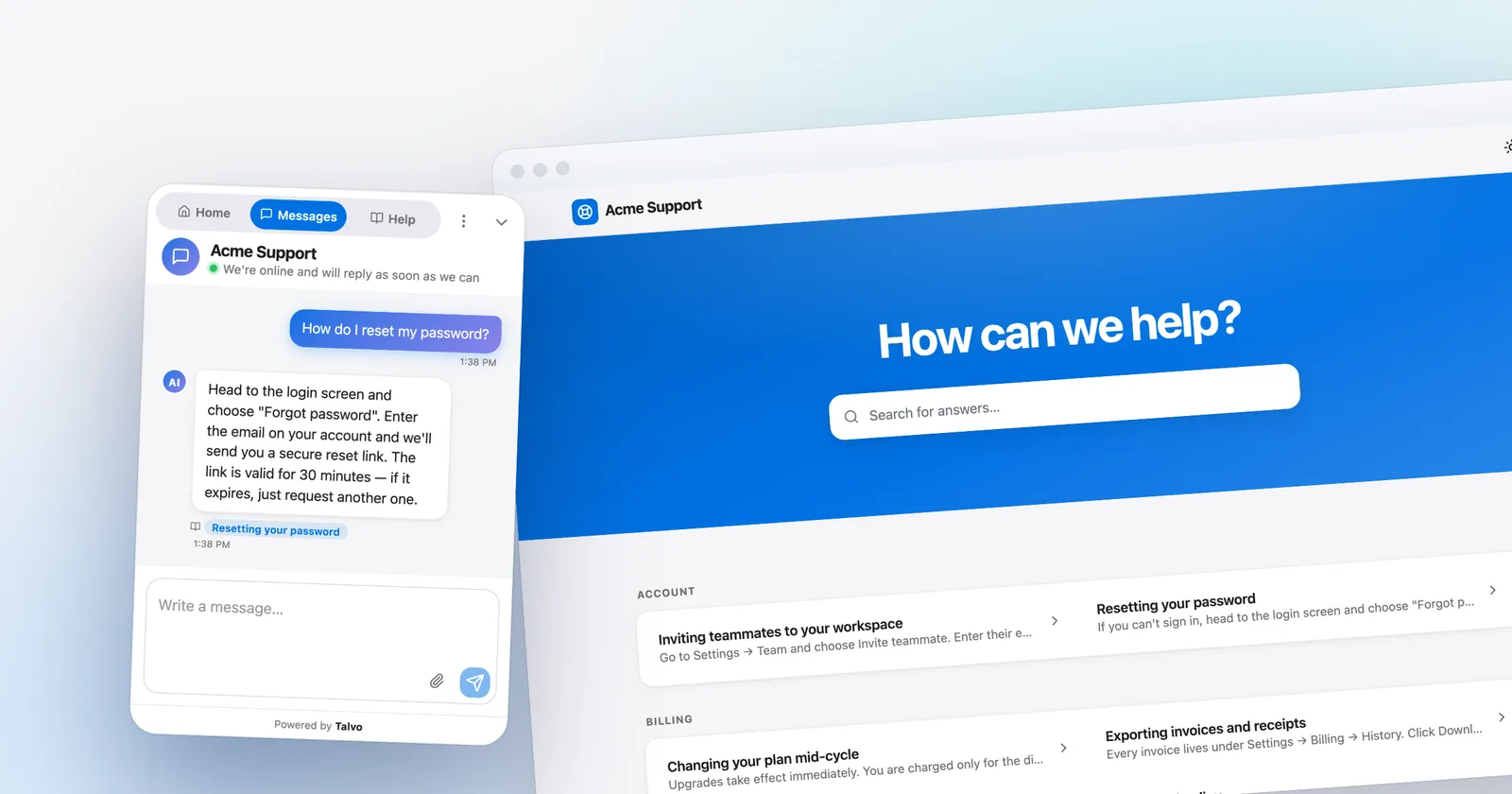
Talvo's hosted help center doesn't support custom domains, so your articles will live at Talvo's address rather than under your own domain. If your help center URLs matter for search, that's a real cost of switching to any tool without a custom help-center domain, and a good reason to redirect carefully or to host the public version of the articles on your own site.
Contacts and conversation history
Contacts are the easy part. Export them to CSV and keep the columns you'll use: name, email, company and phone. Talvo's importer reads those four columns, matches on email, updates people who already exist, and ignores any other columns rather than rejecting the file. Rows without an email can't be matched and will create new contacts every time you import, so if your export has gaps, fix them first.
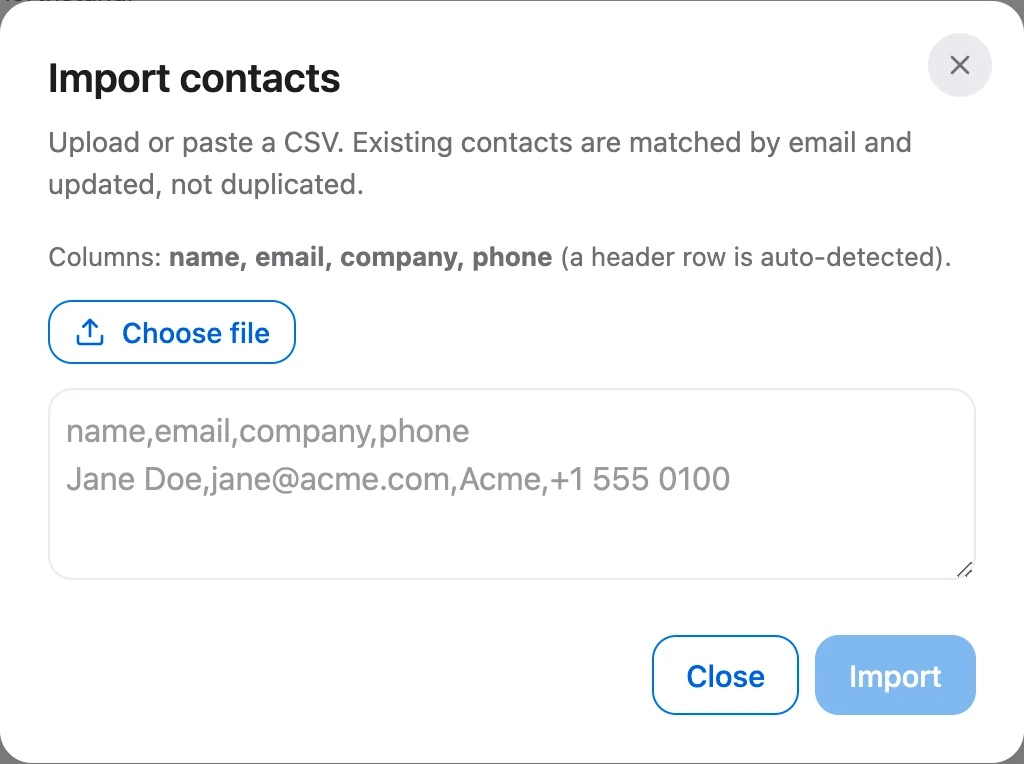
Tags and custom attributes need a separate step. Talvo's CSV import doesn't read them. Custom attributes come in through the REST API as part of Talvo's customer data platform (Growth plan and up), and tags you'll recreate or apply as you go.
Conversation history is where Talvo is clearest and where it's weakest: Talvo does not import past conversations. New history starts on the day you switch, and Intercom keeps the old one while you're a customer. Decide now what you need from the archive. For most small teams the answer is a folder of exported records for the last year or two, plus the customers' contact records, so nobody asks "what did we tell them last March" and finds a void.
Map what you have to what you'll have
Before you rebuild anything, list what you actually use. Write down what your team uses every week, not what the plan includes.
| In Intercom | In Talvo | How it moves |
|---|---|---|
| Help center articles | Knowledge base and hosted help center | Public-URL import, as drafts |
| Collections and sections | Article categories | Carried over where the page shows them |
| Contacts | Contacts | CSV import: name, email, company, phone |
| Custom attributes | Custom attributes (Growth plan and up) | Sent through the REST API |
| Tags | Tags | Recreate; not imported |
| Segments | Segments (Growth plan and up) | Rebuild |
| Saved replies | Canned responses | Copy across by hand |
| Workflows | Workflows and routing rules (Growth plan and up) | Rebuild; no import |
| Fin AI Agent | AI agent | Answers from published articles; set up fresh |
| Messenger | Chat widget | One script tag |
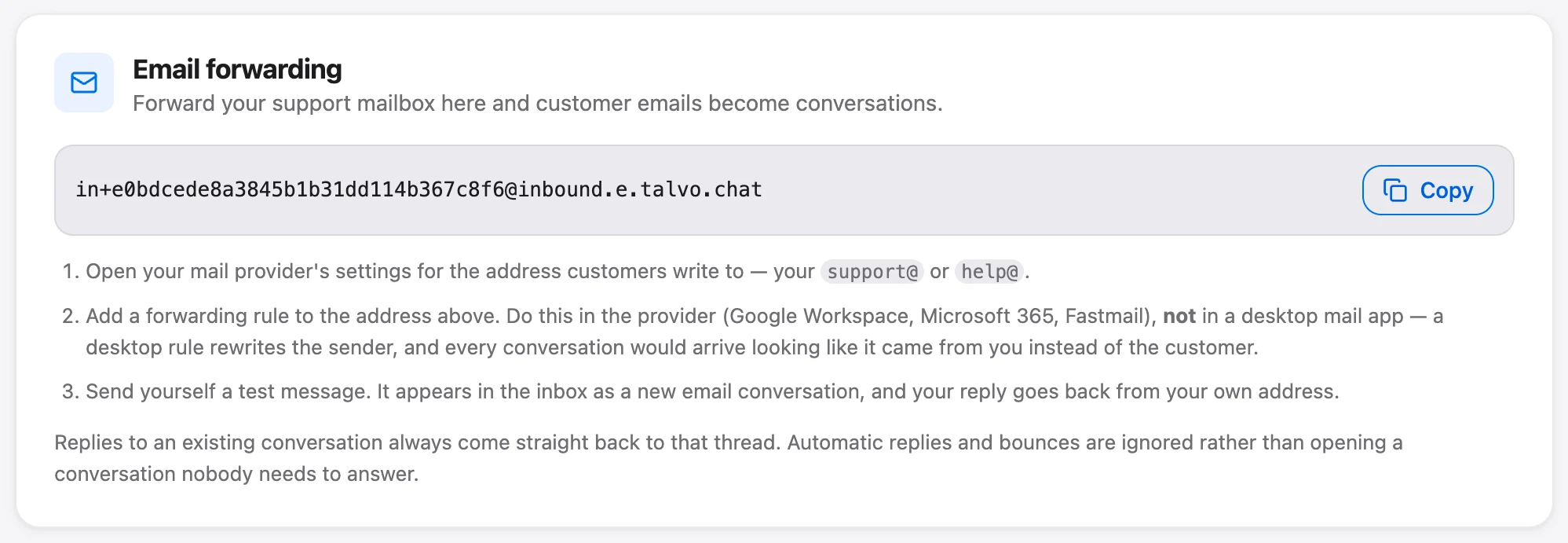
| Support email | Email forwarding | Forward the address to Talvo |
| Product tours and checklists | Not available | Keep another tool, or go without |
| WhatsApp, SMS, phone, Instagram, Messenger | Not available | Keep Intercom for these or pick another destination |
| Conversation history | Not imported | Archive it |
The last two rows decide a lot. If you rely on any channel Talvo doesn't have, don't migrate that traffic. Hold the channel in your old tool or choose a destination that covers it.
Stop here if you depend on any of these
Say you need WhatsApp, SMS or phone, product tours or checklists, a SOC 2 report, SAML single sign-on, a choice of data region or HIPAA support. Talvo has none of them today. WhatsApp, SMS and Instagram/Messenger are on the public roadmap, not shipped. Its integrations are a REST API, webhooks and Slack. It launched this year and is still in beta, so there are no G2 or Capterra reviews to check.
Fin is also a mature product. Fin's homepage reports a 76% average resolution rate across its customers; that's a vendor-reported figure and a definition worth checking, but it reflects years of production use that Talvo doesn't have. For a feature-by-feature view, read Talvo vs Intercom, and for other destinations, see cheaper Intercom alternatives.
Run both side by side before you cut over
Switching is a decision you should be able to undo, so test on real questions before customers see anything. Two cheap tests work in any tool.
First, replay the last 50 real customer questions through the new tool's AI, and compare them with what your team actually said. You'll find the gaps in your articles in an afternoon. Second, put the new widget on a low-risk slice: one product page group, a secondary site or a staging copy. Don't stack two chat launchers on the same page, because customers will hit both.
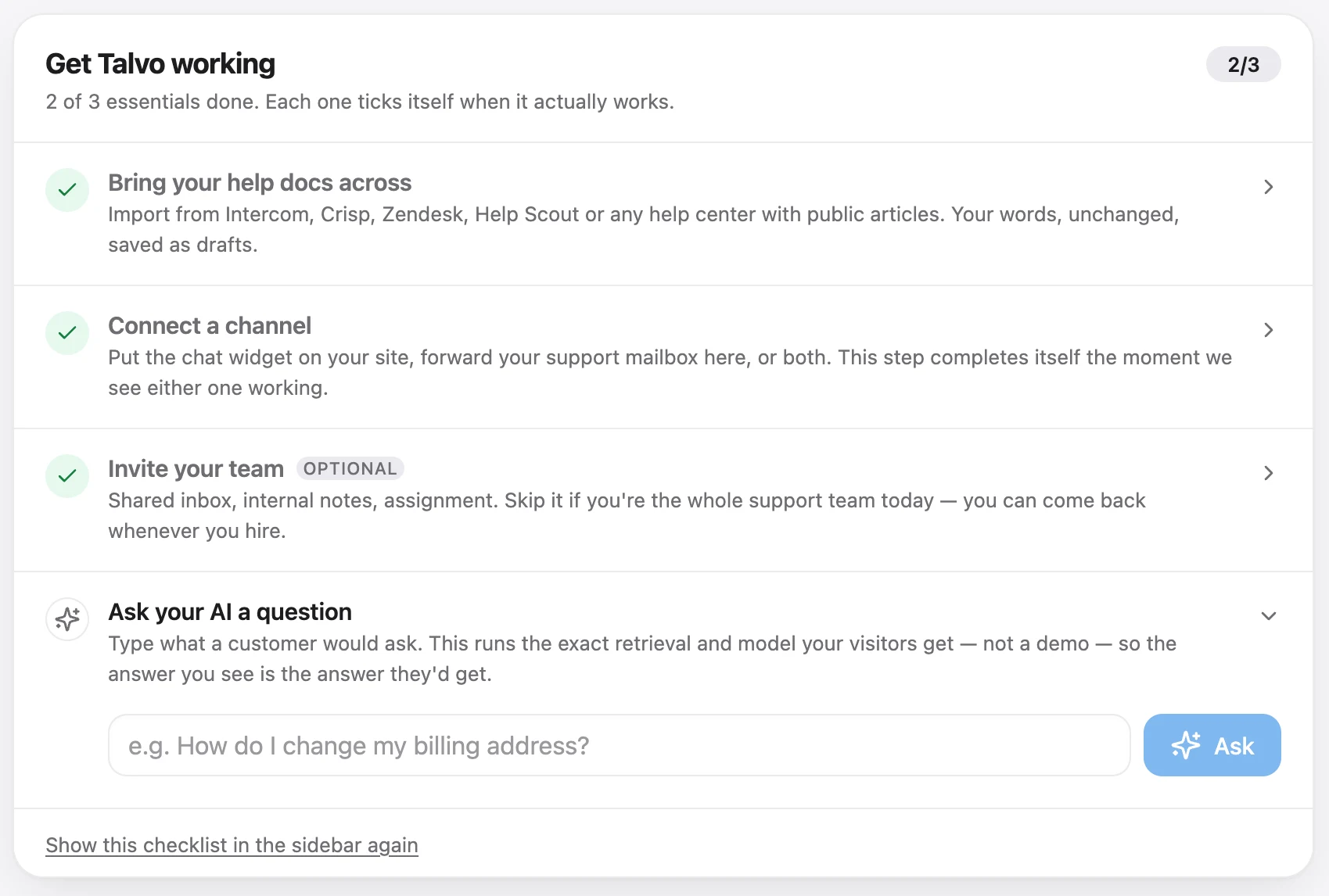
On Talvo, the Setup page is built for this. Its steps tick themselves only when they really work (articles exist, a channel has delivered a message, a teammate has joined), and it has a step that lets you ask the AI a test question.
Cut over the channels
The cutover itself is short if you did the rest. In Talvo, importing the help center is the first step, and the rest follow in this order:
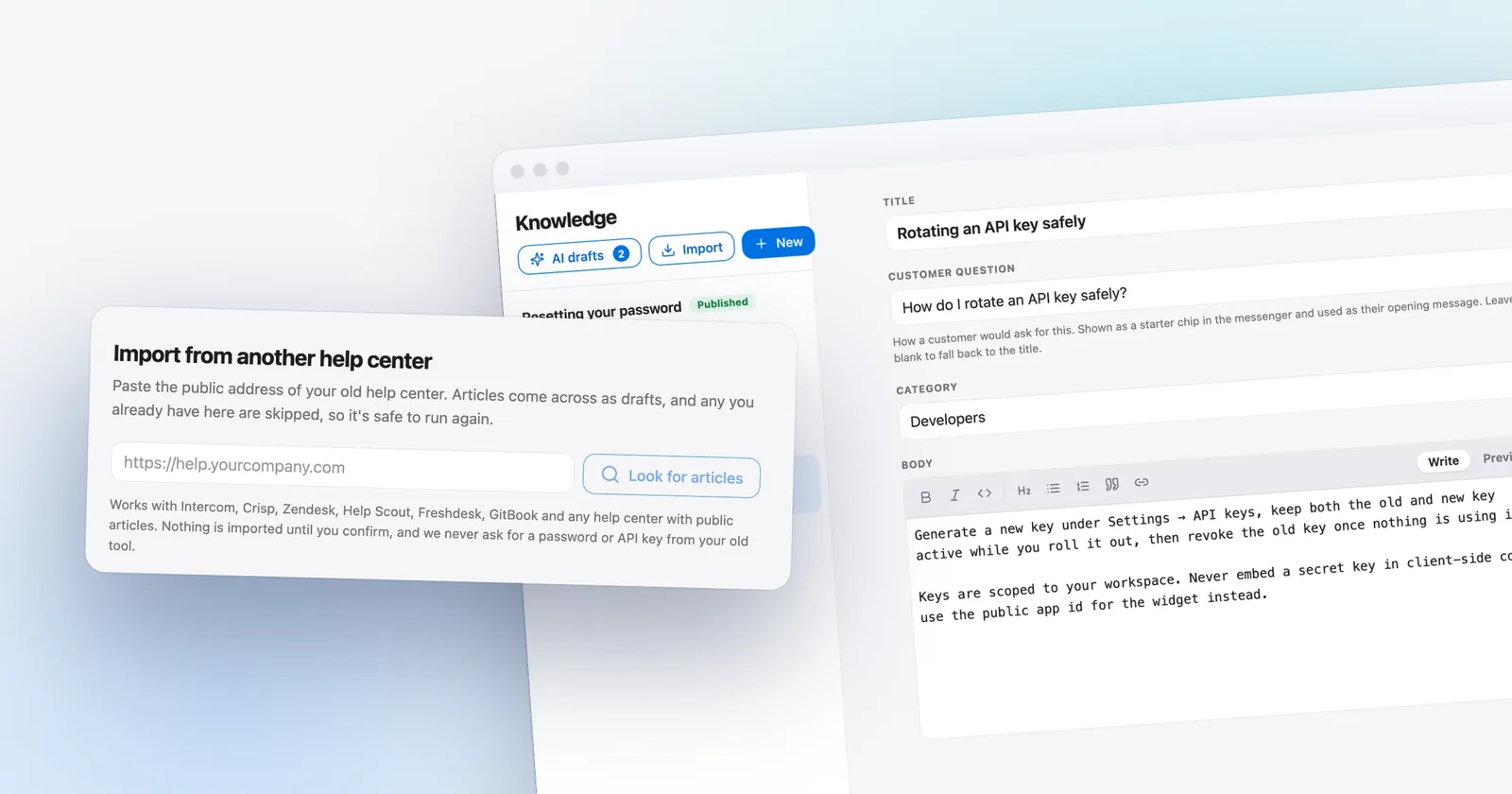
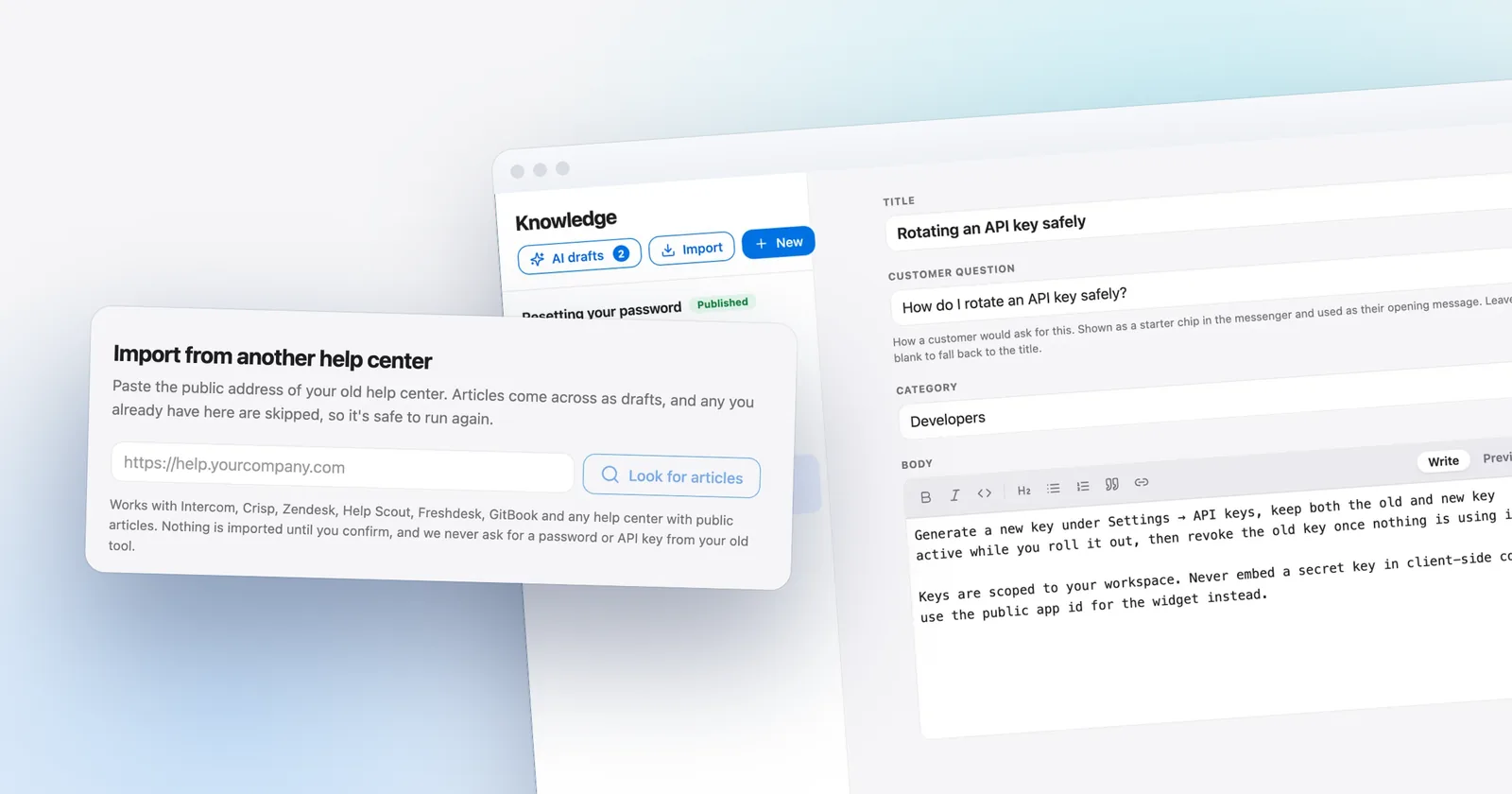
- Import and publishPaste your public help center address on the Knowledge page, start the import, then publish the drafts that are still accurate (guide).
- Add the widgetCopy the snippet from Settings, Chat widget and paste it before the closing
</body>tag on every page you want chat on (guide). - Forward your support emailPoint your support address at the forwarding address in Settings, Inbox, Email forwarding. Gmail needs one approval click after you add it (guide).
- Ask the AI a test questionUse Setup to confirm it answers from your articles and cites them.
- Remove the old widgetOnce the widget and email are live on the new tool, take the old tool's snippet off your site.
Do this on a quiet day, not before a launch or a holiday. Tell your team which inbox is the real one on which date, and for the first week keep one person watching both.
Keep a way back
Your rollback plan is simple if you set it up first: don't cancel Intercom on cutover day. Keep it for at least two weeks, on a monthly plan if you can, so you can reverse the change by swapping the snippet back and redirecting email. Write down the old forwarding rule and the old script tag before you touch them. Decide what would trigger a rollback: AI answers wrong enough that you'd be embarrassed, customers writing in and getting no reply, or a channel you didn't realize you used. If none happens in two weeks, cancel, and remember your notice period.
What it costs on each side
For a small team the arithmetic comes down to seats versus workspaces. Intercom bills per seat plus $0.99 for each Fin outcome. Essential lists at $39 per seat on monthly billing ($29 billed annually), Advanced at $99 ($85), Expert at $139 ($132), as shown on Intercom's pricing page on October 21, 2026. Talvo is priced per workspace, with $0.49 for each AI resolution above the plan's allowance. The Talvo column below shows the cheapest plan that fits the team and the volume, on monthly billing.
| Team and AI volume | Intercom Essential, monthly seats | Talvo |
|---|---|---|
| 3 agents, 300 AI answers | 3 × $39 + 300 × $0.99 = $414 | Starter: $49 + 200 × $0.49 = $147 |
| 5 agents, 1,000 AI answers | 5 × $39 + 1,000 × $0.99 = $1,185 | Scale: $299, with 2,000 resolutions included (Starter would be $49 + 900 × $0.49 = $490, Growth $149 + 500 × $0.49 = $394) |
Those are list prices, and each vendor defines its billed AI unit its own way, so our Intercom pricing breakdown and AI resolution pricing comparison show the definitions side by side.
The short version
Export first, import articles second, review third, redirect fourth. Cut over the channels in one sitting, and keep the old account alive until you're sure. If any step feels rushed, move the cancellation date, not the checklist.
Frequently asked questions
How do I export my Intercom help center articles?
Intercom's own community lists a native article export only as an open idea. You can use its Articles API with an access token, which returns up to 250 articles per page, hire a migration service, or import from the public help center address with a tool that supports it. Talvo's importer needs no API key or login and brings articles in as drafts.
Can I export all conversations from Intercom?
Only in pieces. Intercom's help center describes single-conversation downloads as text or PDF, bulk inbox exports of 200 to 300 conversations at a time, and an Export API limited to 90-day windows. Check the current limits in your workspace before you plan around them.
Does Intercom have a CSV export for conversations?
Yes, but it is a data export, not a transcript. Intercom's help center says dataset CSVs exclude message content, are limited to 10,000 rows in the browser and cover two years, while saved-view CSVs go up to 100,000 rows. Its S3 export contains no transcripts either.
How long does it take to migrate from Intercom?
We found no credible industry benchmark. Importing a help center is mechanical: Talvo reads about one article per second, so 300 articles take around five minutes. Reviewing articles, rebuilding automations and a parallel run are the real work, so plan about two weeks inside your contract window.
Will my help center URLs break when I leave Intercom?
If your help center runs on a custom domain pointed at Intercom, those URLs stop working when the subscription ends. List the old URLs, note which get traffic or links, and set up 301 redirects before you cancel. Talvo's hosted help center does not support custom domains.
Can I keep my conversation history after canceling Intercom?
Only if you archive it first. Talvo does not import past conversations, and Intercom's CSV and S3 exports do not include message text. Download the conversations you must keep, usually the last 12 to 24 months, and save the images embedded in them before the account closes.
What happens to Intercom customers after the Salesforce acquisition?
Salesforce completed its acquisition of Fin, formerly Intercom, on September 10, 2026, and said Fin will continue to serve its customers. Neither Salesforce release announced pricing changes. Our guide to the acquisition covers what is confirmed and what to ask your account rep.
Can I migrate a multilingual Intercom help center?
Yes, with care. Talvo's importer reads one language per import, so repeat the import for each language and publish them as separate articles. Its AI agent can also answer in a customer's language from articles written in another one.
Sources
Other products' prices and features change. We checked these pages; if something is out of date, tell us and we'll fix it.
- Intercom: Export your conversation data (checked Oct 21, 2026)
- Intercom Community: native export and import of Help Center articles (idea, Oct 2, 2026)
- Intercom developer docs: Articles API
- Intercom: set up a custom domain for your help center
- Intercom pricing page (checked Oct 21, 2026)
- Salesforce press release: Salesforce completes acquisition of Fin (Sept 10, 2026)
- Talvo help: Switching to Talvo from another help desk