On this page
- What a Talvo campaign can and can't trigger
- Four rules before you write a line
- Homepage: two examples
- Pricing page: three examples
- Signup and onboarding: two examples
- Cart: one example and one thing not to do
- Docs, help and blog pages: three examples
- Contact and "talk to us" pages: two examples
- Returning visitors: two examples
- Examples you'll see elsewhere that need a different tool
- What the evidence says, and doesn't
- Measure it and retire what doesn't work
- Setting one up in Talvo
- Frequently asked questions
Most proactive chat examples online are a list of friendly sentences with nothing attached. No page, no delay, no word on how often the visitor will see it. That's the part that decides whether a message helps or gets closed.
So here are 15 proactive chat examples sorted by page type, and each one comes with the trigger and the delay. They're written for the three triggers Talvo's campaigns actually have, which means you can copy them as they are. A few ideas you'll see elsewhere need triggers Talvo doesn't offer (exit intent, scroll depth, cart value). Those get their own section, so you know up front which examples belong in a different tool.
What a Talvo campaign can and can't trigger
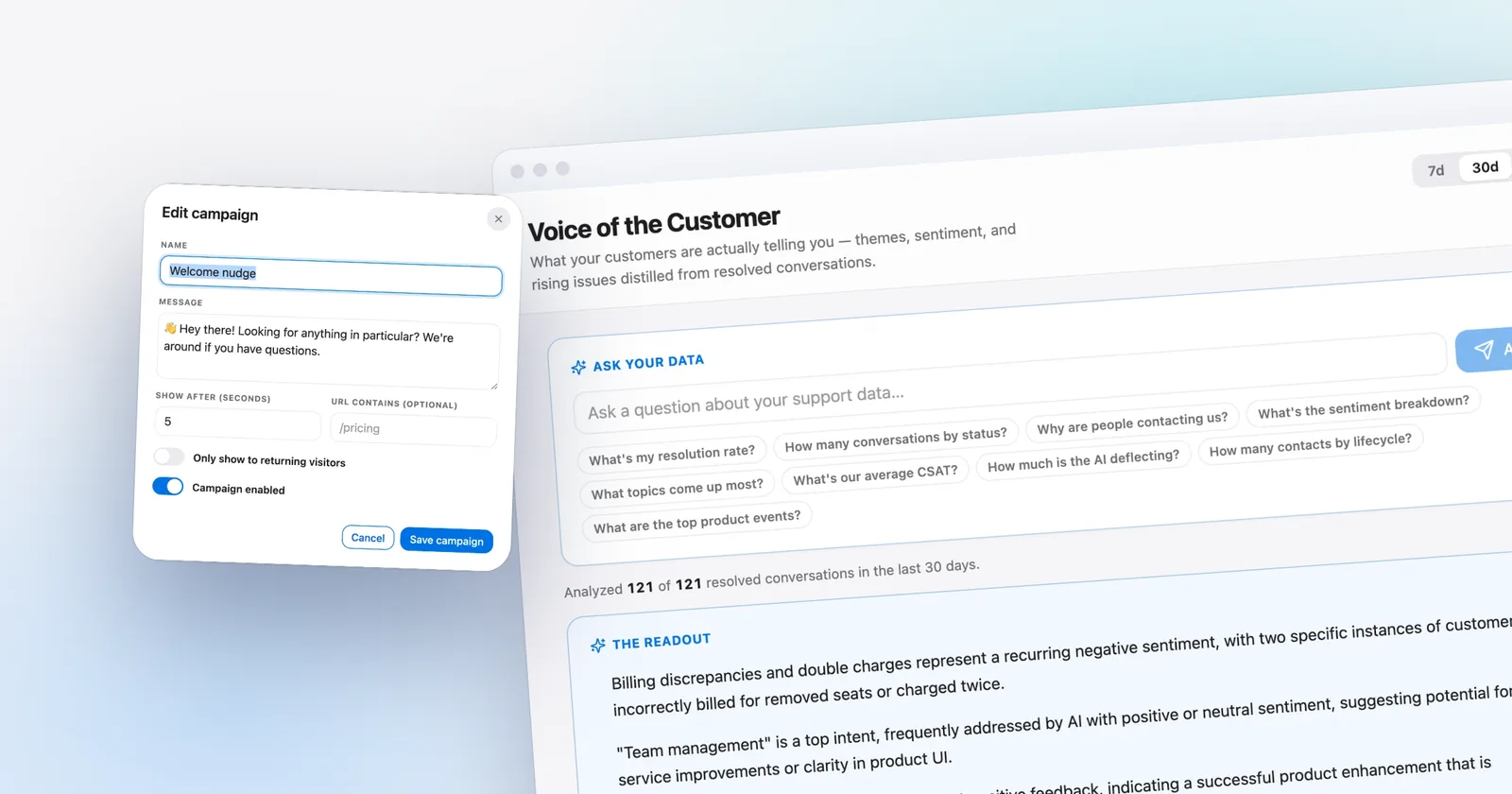
A campaign in Talvo (Starter plan and up, $49 a month or $39 on annual billing) has three targeting options and nothing else:
| Setting | What it does |
|---|---|
| URL contains | A substring match on the page address, such as /pricing. One rule per campaign, no regex, no "equals", no excludes. |
| Show after (seconds) | Time on the page, from 0 to 86,400 seconds. |
| Only show to returning visitors | On or off. |
The message is plain text, up to 2,000 characters, shown as a bubble next to the launcher. No images, no buttons. It appears only while the widget is closed and no chat has started.
Then the rule that shapes everything below: a browser sees at most one campaign, once. After any campaign is shown, no other campaign appears in that browser. If two campaigns match the same page, the oldest enabled one wins.
There is no exit intent, scroll depth, attribute or segment targeting, scheduling or A/B testing. Talvo also lets you set no frequency of your own; once per browser is the only behavior. Because that memory lives in the browser, a different browser or a cleared one counts as a new visitor.
Two consequences are worth knowing before you plan. You can't isolate the homepage, since every address on your site contains the root path and a blank URL matches every page. And you can't layer a "returning visitors" variant on top of a general campaign for the same page: the older one keeps winning. Pick one or the other per URL.
Four rules before you write a line
- One campaign per page, and only a few pages. Visitors see one campaign ever, so choose where it counts.
- Wait until the delay means the visitor is reading. A message at 3 seconds interrupts; a message at 40 seconds responds.
- Keep it off payment steps. Any contains-rule that matches your payment page will fire there too, so choose your URL text carefully.
- Write it so it is true at any hour. Campaigns can't be scheduled, so promise nothing about "we're online now".
- Ask a question the page makes natural. If the message repeats the headline, it is noise.
The pull against interrupting is real. In 2017 the Nielsen Norman Group had 452 US adults rate 23 wireframes of ad formats on a 1-to-7 scale. Modal overlays tied for the most-hated format on desktop and were among the most disliked on mobile, mostly because they cover content and force a reaction. That study was about ads, not chat, so it isn't proof about your widget. It's a good reason to keep a chat bubble small, late and rare (Nielsen Norman Group).
Homepage: two examples
You can't target the homepage alone, so write homepage messages that make sense on whatever page a visitor happens to be reading at 40 seconds. A blank URL field shows the campaign on any page, so one blank-URL campaign is your general catch-all, and it will use up a visitor's one campaign. Decide whether you want that before enabling it.
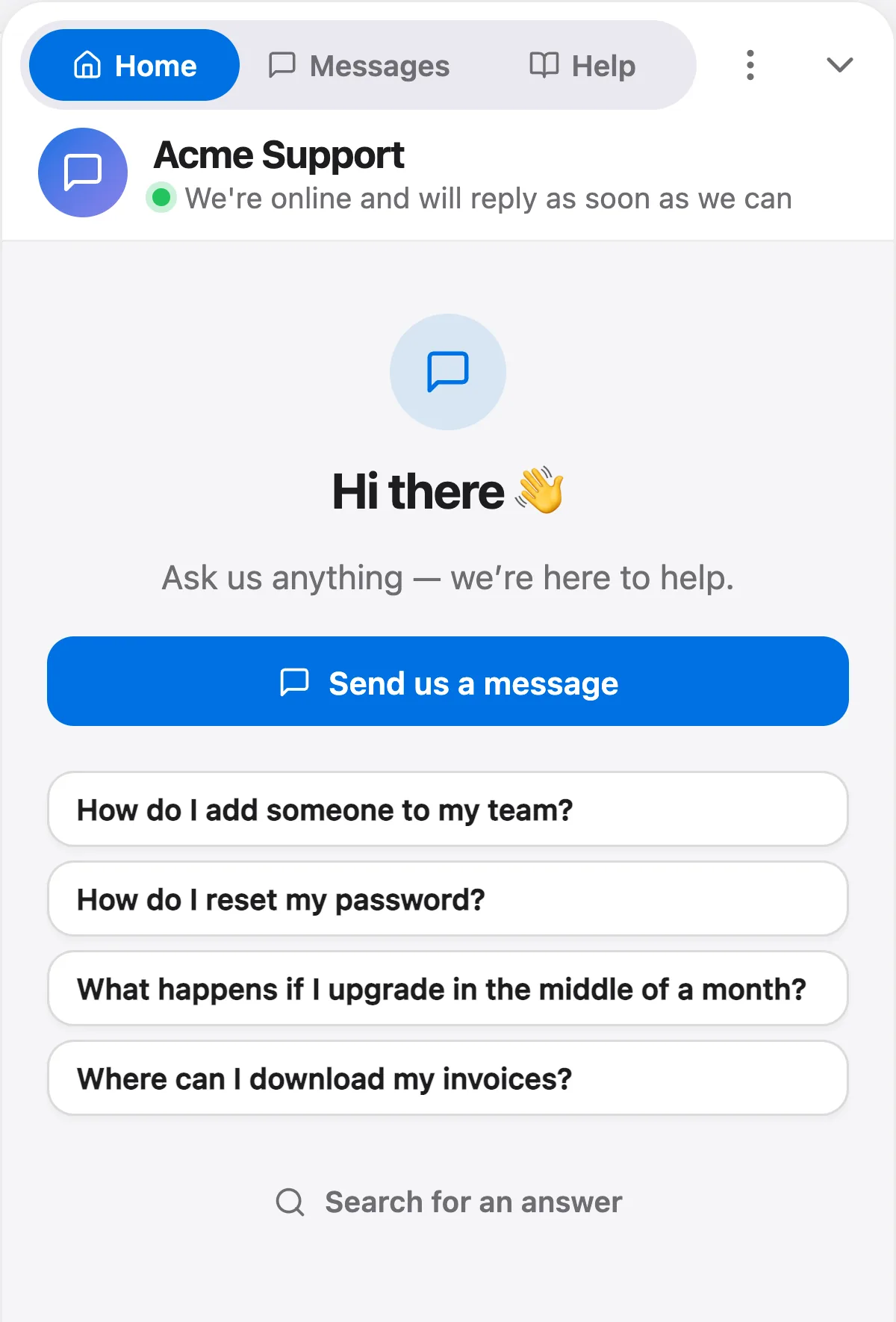
Example 1: the plain invitation. URL contains: blank. Show after: 40 seconds. Returning only: off.
It works because it asks for a situation, not a yes or no. "How can I help?" invites "no thanks". What makes it annoying is a short delay: at 5 seconds the visitor hasn't decided anything yet.
Example 2: the second visit. URL contains: blank. Show after: 20 seconds. Returning only: on.
A returning visitor has already read something, so a shorter delay is reasonable. Keep the wording to what you actually know, which is only that they came back. Anything that refers to what they looked at last time will feel like surveillance, and Talvo can't target on it anyway.
Pricing page: three examples
Visitors on a pricing page already have a question. Your job is to make it cheap to ask. Set URL contains to /pricing for all three, and use only one of them.
| Delay | Returning only | Message | What it's for | |
|---|---|---|---|---|
| Example 3 | 30 s | Off | "Choosing between plans? Tell us how many people are on your team and what you need, and we'll point you to the right one. No sales call." | Plan-fit questions. Names a concrete input, so the reply is easy to write. |
| Example 4 | 60 s | Off | "Not sure how your usage turns into a monthly bill? Send us your rough numbers and we'll work out a total with you." | Usage-based or per-seat pricing, where the math is the sticking point. A longer delay suits a page people study. |
| Example 5 | 40 s | On | "Comparing monthly and annual billing? Ask and we'll do the arithmetic for your team size." | Visitors who've been here before and are closing in. Ask only if you have both billing options. |
Beware the substring match. /pricing also matches /pricing-faq and /blog/pricing-tips, and a campaign meant for your plans page will show on those too. If that matters, use the most specific string you can, such as /pricing/plans, as long as your real address contains it.
For the longer story on chat that sells, live chat for SaaS covers pricing-page chat for software companies.
Signup and onboarding: two examples
Help here, not sales. These visitors have decided; the message should remove a snag.
Example 6: signup form. URL contains: /signup. Show after: 25 seconds. Returning only: off.
Twenty-five seconds on a form page with no submit is a decent hint that something is wrong. It's only a hint, though, and a slow typist isn't a stuck one, so keep the wording light.
Example 7: first-run setup. URL contains: /welcome (or wherever your first-run screen lives). Show after: 60 seconds. Returning only: off.
A variant for visitors who came back to a form they didn't finish: same /signup URL, returning only on, 15 seconds, "Back to finish signing up? If something didn't work last time, tell us what and we'll fix it." You can't run it alongside Example 6, since only the oldest enabled campaign on a URL ever shows. Use it instead of Example 6 if most of your signup traffic is people coming back.
Cart: one example and one thing not to do
Baymard Institute puts the average documented cart abandonment rate at 70.22% across 50 studies. Among the reasons shoppers gave (leaving aside "just browsing"), extra costs that were too high topped the list at 40%, followed by slow delivery (20%), distrust of the site with card details (19%), a required account (18%) and a checkout that was too long (17%) (Baymard Institute). Baymard doesn't state the sample size for the reasons list on that page, so read the percentages as a rough ranking.
The pattern is useful because it tells you what the message should address: the total and the delivery promise, not "need help?".
Example 8: the cart page. URL contains: /cart. Show after: 45 seconds. Returning only: off.
Don't run a campaign on the payment step. A visitor typing card details doesn't want a bubble, and a contains-rule for /checkout would match the payment page as well as the cart. Use /cart or another string that your payment URL doesn't contain, and test it. Talvo has no exclude rule, so the only protection is picking the right text.
Docs, help and blog pages: three examples
People reading docs are working. Answer the question they couldn't find an answer to, and wait longer than you think. Talvo's own AI agent answers from published help articles and shows which article it used, so a docs-page message pairs well with help articles written for AI.
Example 9: docs. URL contains: /docs. Show after: 90 seconds. Returning only: off.
Example 10: help center. URL contains: /help. Show after: 60 seconds. Returning only: off.
Example 11: blog. URL contains: /blog. Show after: 120 seconds. Returning only: on.
Blog traffic is the least likely to want a conversation, which is why this one is limited to returning visitors and set to a long delay. Of everything here, it's also the first to cut if the numbers come back thin.
Contact and "talk to us" pages: two examples
Someone on a contact page has already decided to talk. The message offers a quicker route than a form, and it needs to be honest about timing, because you can't schedule a campaign by hour.
Example 12: skip the form. URL contains: /contact. Show after: 15 seconds. Returning only: off.
Example 13: honest about the clock. URL contains: /contact. Show after: 15 seconds. Returning only: off.
These are alternatives; only one can win on a given URL. Example 13 is the safer choice if your team isn't covering the page all day. It reads correctly at 2 p.m. and at 2 a.m., which a "we're online right now" line wouldn't. Set business hours and an away message as well (see after-hours support) and keep your first-response promises realistic (first response time SLAs).
Returning visitors: two examples
Returning-only campaigns are the closest Talvo gets to personalization. The honest version doesn't pretend to know more than it does.
Example 14: back on the pricing page. URL contains: /pricing. Show after: 15 seconds. Returning only: on.
This is the one that turns a price check into a conversation, and it only works if your team will actually give the honest answer. If you'd rather not, use Example 5.
Example 15: back on the features page. URL contains: /features. Show after: 30 seconds. Returning only: on.
A returning visitor on a features page is usually checking for a deal-breaker. Say plainly that you'll answer yes or no. If the answer is sometimes no, that's fine, and it saves both sides a wasted trial.
Examples you'll see elsewhere that need a different tool
Many proactive chat guides lean on triggers Talvo doesn't have. They're fine ideas. They just aren't available here.
| Idea | Trigger it needs | In Talvo |
|---|---|---|
| "Leaving? Ask us before you go" | Exit intent | Not available |
| A nudge after reading most of a long page | Scroll depth | Not available |
| A discount offer when the cart passes a value | Cart value, ecommerce integration | Not available |
| A message tied to the ad that brought the visitor | Referrer, UTM or ad source | Not available |
| A message in the visitor's language or country | Location or language | Not available |
| A mobile-only or desktop-only message | Device type | Not available |
| A message only for logged-in customers on a plan | Attributes or segments | Not available |
| Messages scheduled by day or time | Scheduling | Not available |
| "Show again after 30 days" | Custom frequency cap | Not available (once per browser) |
| Testing two wordings against each other | A/B variants | Not available |
If your plan depends on more than two of these, you want a tool built around triggers. Our best live chat software for small business guide compares twelve of them with real prices. The three triggers you do have cover the page-by-page cases above, and that's often enough for a first campaign.
What the evidence says, and doesn't
The best controlled test of proactive invitations we found is a 2017 conference paper by [24]7 staff about one of their retail clients. They randomized 10% of product-page traffic over four weeks and found that page-specific invitations had about 9% higher acceptance than a generic "Can we help you?" invite (p < 0.001). The same paper's design-of-experiments test found that only sound and transition significantly changed acceptance; text color, letter case and border did not (Irpenwar et al., COMPLEXIS 2017).
Read it with its limits. It's vendor-authored, one client, and the paper doesn't give absolute acceptance rates. It's still the only controlled test we found, which tells you how thin the evidence is. The direction is clear, though: say something about the page, not something generic. That's what every example above tries to do.
A second study is about chat in general rather than proactive invites. Sun, Chen and Fan analyzed 1,446 Taobao clothing sellers and found that live chat raised traffic-to-sales conversion, with a larger effect when product pages were less detailed (Production and Operations Management, 2021, DOI 10.1111/poms.13320). It's independent research, but it measures chat availability, not popups, so treat it as directional for proactive messages.
Everything else you'll read, such as a "105% ROI", "87% of customers want proactive contact" or "6.3x more likely to convert", traces to old, untraceable or self-selected data. We left those out on purpose.
Measure it and retire what doesn't work
Each campaign shows two counters in Settings → Automation: how many times it was shown and how many opened a chat. Analytics also shows campaign impressions and campaign chats opened.
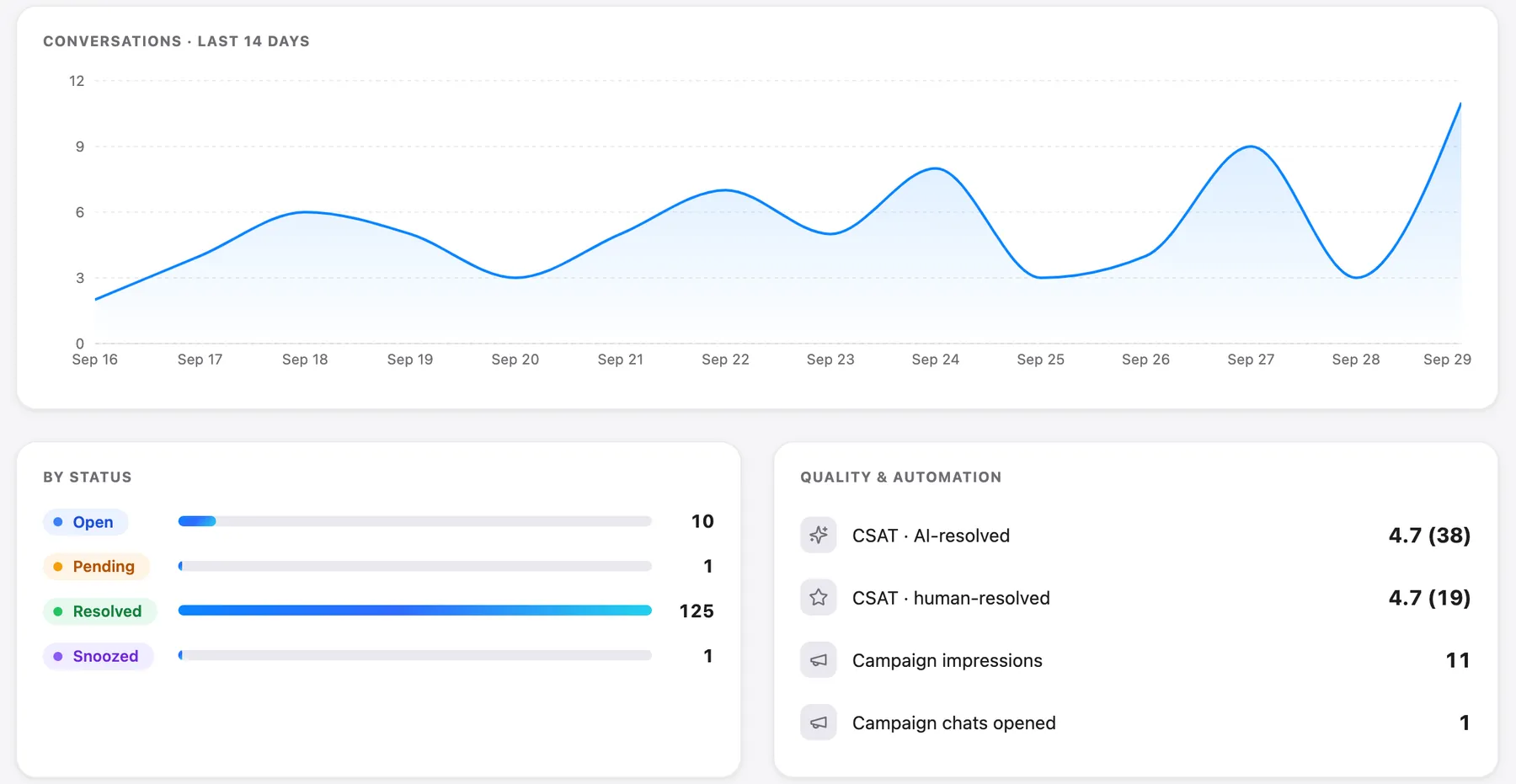
Divide chats opened by impressions. That's the open rate for each campaign. Because every browser sees a campaign only once, impressions are close to the number of browsers that saw it, so you'll collect a few hundred faster than you'd expect on a busy page.
A reasonable rule: after a few hundred impressions, retire any campaign sitting well below your others and replace it with a different page or message. "A few hundred" and "well below" are judgment calls, not research findings. What the counters can't tell you is whether anyone later signed up or bought. For that, you need your own analytics, such as noting which signups started in a chat.
Setting one up in Talvo
- Start with one pagePick the page where visitors ask the most questions. For most sites that's pricing or signup.
- Create the campaignGo to Settings → Automation → Proactive campaigns and write the message (plain text, up to 2,000 characters).
- Set the three conditionsEnter the URL text to match, the seconds to wait, and whether to show only to returning visitors. See the campaigns help article.
- Test it onceOpen the page in a fresh browser window and wait out the delay. It won't show again in that browser, so use a private window for a second look.
- Read the counters after a weekCompare shown against chats opened, then decide whether to keep, rewrite or drop it.
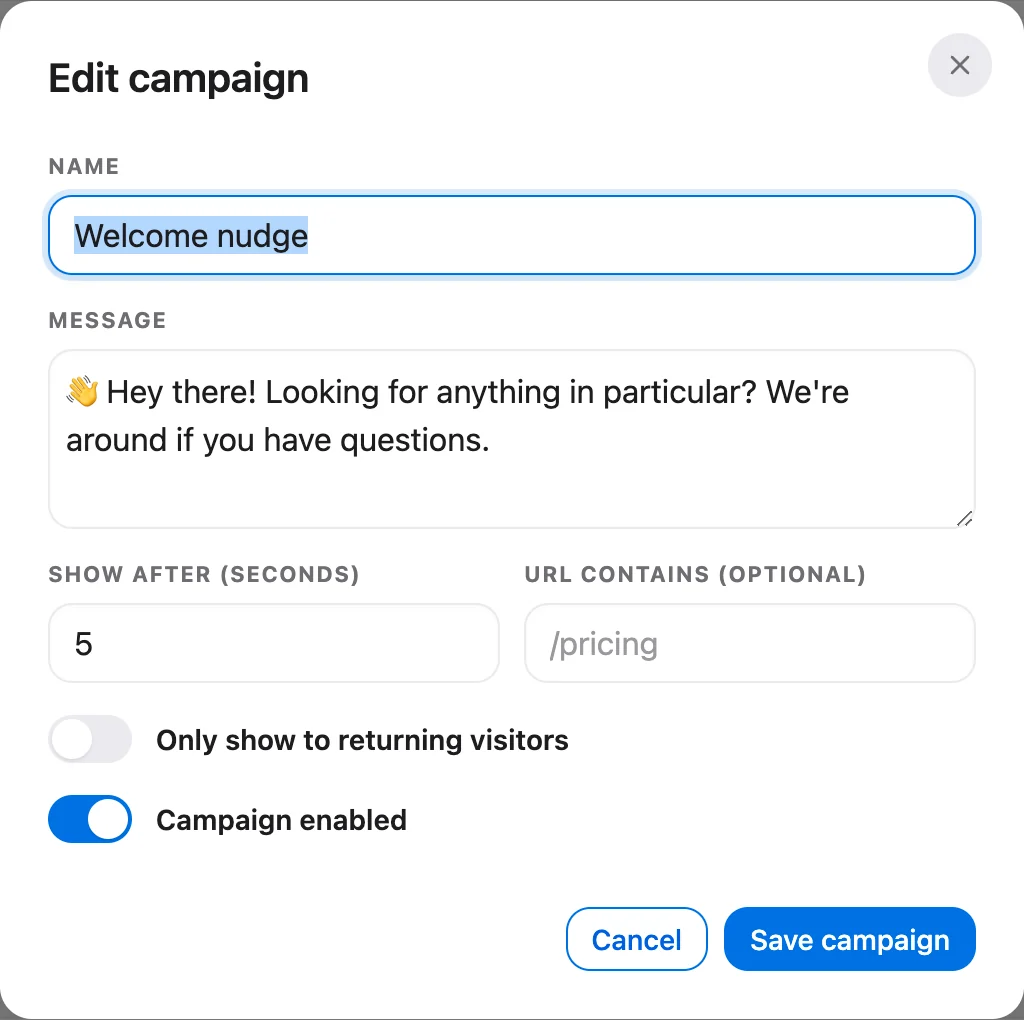
Campaigns are not on Talvo's Free plan. They start on the Starter plan at $49 a month ($39 annually), which also includes the AI agent with 100 resolutions a month. If you haven't installed the widget yet, how to add live chat to your website walks through it.
One last piece of honesty. Talvo is new and in beta, and its campaign targeting is deliberately narrow. If proactive chat is the center of your plan, check the table above against what you need before you buy. If it's one of several jobs for your chat widget, three triggers and a once-per-browser rule are a safe place to start.
Frequently asked questions
What is proactive chat?
Proactive chat is a message your chat widget shows a visitor before they ask for help, usually triggered by the page they're on, how long they've stayed or whether they've visited before. Reactive chat waits for the visitor to open the widget. In Talvo, proactive messages are called campaigns and start on the Starter plan ($49 a month, or $39 billed annually).
How long should you wait before showing a chat invitation?
There's no tested number. Published advice such as 10 or 15 seconds is opinion, not a finding. As a starting point (our judgment, not research), use the delay to mean the visitor is reading: roughly 30 to 60 seconds on a pricing page and 60 to 120 on docs or blog pages. Then compare open rates between pages and adjust.
Is proactive chat annoying to visitors?
It can be. Nielsen Norman Group's 2017 study of 452 US adults found modal overlays among the most-hated ad formats, mainly because they cover content. A small bubble that appears late, once, and asks a question tied to the page is far less intrusive. Talvo shows each browser at most one campaign, once.
Does proactive chat increase conversions?
The evidence is thin. The one controlled test we found, a 2017 paper by [24]7 staff about one retail client, showed page-specific invitations were accepted about 9% more often than a generic one, which measures acceptance, not sales. Claims of 105% ROI or 6.3x conversion trace to old or self-selected data.
What triggers can you use for proactive chat in Talvo?
Three: URL contains (a substring match on the page address), Show after (seconds on the page) and Only show to returning visitors. Talvo doesn't offer exit intent, scroll depth, referrer, cart value, device, location, attributes, segments, scheduling or A/B testing.
How often does a Talvo campaign show to the same visitor?
Once. After a browser has seen any campaign, no further campaigns appear in that browser, because the memory is stored in the browser. If several campaigns match a page, the oldest enabled one wins. You can't set your own frequency.
How do I know if a proactive chat message is working?
Divide chats opened by times shown for each campaign; both counters are in Settings → Automation. After a few hundred impressions, retire campaigns well below your others. The counters can't show whether the visitor later signed up or bought, so check that in your own analytics.
Should proactive chat be handled by AI or a person?
Either can reply once a visitor opens the chat. In Talvo, the AI agent answers only from your published help articles and hands off to your team when it isn't confident. Write the proactive message so it is accurate at any hour, since campaigns can't be scheduled.
Sources
Other products' prices and features change. We checked these pages; if something is out of date, tell us and we'll fix it.
- Talvo help: Proactive campaigns
- Irpenwar et al., Data Driven Web Experimentation on Design and Personalization, COMPLEXIS 2017 (PDF)
- Sun, Chen and Fan, Production and Operations Management 30(5), 2021
- Baymard Institute: cart abandonment rate statistics (checked Oct 21, 2026)
- Nielsen Norman Group: The most hated online advertising techniques (2017)