On this page
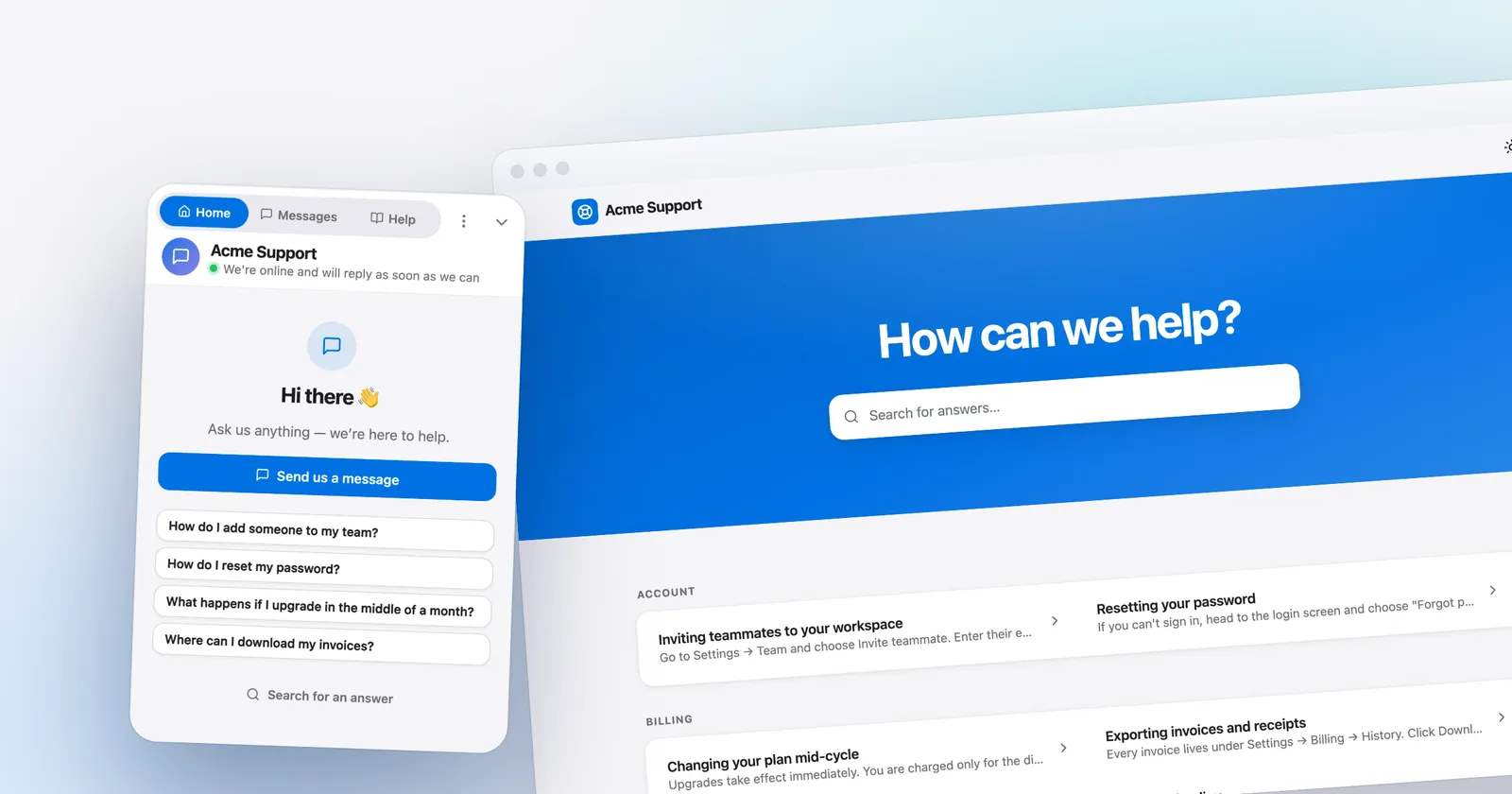
Adding live chat to a website takes about five minutes and one line of code. You copy a script tag from your chat tool, paste it into the footer of your site, and a chat bubble appears.
The five minutes go wrong in predictable ways: the script lands on one page instead of all of them, a caching plugin serves the old version, or nobody is set up to answer when the first message arrives. This guide covers the paste itself for seven common setups (WordPress, Shopify, Webflow, Wix, Squarespace, Google Tag Manager and React or Next.js), plus what to sort out before you install and how to test afterward.
The worked example is Talvo, but every step applies to any chat tool that gives you a script tag, which is nearly all of them.
Sort out four things before you paste anything
The install is the easy part. A chat bubble with nobody behind it is worse than no bubble, because it invites a question and then ignores it. Spend ten minutes on these first.
Who answers, and when? Name the person or rota. If you're one or two people, be honest about your hours. A bubble that says "typically replies in a few minutes" at 9 p.m. on a Sunday is a promise you'll break.
What happens when nobody's there? Decide on an away message, and plan to ask after-hours visitors to leave an email address in their first message so you can reach them. Check where the tool lets you set business hours, because some set them per team and some per widget.
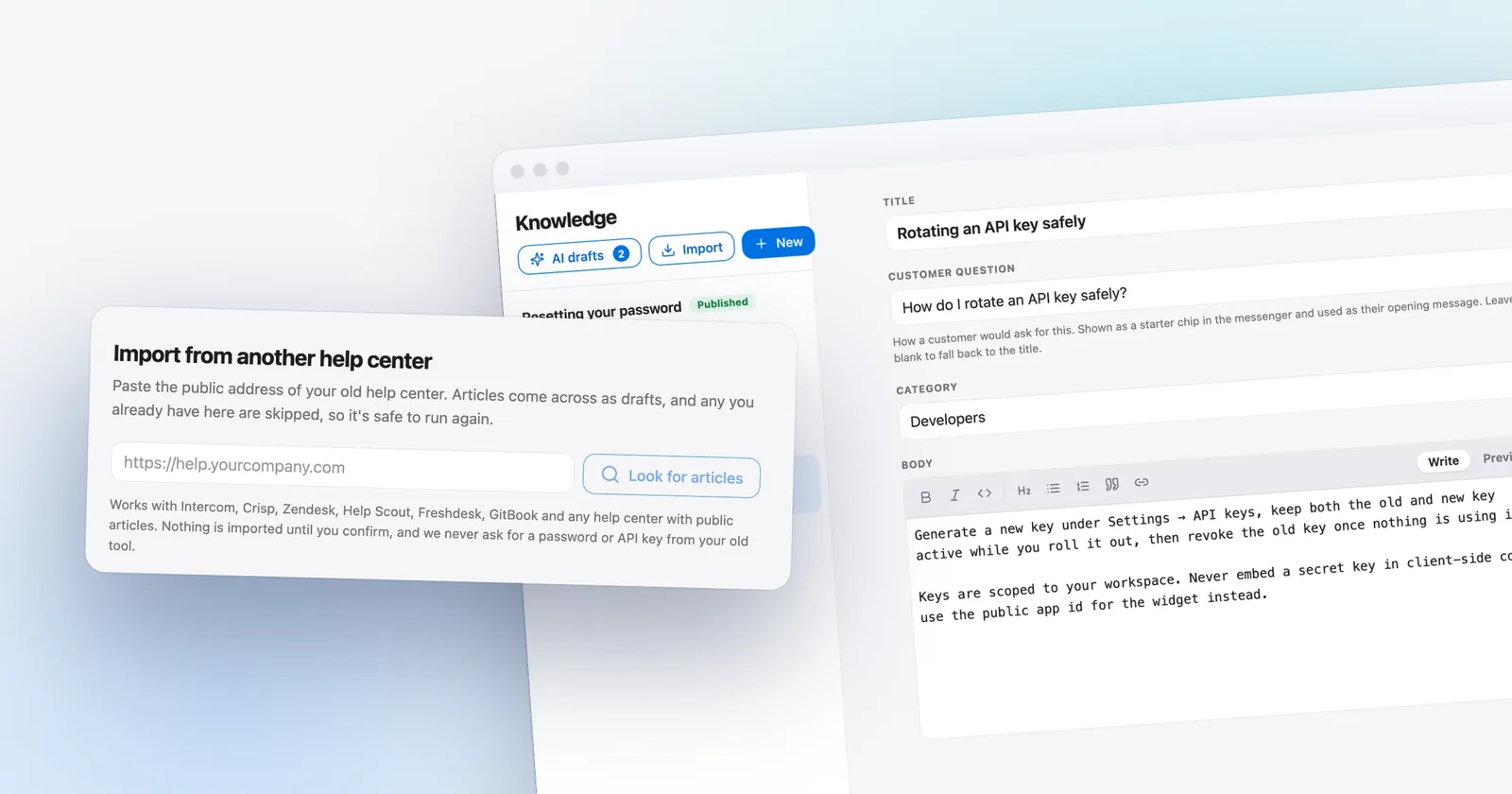
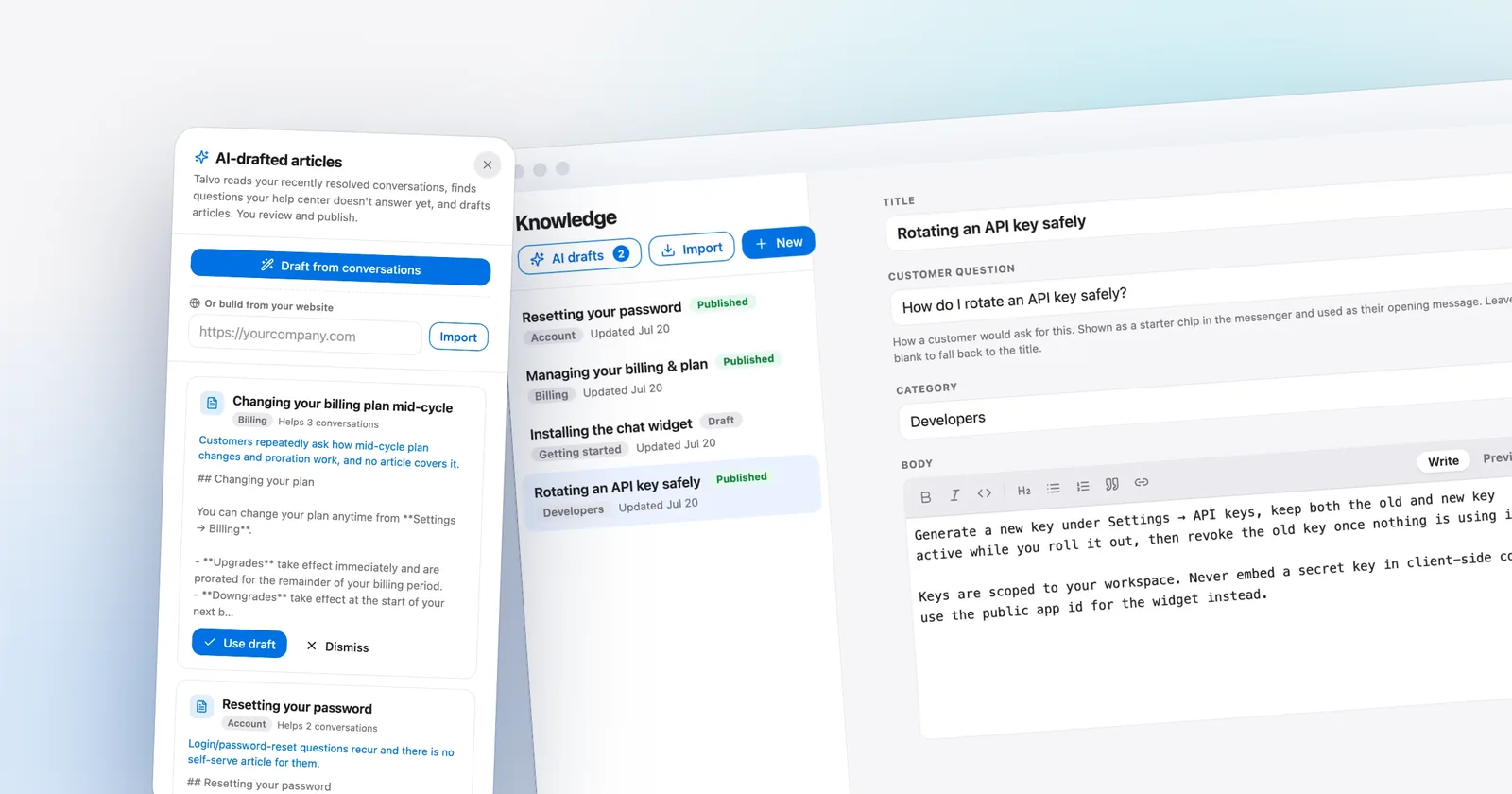
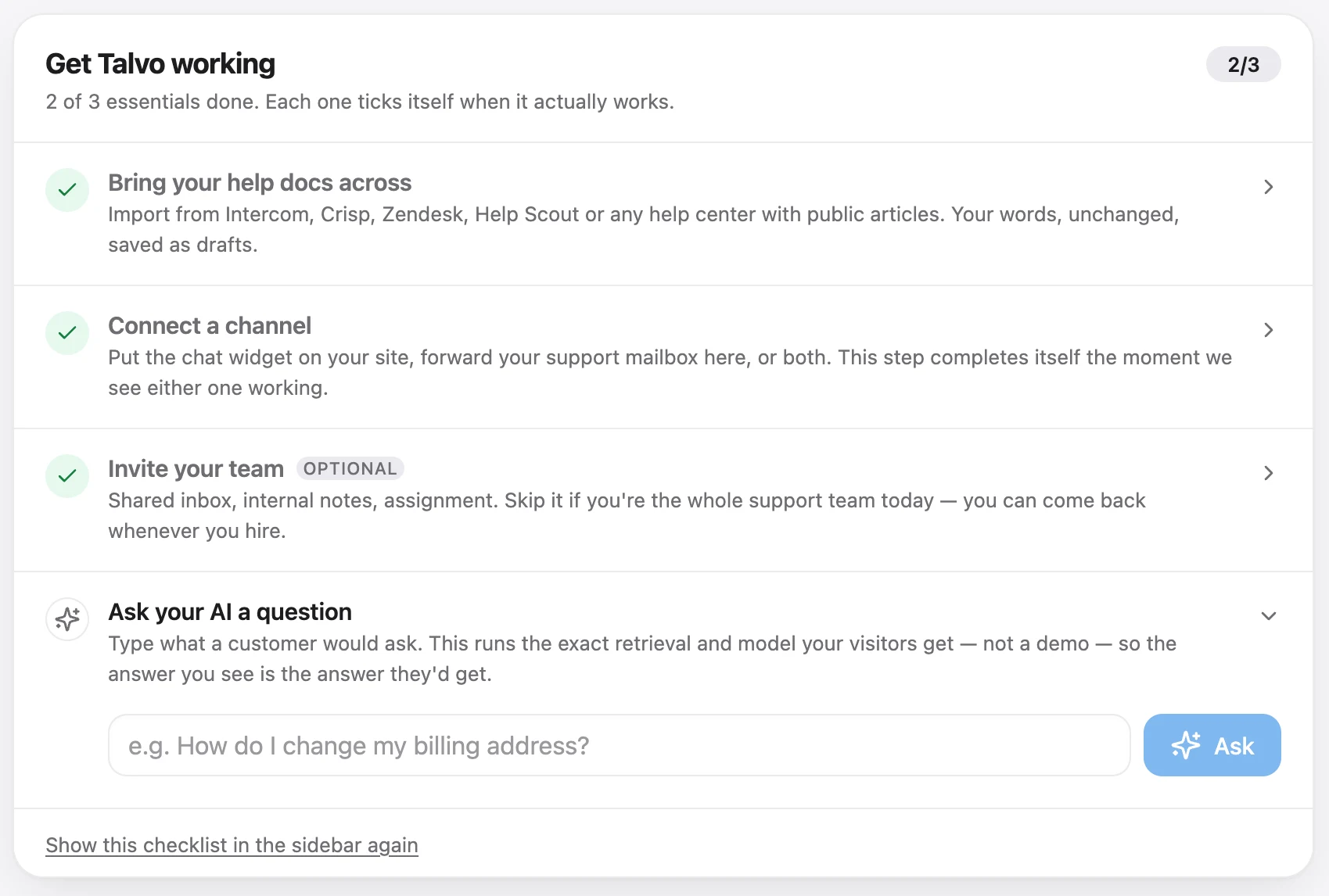
Is there a knowledge base for the bot to use? If your tool has an AI agent, it's only as good as the articles behind it. Ten clear articles on shipping, pricing, refunds and setup will deflect more questions than a clever model with nothing to read. Our guide to a knowledge base chatbot covers how to write them.
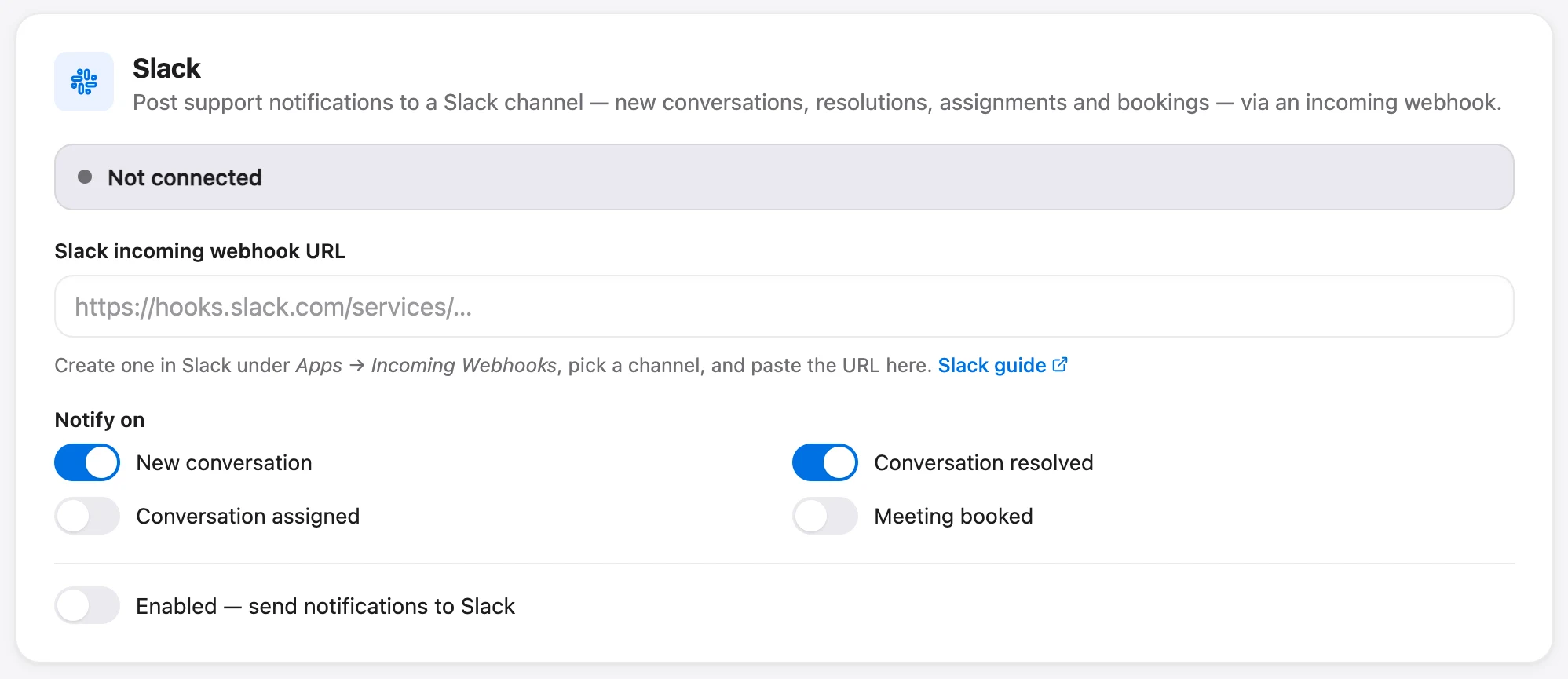
Where do replies go? Chat that lives in a separate tab nobody opens is the usual way these projects die. Connect notifications to wherever your team already looks, whether that's email, Slack or a phone.
Get your snippet
Every chat tool gives you a short block of code to paste on your site. In Talvo, sign up for a free account, then open Settings and go to the chat widget page. You'll see a script tag that looks like this, with your own app ID in place of the placeholder:
<script async src="https://talvo.chat/_api/widget/loader?app=YOUR-APP-ID"></script>
The instruction is the same in nearly every product: put it just before the closing </body> tag, on every page where you want the bubble. Everything below is about how to do that on each platform. Talvo doesn't have native plugins or apps for these platforms, so on all of them you're pasting this one tag.
The async attribute matters. It tells the browser to download the script without pausing the page, so the widget loads in the background and your content isn't held up waiting for it. Keep it, and be wary of any instruction to remove it.
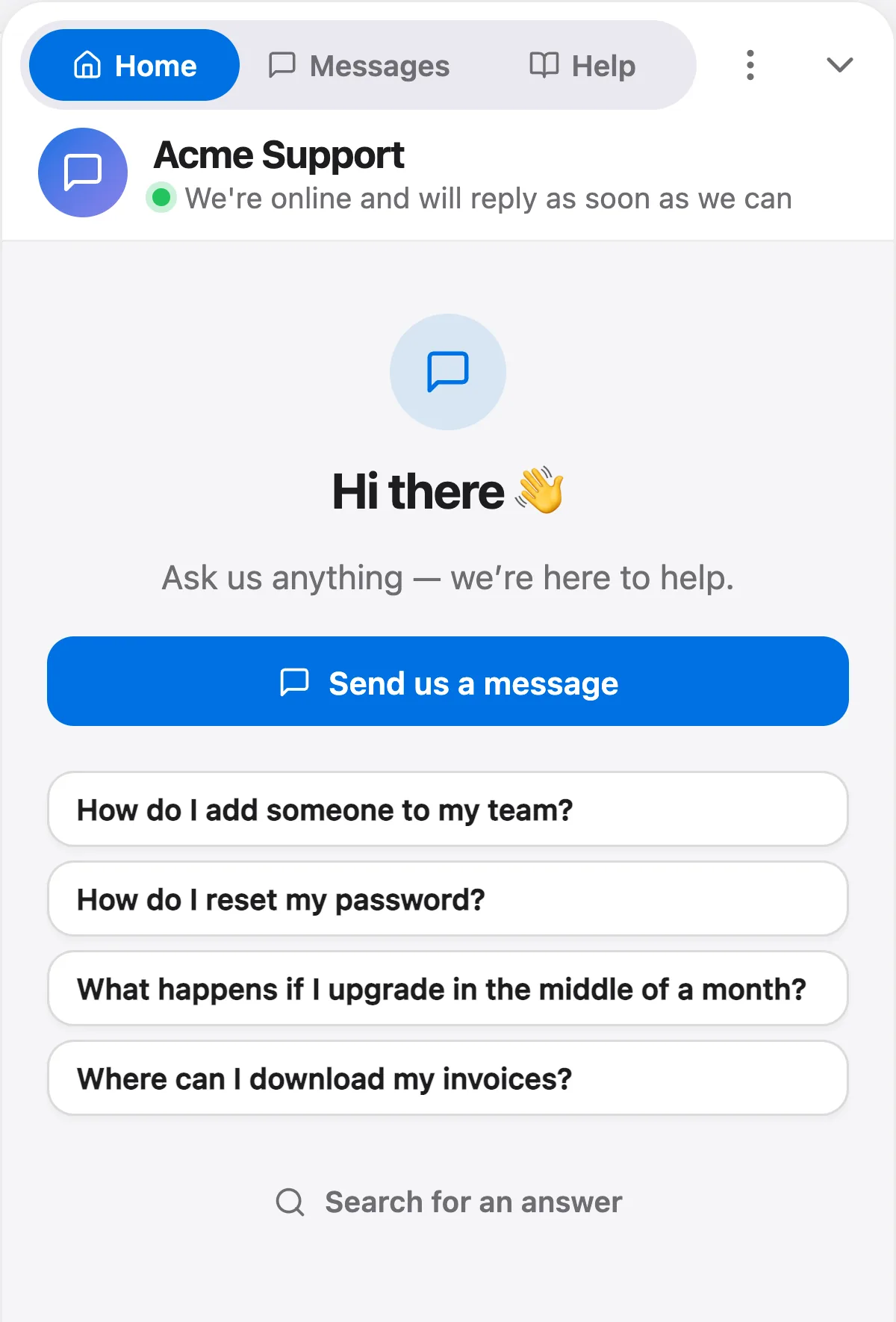
How to add live chat to your website, platform by platform
Menu names move around as platforms update their editors. Where we're confident of the current path, we've named it. Where platforms differ by plan or template, we've described the setting generically, so look for something called custom code, code injection or footer scripts.
WordPress
You have two sound options.
The first, and the safer one for most people, is a plugin that inserts snippets into your site's header or footer. Several free ones do this (WPCode is a well-known example). Install one, add a new snippet or open its footer scripts box, paste the tag, and set it to run site-wide in the footer.
The second is editing your theme's footer template to put the tag above </body>. That works, but a theme update can overwrite your edit unless you use a child theme. If you aren't comfortable with that, use the plugin.
If your theme has its own "custom code" or "footer scripts" setting, that's the easiest place of all. One catch for WordPress.com readers: installing plugins there needs a paid plan, whereas a self-hosted WordPress site has no such limit.
Shopify
In your Shopify admin, go to Online Store, then Themes, choose the theme you're using and pick Edit code (Shopify's guide to editing theme code shows the path). Find the main theme layout file (it's called theme.liquid) and paste the tag just above the closing </body> tag. Save, then check your storefront in a private window.
A few things to know. theme.liquid doesn't apply to Shopify's checkout pages, so the widget won't appear at checkout. Also, the code belongs to that theme, so if you switch to a new theme later you'll need to paste it again. And Shopify's customer-events area is for tracking pixels, not chat widgets, so don't put it there. Talvo has no native Shopify app, so there's no order lookup inside the widget; it's a plain site script.
Webflow
Open your project's site settings and go to the Custom code tab. The Footer code field inserts code before the closing </body> tag. Paste the tag there, save, and publish the site. Webflow only applies custom code on published sites, so the bubble won't show up in the designer.
Custom code at the site level needs a paid site plan. If you only want chat on certain pages, each page also has its own custom code settings.
Wix
In Wix, go to Settings, then Custom Code under Development & integrations (Wix's walkthrough). Click Add Custom Code, paste the tag, choose All pages, and place it in Body - end (the other choices are Head and Body - start). Apply it, then publish.
Wix runs custom code only on a published site with a connected domain, so if the bubble doesn't appear, check that first.
Squarespace
Squarespace calls this Code Injection. Open your site settings, find the developer or advanced area, and look for Code Injection (Squarespace's guide). Paste the tag into the footer field and save. Code Injection needs a Core plan or higher, so a missing option usually points to your subscription rather than a mistake. It also doesn't run on Squarespace checkout pages.
Google Tag Manager
If your site already uses Google Tag Manager, you can add chat without touching site code.
- Create a new tag and choose the custom HTML type.
- Paste the full script tag.
- Set the trigger to fire on all pages.
- Use Preview mode to confirm the widget loads, then submit and publish the container.
One caveat. GTM injects the script after its own container has loaded, so the bubble can appear a moment later than it would with a direct paste. If you have a cookie consent tool, check whether it blocks custom HTML tags until consent is given. Talvo sets no tracking cookies, but whether a tag needs consent is a call for whoever manages your compliance.
React and Next.js
For a single-page app, you have a small choice about where the script is allowed to load.
With plain React (Vite or another bundler), the simplest fix is the HTML file your app mounts into. Add the tag before the closing body tag in index.html.
With Next.js, load it through the framework's script component instead of a raw tag. In the App Router, put the component in your root layout. In the Pages Router, put it in _app. Use the afterInteractive strategy (the default, so the prop is optional) so the script loads early but after some of the page has hydrated, and pass the loader URL as the source. Next.js documents this in its guide to scripts:
import Script from "next/script";

<Script
  src="https://talvo.chat/_api/widget/loader?app=YOUR-APP-ID"
  strategy="afterInteractive"
/>
Because the widget is added once at the layout level, it persists across client-side page changes instead of reloading on every route.
Set up what happens when you're offline
With the script live, the next job is what visitors see out of hours. Decide whether the widget stays visible when you're away. For most small teams it should, with an away message, and a line asking visitors to leave an email in their first message so the question isn't lost. In Talvo you set your hours and the message under Settings, then Inbox, then Business hours: outside those hours the widget shows your away message.
If you've published articles to a knowledge base, the AI agent can answer common questions without anyone on your team being online. In Talvo that agent answers only from your published articles and hands off with the conversation intact when it isn't confident, so your team sees the whole thread on their next shift. It starts on the Starter plan at $49 a month, and the Free plan includes 25 AI resolutions a month during the beta so you can try it before paying. The AI agent page has the details, and the help article on installing the widget covers the settings.
Test before anyone else sees it
Open your site in a private browser window, so you aren't logged in and no cached copy gets in the way. Then run through this list.
- Does the bubble appear on the home page, an inner page and a product or blog page? (On Shopify and Squarespace, don't expect it on checkout.)
- Does it appear on mobile? Check on a real phone, not just a narrowed desktop window.
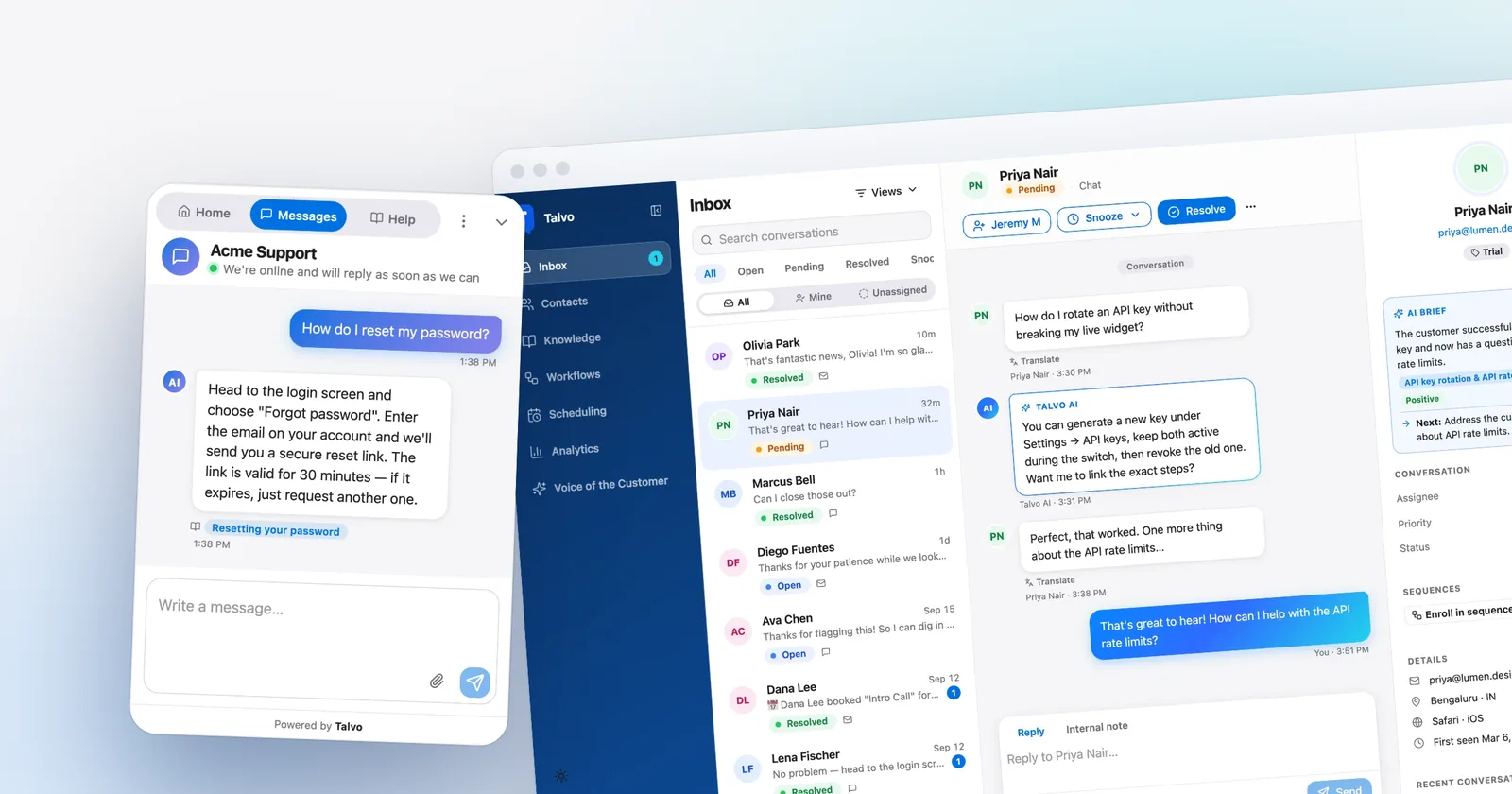
- Send a message from the widget. Does it reach your inbox, and do you get a notification where you expect one?
- Reply from the inbox. Does the reply show up in the widget?
- Ask the AI a question your articles answer, and one they don't. The second should hand off, not guess.
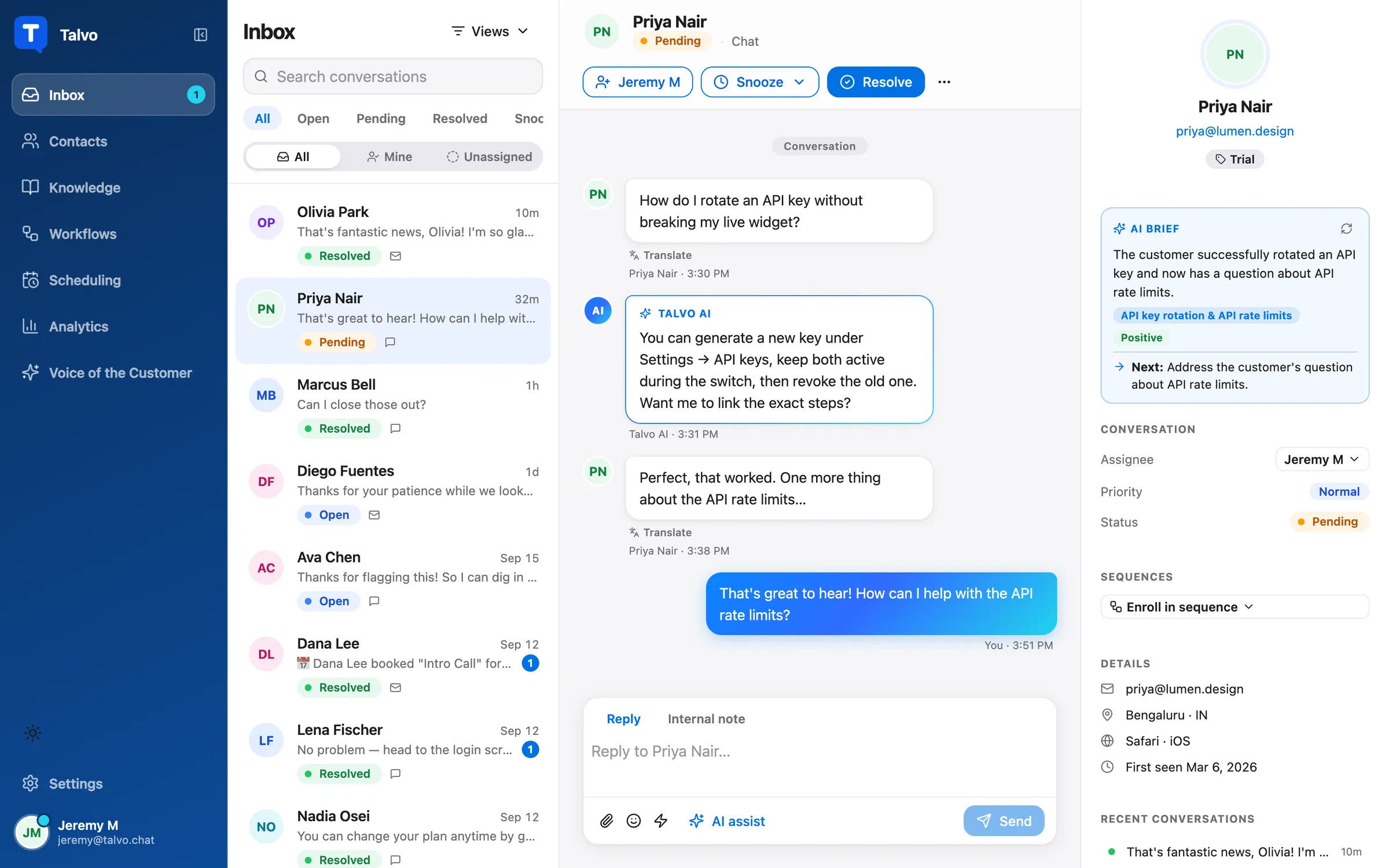
Do this once on desktop and once on mobile before you tell anyone it's live.
Privacy and speed
Chat widgets load third-party code on every page, so it's reasonable to ask what they do to speed and privacy.
On speed, an async script keeps the widget from blocking your page. You can verify the effect yourself: run your page through a speed test before and after installing, and compare. Don't rely on a vendor's claim, ours included. If you see a drop, try loading the script after the page is interactive, as in the Next.js example.
On privacy, Talvo uses no tracking cookies, and data is processed in the United States. The public security page lists the subprocessors. If your visitors are in places with strict consent rules, tell your legal contact what the widget collects, such as the messages and details a visitor types in, and show it in your privacy policy. When customers are signed in on your site, identity verification ties their chats to their contact record.
When it doesn't show up
Almost every problem falls into one of five groups.
The bubble shows on some pages only. You pasted the tag into a single page or into a template that some pages don't use. Move it to the site-wide footer setting.
You see it in the editor but not on the live site. Webflow and Wix only run custom code on the published site. Squarespace also runs it in the editor and preview. Publish, then reload.
You changed it and nothing happened. A caching plugin, a CDN or your browser is serving the old page. Clear the plugin's cache, purge the CDN if you use one, and test in a private window.
The console shows a blocked-script error. Some sites send a content security policy that only allows scripts from listed domains. Add talvo.chat to the script sources that your policy allows. Your browser's console error will name exactly which directive blocked it, so add what it asks for rather than guessing. An ad blocker or privacy extension can cause the same symptom for you but not for your visitors, so check in a clean profile.
It loads twice, or two chat bubbles appear. You've got the tag in both the theme and a plugin, or in both GTM and the page. Remove one.
If you've checked all five and still see nothing, the widget help article is the next stop, and you can reach the team through the contact page.
One honest note on what this doesn't cover
Talvo is new and in beta. A pasted script tag gives you website chat, a shared inbox and email, but not WhatsApp, SMS or Instagram, which are on the public roadmap. If your customers mostly reach you through those, check before you commit. If they find you through your website and email, the steps above are the whole job.
Frequently asked questions
How do I add a chat box to my website for free?
Sign up for a chat tool with a free plan, copy the script tag it gives you, and paste it just before the closing body tag of your site. Talvo's Free plan includes the live chat widget, a shared inbox and two teammates, with no credit card required. Some platforms limit custom code to paid site plans (Squarespace needs Core or higher, Wix needs a published site with a connected domain), so check yours.
Can I add live chat without coding?
Yes. Most website builders have a custom code or code injection setting where you paste the script, and WordPress has plugins that insert footer scripts. If you use Google Tag Manager, you can add the script as a custom HTML tag instead. You are pasting one line, not writing code.
Will live chat slow down my website?
A script loaded with the async attribute downloads in the background rather than blocking your page, which keeps the impact small. The only way to know for your site is to run a speed test before and after installing and compare. If you see a drop, load the script after the page becomes interactive.
How do I add live chat to WordPress or Shopify?
On WordPress, paste the script into a plugin that inserts footer scripts, or into your theme's footer, above the closing body tag. On Shopify, edit your theme's code, open theme.liquid and paste the script above the closing body tag; it won't appear on Shopify's checkout pages. In both cases the code should load on every page where you want the chat bubble.
Why isn't my chat widget showing up?
The usual causes are the script being on one page only, a site that has not been published, a caching plugin or CDN serving an old page, a content security policy blocking the script, or a duplicate tag. Test in a private window and check the browser console for blocked-script errors.
Do I need a knowledge base before adding live chat?
You can launch without one, but if you want an AI agent to answer questions it needs published articles to answer from. A handful of clear articles on shipping, pricing, refunds and setup covers many repeat questions. You can add them after launch and expand them from the questions the AI handed off.
Does Talvo have a WordPress or Shopify plugin?
No. Talvo works by pasting one script tag on any site that allows custom code, so there's no native plugin or app for WordPress or Shopify. There is also no native Shopify integration; connections today are the REST API, webhooks and Slack.
Sources
Other products' prices and features change. We checked these pages; if something is out of date, tell us and we'll fix it.