On this page
- Why the shared login breaks, and when it's still fine
- Gmail shared inbox options, side by side
- If you stay in Google: set it up properly
- Signs you've outgrown Gmail
- When to move to a help desk, and what it costs
- Moving to a shared inbox: the one-day runbook
- The first week: rules that stop double replies
- Chat and email in one queue
- What Talvo's email does and doesn't do
- The short version
- Frequently asked questions
The shared Gmail login works until the day two people answer the same email. One of them writes three careful paragraphs, the other sends "On it, sorting this now" four minutes earlier, and the customer receives two replies that disagree. Nobody did anything wrong. The inbox simply has no way of saying who has it.
This guide covers what a Gmail shared inbox can and can't do, with Google's limits checked against Google's own help pages. It compares the native options (delegation, Google's newer shared inbox for Workspace, and Google Groups' Collaborative Inbox), shows how to tell when you've outgrown them, and gives a one-day runbook for moving to a real shared inbox. Talvo is the worked example for that last part, including the things it doesn't do.
Why the shared login breaks, and when it's still fine
Giving everyone the password to support@ is free, takes two minutes, and is fine for a team of one who wants a second pair of eyes now and then. It breaks in predictable ways as soon as it's a team.
Nobody knows who replied, because every message looks like it came from "support". You can't remove one person's access without changing the password for everyone. And Google warns that when several people sign in to the same account from different locations, Gmail might temporarily lock the account. Lockout at 9 a.m. on a Monday is a bad way to learn about the limits of a shared password.
If you're two people sitting in the same room, answering a few emails a day, a shared login or simple delegation is fine. Don't buy anything. The rest of this guide is for the point where "who's got this?" becomes a daily sentence.
Gmail shared inbox options, side by side
| Shared password | Gmail delegation | Workspace shared inbox | Google Groups Collaborative Inbox | A shared inbox tool | |
|---|---|---|---|---|---|
| Extra cost | None | None | None beyond Workspace | None beyond Workspace | Free to paid, depending on team size |
| Each person has their own login | No | Yes | Yes | Yes | Yes |
| Shows who replied | No | Google notes the delegate's address appears on sent mail | Shows "Sent by" the delegate | Not covered in Google's page | Yes, per message |
| Assign a conversation | No | No | Not mentioned in Google's page | Yes, with permissions granted | Yes |
| Internal notes | No | No | Not mentioned in Google's page | Not mentioned in Google's page | Yes |
| Warns when two people reply | No | Not documented | Not documented | Not documented | Varies by tool |
| Live chat in the same queue | No | No | No | No | Varies by tool (Talvo: yes) |
| Limit | Lockout risk | 10 delegates (personal), 1,000 (Workspace) | Business Starter, Standard and Plus | Needs conversation history on | By plan |
The Google columns come from Google's help pages, read on October 21, 2026.
If you stay in Google: set it up properly
Delegation
Delegation lets other people read and send from your mailbox without knowing your password. Google's limits: up to 10 delegates on a personal Gmail account, up to 1,000 on a work or school account, and with typical use about 40 delegates can be in the account at the same time (heavy use or automated processes lower that). Delegates can't chat with anyone or change your password (Google, Set up mail delegation).
It's the right answer when one person owns a mailbox and a few trusted people help. It gives access, not workflow: there's no assignment, no notes, and nothing stopping two delegates opening the same message.
Google's shared inbox for Workspace
Google now has a native shared inbox on Business Starter, Business Standard and Business Plus. It's being released in phases, so it may not be in your Admin console yet; if it isn't, Google's page says to use delegated accounts instead. Delegates can read, send and delete messages and view and add contacts. Sent mail shows the shared address in the From field and the sending delegate under "Sent by" (Google, Create a shared inbox, last updated October 20, 2026).
The page doesn't mention assigning conversations or internal notes, so treat it as a cleaner version of delegation. If you're already paying for one of those Workspace editions and your team is small, it's the first thing to try.
Google Groups Collaborative Inbox
A Collaborative Inbox turns a Google Group into a lightweight queue. Members can take a conversation, assign it to someone and mark it complete, but only if the group owner or manager has given them the "Who can moderate metadata" permission (Google, Take & assign conversations). Conversation history has to be on, and Google points to delegated Gmail accounts for anything more advanced (Google, Make a group a Collaborative Inbox).
It's the only native option with real assignment. It's also a Google Group underneath, so expect a forum-style tool rather than a full inbox, and Google's page describes no private team notes.
Signs you've outgrown Gmail
You don't need a feature list to know. Watch for these.
- Two people have answered the same email in the last month
- "Who's got this?" appears in Slack or WhatsApp more than once a week
- You can't say, without a spreadsheet, how long customers wait for a first reply
- A teammate left and you had to change a password or hunt for what they owned
- Customers also write in through chat, and nobody sees both in one place
- You want a private note on a thread without cc'ing the whole team
If only the first applies, try the Workspace shared inbox or a Collaborative Inbox before paying for anything. If three or more apply, you've outgrown it, and no Google setting fixes that.
When to move to a help desk, and what it costs
A dedicated shared inbox adds the missing layer: assignment, internal notes, statuses, a queue everyone sees and, in many tools, a warning when two people open the same conversation. Tools differ on price; some bill per teammate and some per workspace. For a comparison across vendors, see per-seat vs flat pricing, Talvo vs Help Scout and Help Scout pricing.
On Talvo specifically, the Free plan includes two-way email, the shared inbox with internal notes and two teammates, with no credit card. The Starter plan is $49 a month ($39 a month billed annually) for up to five teammates. Plans are priced per workspace, not per seat, so adding a teammate up to the limit doesn't change the bill. That covers most 2 to 5 person support teams, with no AI needed (Starter also includes 100 AI resolutions a month, and extras are $0.49 each).
Moving to a shared inbox: the one-day runbook
This is the part nobody writes down. Plan on an afternoon.
- Pick the addressDecide which mailbox becomes the shared one, such as support@. Keep it exactly as customers know it.
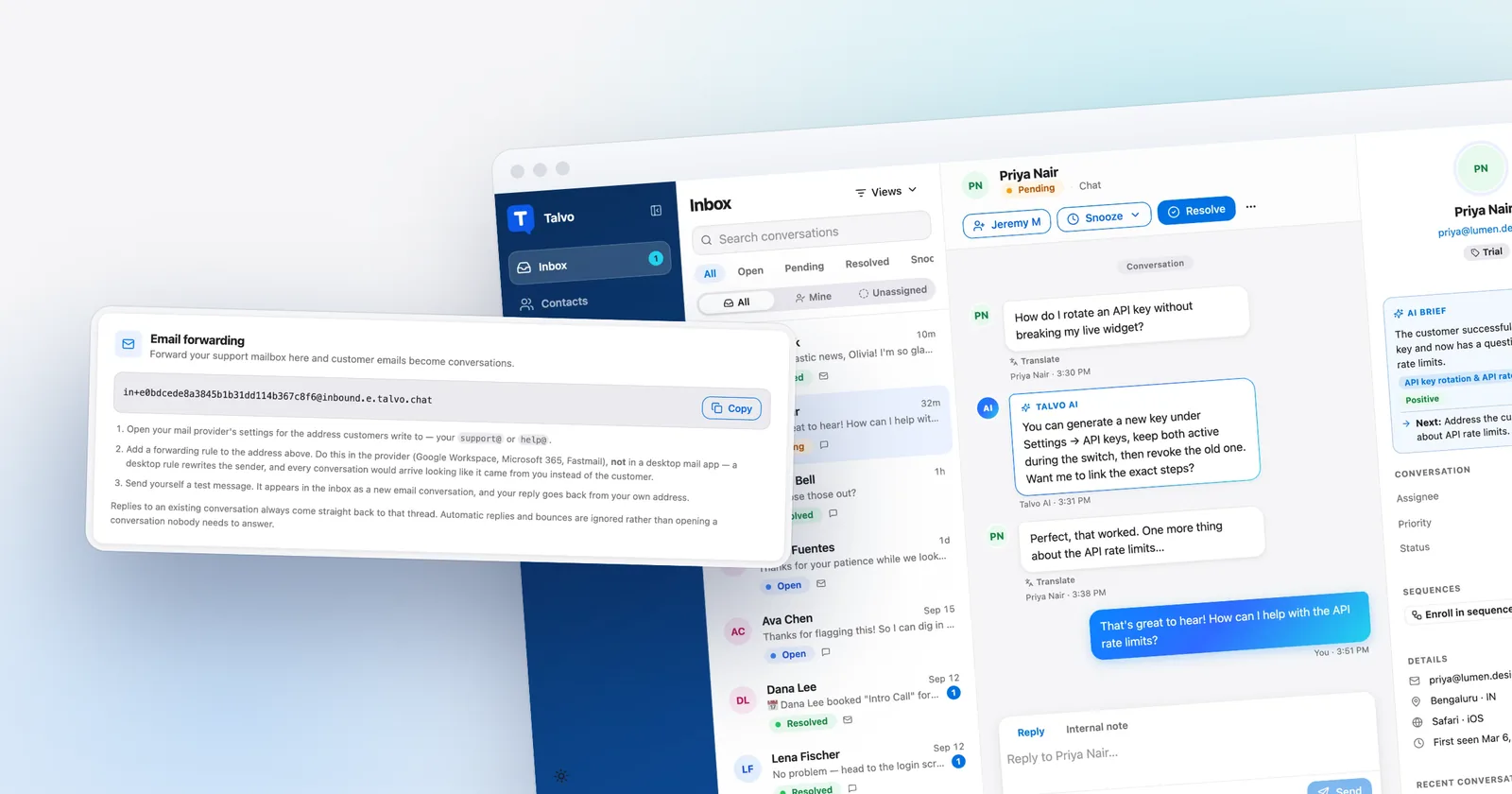
- Forward itIn Talvo, open Settings → Inbox → Email forwarding and copy your workspace forwarding address. In Gmail, add it under Forwarding and POP/IMAP. See two-way email.
- Confirm in GmailGmail sends its approval link to the forwarding address, which is Talvo. A Confirm in Gmail button appears in Talvo a minute or so later. Click it while signed in to the support mailbox's Google account. Talvo never clicks it for you.
- Send a testEmail support@ from a personal address, check it arrives as a conversation, reply, and reply to the reply to check it threads.
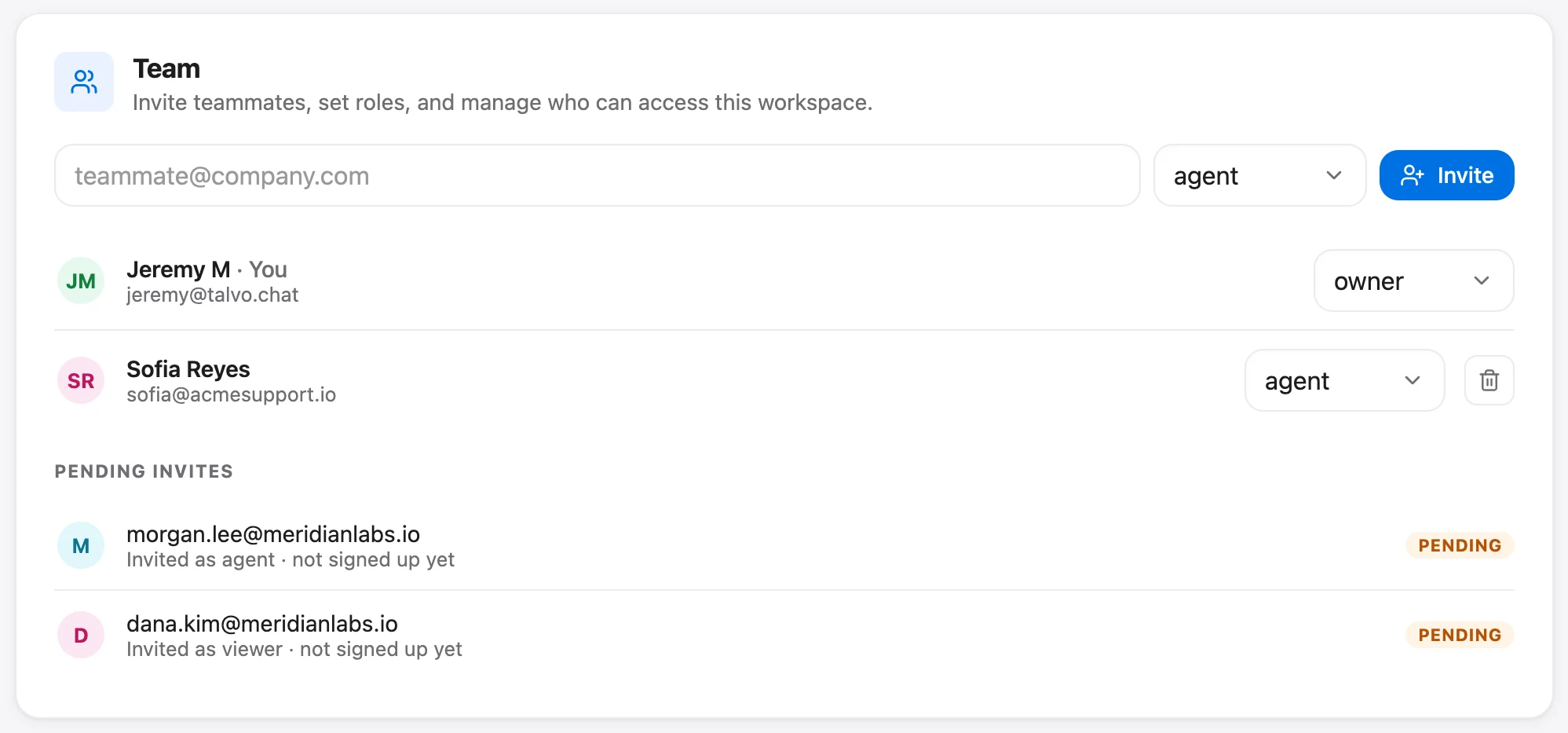
- Invite the teamAdd teammates with roles (owner, admin, agent or viewer) and have each of them reply once.
- Retire the passwordOnce everyone is in, change the shared Gmail password and remove old delegates, so nobody keeps answering from the old place.
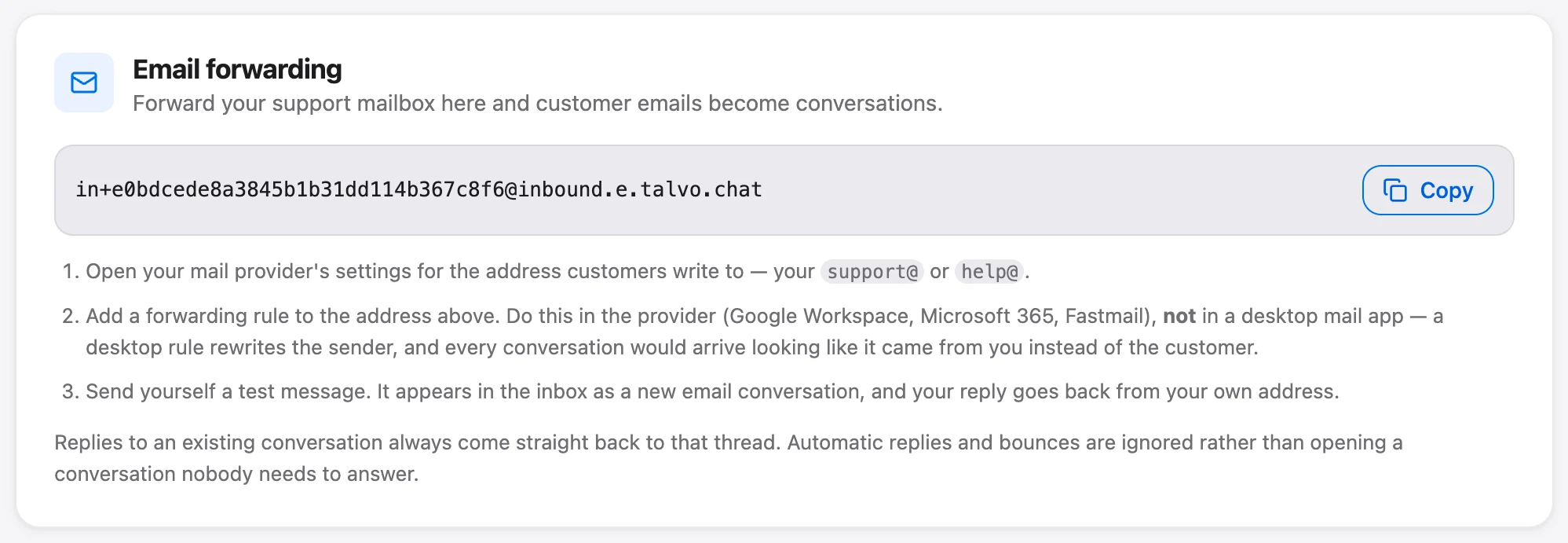
Do that on a quiet day. For the first week, keep the Gmail inbox open in a tab so you can compare, then close it.
The first week: rules that stop double replies
The tool prevents some collisions, but habits prevent the rest. Four rules cover almost everything.
Everything starts unassigned, and a conversation is either claimed or it isn't. Assign before you reply, even if the person assigning is also the one replying. Anything a teammate needs to know goes in an internal note rather than a side thread in Slack. And save the answers you've typed three times as canned responses; there's a library of 40 to start from.
In Talvo, a conversation has a status (open, pending, resolved or snoozed), an optional assignee and a priority. The Unassigned filter is the team's to-do list. Snoozing hides a conversation until a time you pick, and a background job returns it to the inbox when that time arrives, so nothing waits on someone's memory. When one teammate starts typing a reply, others see "Sam is replying..." or "Sam is also viewing this conversation" above the composer, which stops most double replies before they happen.
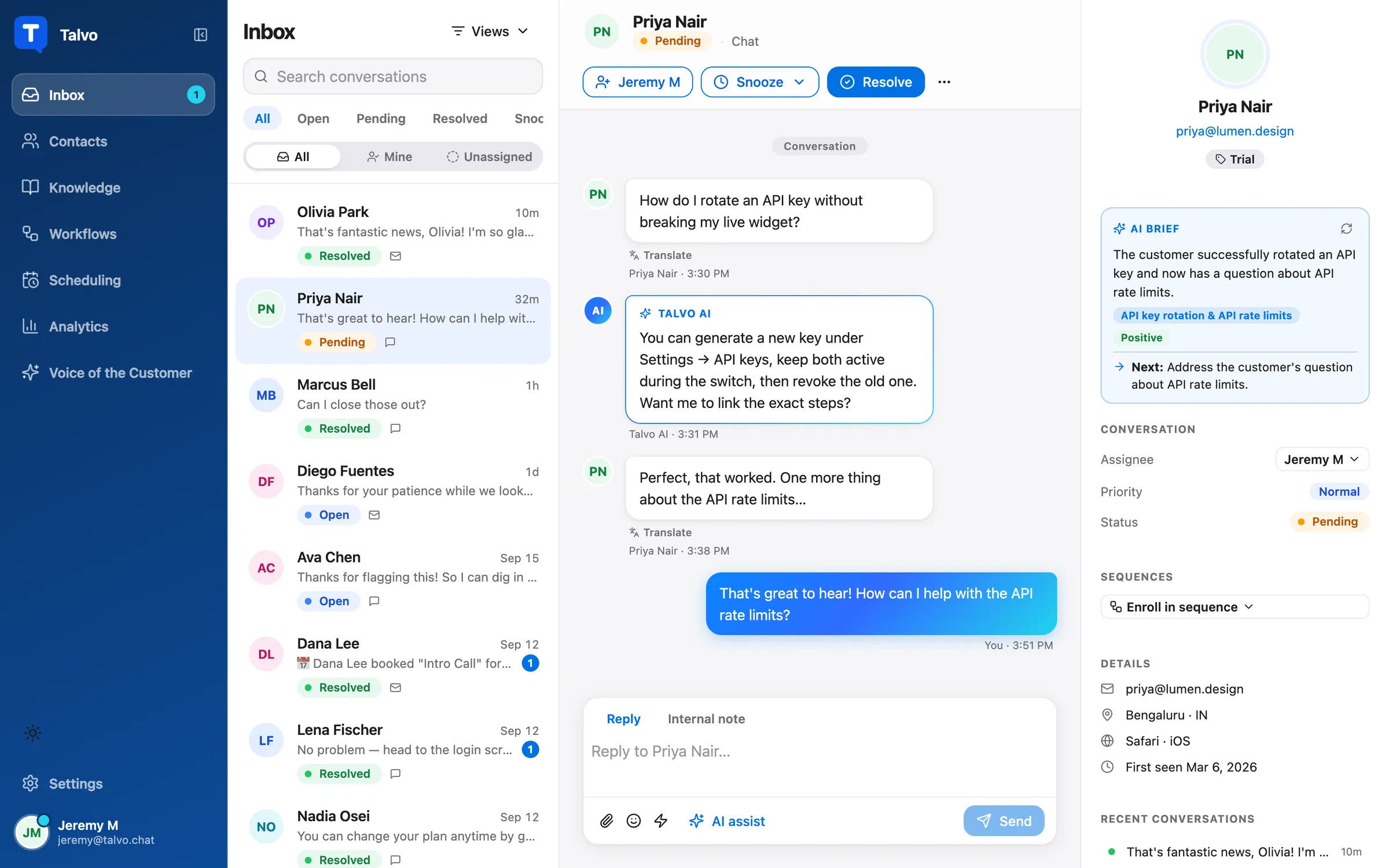
Notes can @mention a teammate: type @ in the note tab and pick a name. They get a push notification and an email. Mentions work in internal notes only, and there's no Slack message for them.
Chat and email in one queue
Many small teams also have a chat widget, and that's a second inbox to watch. In Talvo the live chat widget, the AI agent and email land in the same queue on the same contact record, so a customer who chats on Tuesday and emails on Thursday is one history. Adding chat is a separate step; see how to add live chat to your website. It's optional, and a team can use Talvo as an email-only shared inbox.
What Talvo's email does and doesn't do
Moving off Gmail means giving up some things, and some of those are the first questions to ask any tool.
- Replies thread back into one conversation, so a back-and-forth stays in one place
- Assignment, internal notes, @mentions, statuses, priority and snooze, all on the Free plan
- Collision detection shows who is replying or viewing
- Chat and email share one customer record
- Attachments work both ways: customers' files show on the message, and yours arrive as real attachments
- Replies are sent from Talvo's sending address under your workspace's name, not from your own domain
- Replies don't appear in your Gmail Sent folder, because Talvo sends them, not Google
- Past email history can't be imported; only contacts can, from CSV, up to 2,000 rows
Read the first two negatives carefully. A customer receives your reply from an address that isn't yours, with your business name as the sender name; when they hit reply, it threads back to the conversation. There's no custom sending domain. If it matters that mail comes from your own domain, or that your Sent folder is the record, Talvo isn't the tool.
Attachments are not on that list. A customer's emailed files show on the message, up to 10 per email and 25 MB each, and files you attach arrive as real attachments; anything past 10 files or 30 MB in total goes as a download link instead.
Because history isn't imported, old threads stay in Gmail. Keep that mailbox as your archive and search it when a customer refers to something from before the move.
Other gaps worth knowing: Talvo is a separate app, not a Gmail extension, so your team works in Talvo rather than inside Gmail. Routing rules, round-robin assignment and saved views start on Talvo's Growth plan ($149 a month, or $119 billed annually), not Free or Starter. And Talvo is new and in beta, with no reviews yet.
The short version
Stay on Gmail while one person owns the mailbox and a few trusted people help, and try Google's own shared inbox or a Collaborative Inbox if you're on Workspace and want something with assignment. Move when double replies, "who's got this?" and missing response times show up weekly. And when you do move, plan the afternoon: forward, confirm, test, invite, retire the password.
Frequently asked questions
Does Gmail have a shared inbox?
Yes, in a few forms. Gmail delegation lets others read and send from your mailbox, and Google's newer shared inbox is available on Workspace Business Starter, Standard and Plus, released in phases. Google Groups also offers a Collaborative Inbox with assignment. Google's help pages for these options don't describe internal notes or a help-desk style queue.
How do I share a Gmail account without sharing the password?
Use delegation. The mailbox owner adds delegates, who then read and send from their own login without knowing the password. Delegates can't chat or change the owner's password.
How many people can access a delegated Gmail account?
Google allows up to 10 delegates on a personal Gmail account and up to 1,000 on a work or school account. With typical use about 40 delegates can access an account at the same time, and heavy use or automated processes lower that.
What is the difference between a Google Group and a shared mailbox?
A Google Group with Collaborative Inbox turned on is a shared queue where members can take, assign and complete conversations if they have the right permissions. A shared mailbox, such as Google's Workspace shared inbox or a delegated account, is a mailbox several people can open. The group adds assignment, while the mailbox keeps a normal inbox view.
Can Gmail show who replied from a shared account?
With Google's Workspace shared inbox, sent mail shows the shared address in the From field and the delegate who sent it under Sent by. Delegation also shows the delegate's address, according to Google. A shared password shows no one, since every reply looks like it came from the account.
How do I prevent two people replying to the same email?
Use a tool that assigns conversations and shows who else is looking. In Talvo, the composer shows 'Sam is replying...' or 'Sam is also viewing this conversation', and you can assign a conversation before anyone replies. The cheapest habit is a rule: assign before you reply.
Is a shared inbox free for small teams?
Google's options cost nothing beyond the Workspace plan you already have. Dedicated shared inboxes vary: Talvo's Free plan includes two-way email, a shared inbox with internal notes and two teammates, and its Starter plan is $49 a month ($39 billed annually) for up to five teammates.
Will my replies show up in Gmail's Sent folder if I use Talvo?
No. Talvo sends replies itself, from its own sending address under your workspace's name, not through your Google account. Talvo doesn't import past email either, so keep the old Gmail mailbox as an archive.
Sources
Other products' prices and features change. We checked these pages; if something is out of date, tell us and we'll fix it.