On this page
- Two dates decide the whole plan
- How to export Zendesk data with the native export
- Exporting Zendesk tickets and everything else through the API
- Images in your Zendesk articles
- Help Scout: export conversations through the API, because the app only exports reports
- Your help-center URLs are the part you can't export
- Pre-cancellation checklist
- What usually gets lost, and whether it matters
- Moving to Talvo: what comes across and what doesn't
- Enable, pull, check, then cancel
- Frequently asked questions
If you want to export Zendesk data before you switch, the first surprise is that the export button may not exist yet. Zendesk ships its native exports turned off, and only the account owner can ask support to switch them on. Help Scout's surprise is bigger: the app exports reports, and nothing else. Your conversations, customers and Docs articles come out through the API or not at all, and the Free plan has no API.
Both are reasons to start weeks before your renewal date. Every vendor detail here comes from their own documentation, checked October 23, 2026. Coming from Intercom (now Fin)? Our Intercom migration checklist covers it.
Two dates decide the whole plan
On Zendesk, cancellation takes effect at the end of the billing cycle, and after that you "can no longer sign in," per its cancellation article. Only the account owner can cancel. Under Zendesk's data deletion policy, deletion generally starts 90 days after cancellation and "cannot be reversed" once it begins. Ticket data, attachments, help-center content and help-center images are then deleted within 40 days, and backups within 130. So your deadline is the last day of your paid period; the 90 days afterward aren't a grace period, because you can't sign in.
Help Scout is immediate. When the account owner clicks "Permanently Delete My Account," the account becomes inaccessible at once, and the data is permanently deleted 60 days later, according to its cancellation guide.
How to export Zendesk data with the native export
Native exports are for admins on Suite Growth, Professional, Enterprise and Enterprise Plus, and on Support Professional and Enterprise. Suite Team has no export tools at all; the REST API, which works on every plan, is your only route there. Elsewhere the export is off by default until the account owner asks Zendesk Customer Support to enable it. Do that first, because it depends on someone else's reply.
Once it's on, there are four formats, per Zendesk's export article.
| Format | What's in it | What's missing or capped |
|---|---|---|
| JSON (tickets, users, organizations) | Newline-delimited JSON over a date range; includes deleted organizations | Tickets over 1 MB lose their comments, which go to a separate file. Items updated in the last ~6 minutes are skipped. Over 1M tickets, you export in 31-day chunks |
| CSV (tickets only) | Ticket fields and metrics | No comments, no descriptions, no deleted tickets, no multi-line text, multi-select or custom date fields |
| Full XML | Account settings, groups, organizations, users, and tickets with comments | No custom ticket, user or organization fields, no metric sets, no comment metadata. Capped at 500 MB, about 200,000 tickets |
| User XML | Users, organizations, groups and user tags | No custom fields |
The CSV is useless as an archive: it has no conversation text. For that you want JSON, or Full XML if you're under the cap.
Exports arrive as an emailed zip link valid for at least three days, and can take from minutes to more than a day. Tickets handled by Zendesk's AI agent can't be exported this way, and the export article doesn't say whether attachment files or only links appear in the JSON or XML, so plan to download the files yourself. Its cross-product export overview adds: the help center has no export button (you use the API or pay for Professional Services), help-center attachments are downloaded separately, and triggers, macros and views aren't covered by any UI export.
Exporting Zendesk tickets and everything else through the API
Tickets, users and organizations come from the incremental export endpoints. For tickets, /api/v2/incremental/tickets/cursor is the recommended one, and there are time-based versions for tickets, ticket events, users and organizations. They're admin-only, return up to 1,000 records a page, and include deleted tickets unless you pass exclude_deleted=true. Comments come through ticket_events with the comment_events sideload, or per ticket from GET /api/v2/tickets/{id}/comments.
Each comment lists its files in an attachments array with a content_url (add include_inline_images=true for pasted images). Zendesk warns files may be hosted externally, so download the bytes, not the links.
Your business rules have their own endpoints: GET /api/v2/macros (admins see everyone's, personal macros included), GET /api/v2/triggers, GET /api/v2/views and GET /api/v2/automations. Help-center articles come from GET /api/v2/help_center/articles (or /{locale}/articles), with an incremental version for changes since a timestamp, and the body is HTML. Each article's inline and block attachments are listed at /api/v2/help_center/articles/{id}/attachments with a content_url, up to 20 MB each.
Rate limits: how long the pull takes
Zendesk's Support API limits per minute are: Suite Team 200, Growth and Professional 400, Enterprise 700, and Enterprise Plus or the High Volume add-on 2,500. The Help Center API's limits match but are counted separately.
The incremental export endpoints are tighter: 10 requests a minute, or 30 with the High Volume add-on (which needs Suite Growth or Support Professional or above, and at least 10 agent seats). At 1,000 records a page, that's 10,000 records a minute, and pulling comments through ticket_events with the comment_events sideload keeps that pace. The slow route is one call per ticket. Comments for 50,000 tickets that way take 50,000 ÷ 400 = 125 minutes on Suite Growth, and 50,000 ÷ 200 = 250 minutes, a little over four hours, on Suite Team, before retries. Attachment downloads have their own limit of 2,500 a minute.
Images in your Zendesk articles
Zendesk's own knowledge-base backup tutorial saves each article's HTML one locale at a time and leaves images explicitly out of scope. The HTML you save will usually still point at images on Zendesk's servers, and help-center images are on Zendesk's deletion list.
Fix it while the account is live: list every image and attachment per article through the attachments endpoint, download them, with a map of old URL to file name. Theme code is separate. Zendesk says theme code can't be reached through the Help Center API, so copy any template customizations by hand.
Help Scout: export conversations through the API, because the app only exports reports
Help Scout calls its API "currently the only means" of getting data beyond reports (data export options). The in-app export covers the All Channels, Email, Company/User and Happiness reports, as CSV or XLSX. It leaves out thread contents, rating comments, totals and averages, and open conversations. Useful for last year's numbers; not an archive.
Everything else:
- Conversations, customers and the rest come through the Inbox (Mailbox) API 2.0, which uses OAuth 2 and covers conversations, threads, attachments, customers, saved replies, workflows, ratings and more. Attachment files come back as base64 from
GET /v2/conversations/{id}/attachments/{attachmentId}/data. - Docs articles come through the Docs API, with an API key from your user profile. Each article's
textfield is HTML, and the API also exposes itspublicUrlandslug, which you'll need for a redirect map. - A plain customer list can be requested from Help Scout support by the account owner: a CSV of names and emails, with no conversations.
According to Help Scout's Mailbox API article, the Free plan has no API access, Standard gets 200 calls a minute without the reporting endpoints, Plus 400 and Pro 800. Per its rate-limiting docs, writes count double, every user on the account shares one limit, and a 429 response tells you how long to wait in X-RateLimit-Retry-After. If your script makes one call per conversation, 20,000 conversations take at least 20,000 ÷ 200 = 100 minutes on Standard. On Free, with no API and no documented bulk export, ask support first; upgrading for the month you leave is the dependable route, in our view.
The Docs API allows 2,000 requests per 10 minutes with one Docs site (more with more sites), and admin activity counts against it. Help Scout's API docs don't say which plans include it or offer a way to download the images already in your articles, so expect to save images from the article HTML yourself.
Your help-center URLs are the part you can't export
Articles are portable; their addresses depend on one thing: whether your help center runs on a subdomain you own.
If it does, you have the one real fix. Zendesk's host mapping (available on every Suite plan from Team up) and Help Scout's custom domain for Docs both work with a CNAME from a subdomain like help.yourcompany.com to the vendor. Both are subdomain-only. Because the DNS record is yours, you can repoint it after you leave, at a server you control that answers every old path with a 301 to the article's new address. On Help Scout, remove the domain from Docs settings before deleting the CNAME.
If it doesn't, the URLs on yourcompany.zendesk.com or yourcompany.helpscoutdocs.com stay under the vendor's control. You can redirect them only while the account is alive:
- Zendesk's Redirect Rules API allows up to 50,000 rules per brand on every Guide plan except Guide Lite Legacy. The old URL must return a 404 first, so archive or delete the article before adding the rule.
redirect_toaccepts addresses starting withhttps://,http://or/, which suggests external targets work; Zendesk doesn't state it outright. The rules work only while the account is active. - Help Scout's Docs redirects live under Settings › Docs Sites › your site › Redirects and can point to external URLs. Nothing says they survive cancellation.
Neither vendor says your public help center stays reachable after you cancel, so plan as if it doesn't.
A redirect plan that survives cancellation
- List your URLsPull every public article URL from the API (Help Scout's
publicUrl, Zendesk's article list) and add a traffic or inbound-link column from your analytics. - Pick one owner for the addressIf you're host-mapped or on a custom Docs domain, keep that subdomain. If you aren't, this is the moment to start using one for wherever your articles go next, if the new tool allows it.
- Publish in the new home firstYou can't map old to new until the new URLs exist. Import or rebuild, review, publish, then copy the final addresses.
- Build the mapOne row per old URL: old path, new URL, status code 301. Point retired articles at the closest live one, not the home page.
- Switch redirects on before you cancelVendor rules for the transition, then DNS for the long term: repoint the CNAME to your own site or a CDN rule that serves the same map.
- Test from outsideRequest a sample of old URLs from a logged-out browser and confirm each returns a 301 to a live page.
Pre-cancellation checklist
Copy it into your tracker; it's in order.
- Write down the renewal date and who can cancel (the account owner on both tools)
- Zendesk: have the account owner ask support to enable exports; on Suite Team, plan for the API
- Help Scout Free: ask support how you can export conversations, or budget to upgrade for a month
- Save the URL list and traffic for every public article
- Export help-center articles as HTML, per language, plus every image and attachment
- Import articles into the new tool while the old help center is still public
- Export users, organizations or customers, with custom fields from the API if you need them
- Export tickets or conversations with full comment or thread text (JSON or the API, never the ticket CSV alone)
- Download attachment files, not just their URLs
- Export macros or saved replies, triggers, automations, views and workflows as JSON, plus a plain list of what each one does
- Export the reports you'll want for year-over-year comparisons, including CSAT
- Check the counts, then spot-check ten records against the live account
- Store the archive in two places you control, with a CSV index of ticket ID, email, date and subject
- Switch on redirects and repoint DNS, then cancel
Checking the counts is the step people skip. Compare the ticket count in your export with the account's total (Zendesk's incremental export includes deleted tickets unless you excluded them). Then compare ten random records, including the oldest, against the live account: every comment and internal note present, attachments opening from your archive. If an attachment only opens while you're logged in, you haven't archived it.
The archive is customer personal data: give it the same access controls and retention period as your other customer records.
What usually gets lost, and whether it matters
Macros and saved replies survive as JSON but rarely import anywhere. They hold your team's tested wording, so keep them as plain text and recreate the dozen you use most.
Triggers, automations and views are the opposite case. They don't carry over in a usable form, since every tool's rules work differently; what you need is a one-line note on what each was for. CSAT history usually survives only as report numbers (Help Scout's Happiness export drops rating comments), which is enough for a baseline.
Moving to Talvo: what comes across and what doesn't
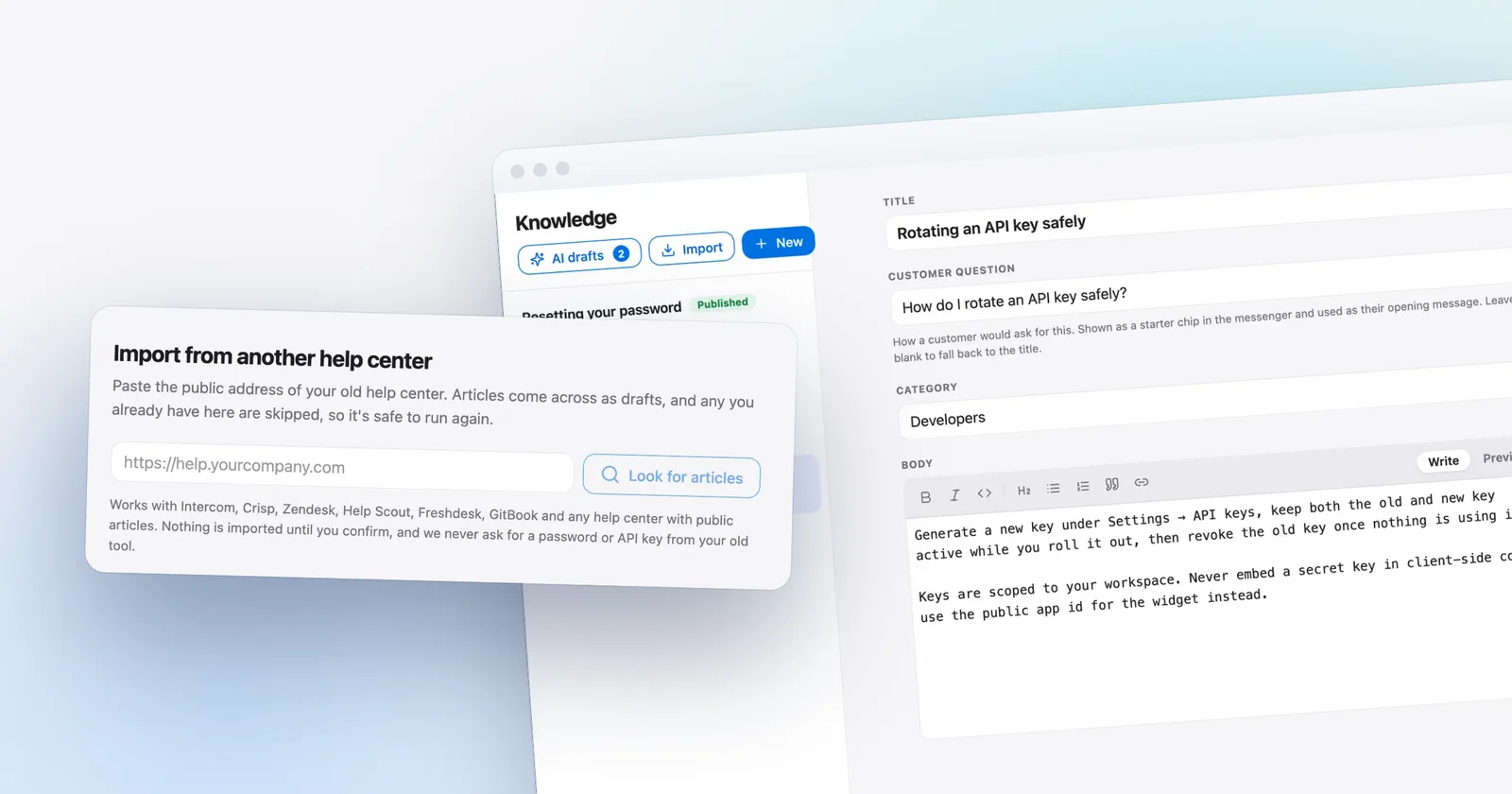
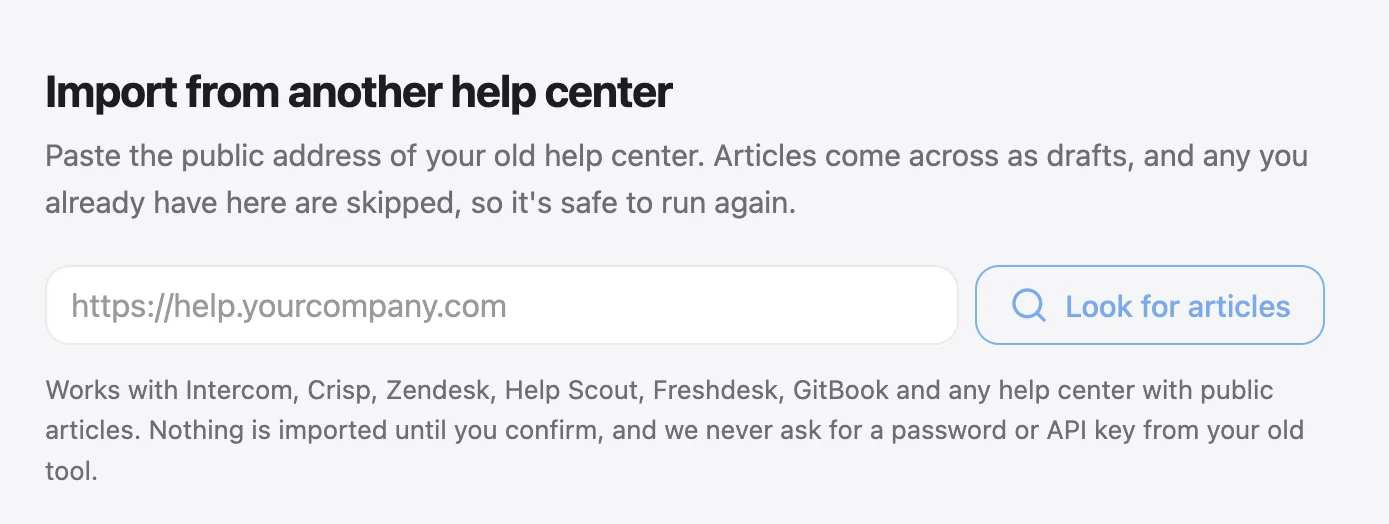
Talvo imports help-center articles by crawling the public pages. It recognizes Zendesk and Help Scout, reads the sitemap first and then links, and reads only the HTML the server sends, without running JavaScript. It takes up to 2,000 articles per import, reports the languages it finds so you can import one at a time, carries over categories where the page shows them, rewrites links between articles and skips titles you already have. Images become a short text placeholder showing their alt text, and an image with no alt text is dropped without a trace, so keep the image files you downloaded. Everything lands as a draft; nothing reaches customers or the AI agent until you publish it. It can only see what a logged-out visitor sees, so run it before you cancel. The switching guide has the steps.
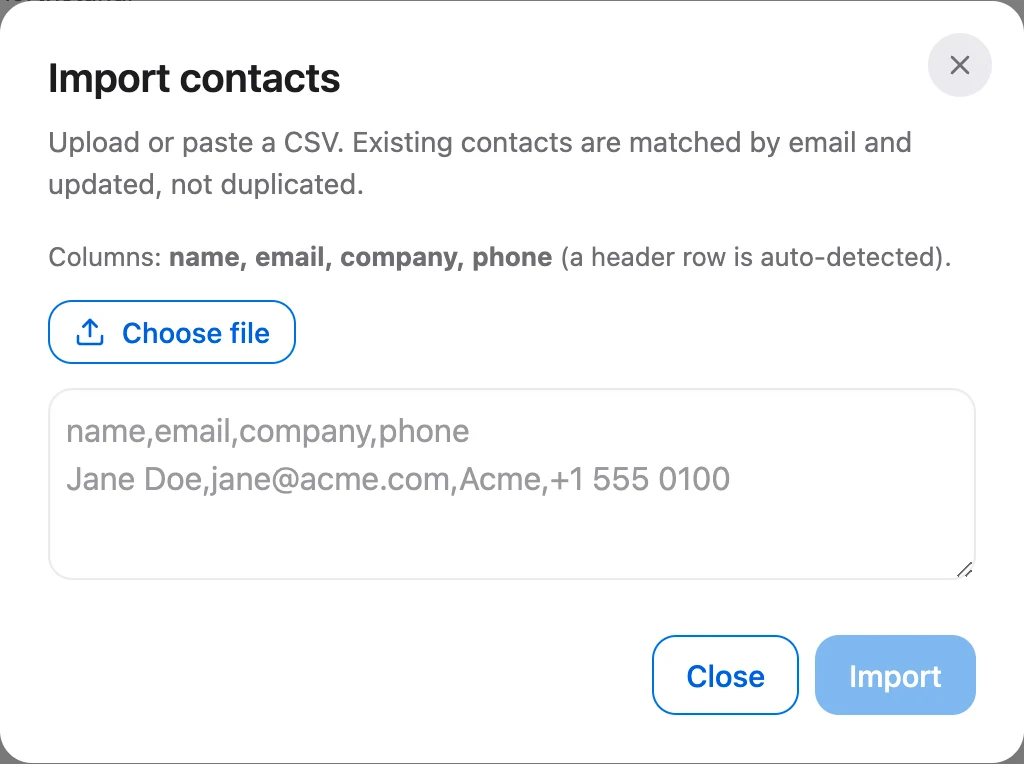
Contacts come in by CSV: name, email, company and phone, up to 2,000 rows per import. Other columns are ignored, so tags and custom fields don't come with them, and an organization column is read only as the company name. Help Scout's support-provided customer CSV fits once the names are in a single "name" column (Talvo doesn't join first- and last-name columns); a Zendesk user export needs converting to CSV first. See importing contacts.
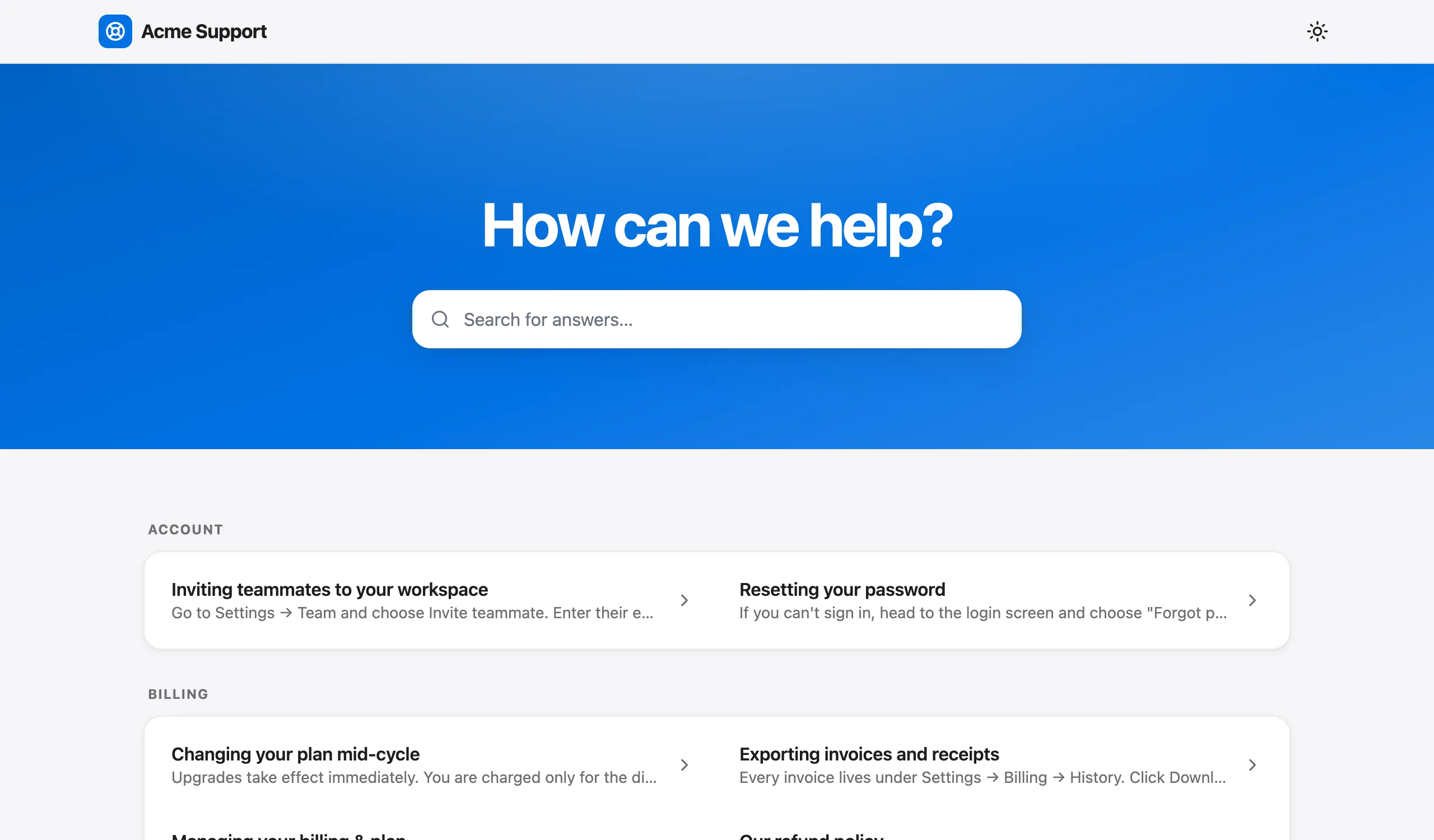
Your help-center address will also change. Talvo's hosted help center doesn't support a custom domain. Articles live at talvo.chat/help?app=<your id>&article=<slug>, so you can't point help.yourcompany.com at it. If your old help center was host-mapped, keep the subdomain and use it to serve 301 redirects to the new Talvo addresses. The pages are server-rendered with a canonical tag, but Talvo doesn't list customer help centers in its sitemap or let you edit an article's meta title and description. If much of your traffic comes from search, weigh that first.
Neither import has a plan gate, so both work on the Free plan. Afterward, the weekly AI answer audit is a good way to find the imported articles that need rewriting, and our email deliverability guide covers moving your support address.
Enable, pull, check, then cancel
Still choosing? Zendesk alternatives and Help Scout alternatives price the options for the same team. Either way: enable the export, pull the text and the files, check them, then cancel, with time to spare.
Frequently asked questions
How do I export all my data from Zendesk?
On Suite Growth and above, or Support Professional and above, the account owner asks Zendesk support to enable exports, then an admin can export tickets, users and organizations as JSON, tickets as CSV, or settings, users and tickets with comments as Full XML (without custom fields, under about 200,000 tickets). Suite Team has no export tools, so you use the REST API. Help-center articles, macros, triggers, automations and views also need the API, because no UI export covers them.
Does the Zendesk ticket CSV export include comments?
No. Zendesk's ticket CSV includes ticket fields and metrics but excludes comments, descriptions, deleted tickets and several custom field types. For the conversation text, use the JSON export, the Full XML export if you have fewer than about 200,000 tickets, or the API's ticket comments and ticket events.
Can I export conversations from Help Scout?
Only through the Inbox (Mailbox) API. Help Scout's in-app export covers reports and leaves out thread contents, so conversations, customers and attachments need an API script. The Free plan has no API access, so ask Help Scout support about your options or expect to upgrade for the month you leave.
What happens to my data after I cancel Zendesk?
Cancellation takes effect at the end of your billing cycle, and after that you can no longer sign in. Zendesk's deletion policy says deletion generally starts 90 days after cancellation and can't be reversed once it begins, with ticket data and help-center content deleted within 40 days and backups within 130. Finish your export before the billing cycle ends.
What happens to my data after I cancel Help Scout?
Help Scout cancellation is immediate: the account is inaccessible once the account owner confirms the deletion, and the data is permanently deleted 60 days later. Help Scout advises exporting first. There is no end-of-cycle window to finish exports afterward.
Will my help-center links break when I leave Zendesk or Help Scout?
Links on the vendor's own domain stop being yours when the account closes, and vendor redirect rules only work while the account is active. If your help center runs on your own subdomain through a CNAME, you can repoint that subdomain after leaving and serve 301 redirects to the new article addresses. Set this up before you cancel.
Do Zendesk help-center images come with an article export?
Not automatically. Zendesk's own knowledge-base backup tutorial leaves images out of scope, and the saved HTML still points at images hosted by Zendesk, which are deleted after cancellation. List each article's attachments through the Help Center API and download the files while the account is live.
Can Talvo import my Zendesk or Help Scout tickets?
No. Talvo can import public help-center articles by crawling the pages and contacts from a CSV with name, email, company and phone, but it has no Zendesk or Help Scout API importer and cannot import ticket or conversation history. Keep your exported archive outside Talvo as your record of past conversations.
Sources
Other products' prices and features change. We checked these pages; if something is out of date, tell us and we'll fix it.
- Zendesk: Exporting ticket, user, or organization data from your account (checked Oct 23, 2026)
- Zendesk: How do I export my data and reports from all Zendesk products (checked Oct 23, 2026)
- Zendesk developer docs: Incremental exports (checked Oct 23, 2026)
- Zendesk developer docs: Rate limits (checked Oct 23, 2026)
- Zendesk developer docs: Ticket comments (checked Oct 23, 2026)
- Zendesk developer docs: Macros (checked Oct 23, 2026)
- Zendesk developer docs: Triggers (checked Oct 23, 2026)
- Zendesk developer docs: Views (checked Oct 23, 2026)
- Zendesk developer docs: Automations (checked Oct 27, 2026)
- Zendesk: theme code and the Help Center API (checked Oct 27, 2026)
- Zendesk developer docs: Help Center articles (checked Oct 23, 2026)
- Zendesk developer docs: Article attachments (checked Oct 23, 2026)
- Zendesk developer docs: Backing up your knowledge base with the Help Center API (checked Oct 23, 2026)
- Zendesk: Host mapping, changing the URL of your help center (checked Oct 23, 2026)
- Zendesk developer docs: Redirect rules (checked Oct 23, 2026)
- Zendesk: Canceling products and accounts (checked Oct 23, 2026)
- Zendesk Service Data Deletion Policy (checked Oct 23, 2026)
- Help Scout: Data export options (checked Oct 23, 2026)
- Help Scout: Export reporting data (checked Oct 23, 2026)
- Help Scout: Mailbox API plans and rate limits (checked Oct 23, 2026)
- Help Scout developer docs: Inbox (Mailbox) API 2.0 (checked Oct 23, 2026)
- Help Scout developer docs: Mailbox API rate limiting (checked Oct 23, 2026)
- Help Scout developer docs: Docs API (checked Oct 23, 2026)
- Help Scout: Use your own custom domain with Docs (checked Oct 23, 2026)
- Help Scout: Docs redirects (checked Oct 23, 2026)
- Help Scout: Cancel your Help Scout account (checked Oct 23, 2026)
- Talvo help: Switching to Talvo from another help desk