On this page
- How to create a knowledge base in a week: what you'll have by Friday
- Day 1: pull the questions
- Day 2: draw the structure
- Day 3: import what you already have, then cut
- Days 4 and 5: write the first twenty
- Day 6: test it like a customer
- Day 7: launch where questions happen
- Week two: let the gaps tell you what to write next
- Doing this in Talvo, and what it can't do
- Frequently asked questions
Customers would rather not write to you at all. A Harvard Business Review study from 2017, built on CEB data, reported that 81% of customers try to take care of matters themselves before contacting a rep (HBR). The data is nine years old, so read it as a direction rather than today's number. The point holds: if customers can't find the answer quickly, they open a chat window or write an email.
So here is how to create a knowledge base your customers can use, as a plan for one working week. It is a customer-facing help center, not an internal wiki. Each day has a job and a "done when" you can check, and the plan assumes you have a few hours a day, not a dedicated writer. Talvo's hosted help center is the worked example, with its limits stated on the way.
How to create a knowledge base in a week: what you'll have by Friday
By the end you'll have a public help center with five to eight categories and about twenty published articles, each answering one real question. It's linked from your website, your chat widget and your email. You'll know which questions it doesn't yet answer, and you'll have a date to review each article.
- Day 1: pull the questionsRead the last 30 to 60 days of conversations and list what customers asked, with counts.
- Day 2: draw the structureFive to eight categories named in your customers' words; one question per article.
- Day 3: import, then cutCrawl your site or bring articles from your old tool, then publish, edit or delete every draft.
- Days 4 and 5: write the first twentyCover the starter set by type, using one template.
- Day 6: test it like a customerTen real questions through search, ten through the AI, and one person who doesn't know your product.
- Day 7: launch where questions happenLink it from your site, widget, emails and replies.
Is that realistic? Vendors disagree. ProProfs suggests about a week if you import existing content and three to six weeks from scratch, for a first set of ten to fifteen topics (ProProfs). Atender's own recipe runs twelve days (Atender). Both are single-vendor opinions, not benchmarks. A week works when you're ruthless about scope: twenty articles, not two hundred.
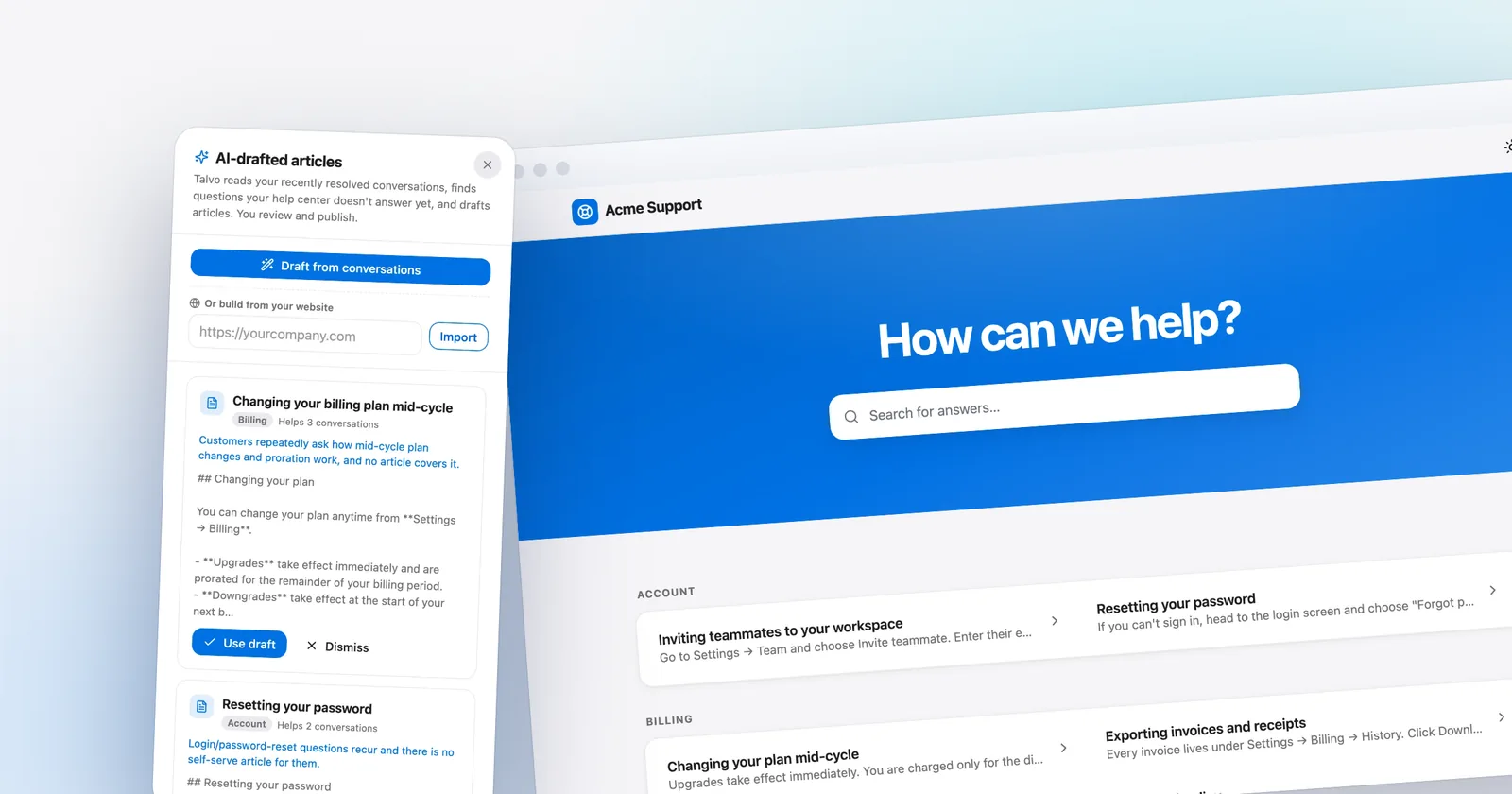
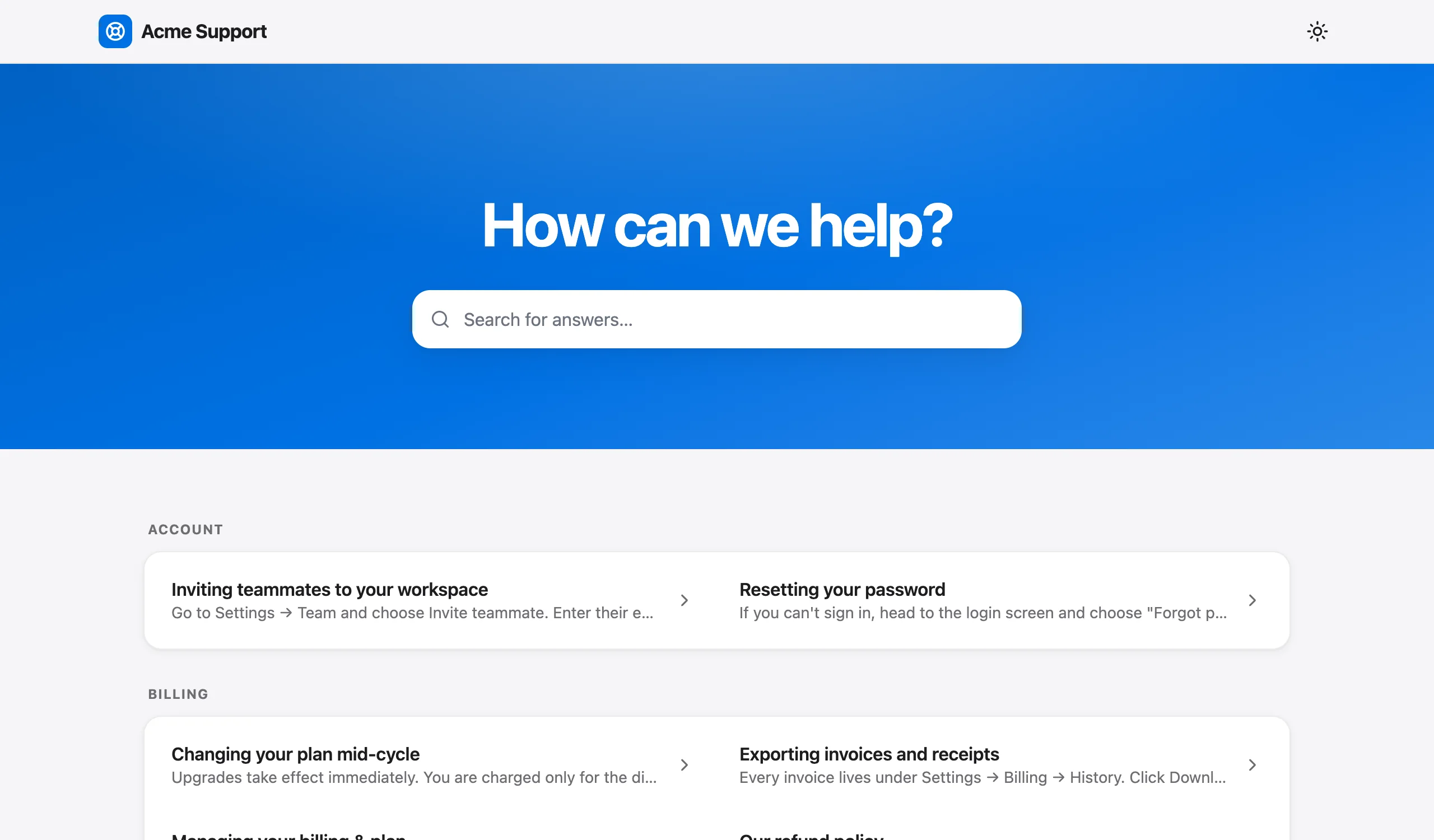
A quick answer to a common question, since the two words get mixed up. A knowledge base is the collection of articles. A help center is the public page your customers browse. In Talvo they're the same set of published articles, shown in the hosted help center, in the widget's Help tab and to the AI agent.
Day 1: pull the questions
Don't brainstorm topics. Your customers already told you.
Open the last 30 to 60 days of conversations, from chat, email or the shared inbox, and write down every question in the customer's own words. Group the duplicates and count them. You're after a ranked list: the question, how many times, and whether any page of your site already answers it.
If you have fewer than about 300 conversations in the window, read all of them. If you have more, read a random 300; the pattern appears long before the end. The full tagging method, with a spreadsheet template, is in how to reduce support tickets, so we won't reproduce it. Use a simpler version this week: three columns, which are the question, the count and "article exists?".
No conversation history yet? Use pre-sales emails, questions asked on calls, your competitors' public FAQs and the ten things you'd ask if you were buying from yourself.
Done when: you have a ranked list of at least 30 distinct questions, and you can say which ten are the most common.
Day 2: draw the structure
Sketch the categories on paper before you open any tool. Five to eight is a good range for a first launch. Atender's recipe says five to nine (Atender), and fewer than five usually means a category is too broad.
Name them in your customers' words. "Billing and invoices" beats "Financial operations." "Getting started" belongs first, and Talvo lists it first for you.
Two rules hold the structure together:
- One question per article. If an article answers two things, split it. It's easier for a customer to scan and far easier for an AI to cite correctly.
- Title it as the question. "How do I change my billing email?" beats "Billing email management."
Talvo's help center supports one level of categories. An article's category groups it, articles without a category fall under "General", and there are no nested collections. If you were planning sub-sections, express them in the article titles instead.
Done when: every question on your Day 1 list has a category and an article title next to it.
Day 3: import what you already have, then cut
You almost certainly have help content scattered across your website, an old help desk or a Google Doc. Pulling it in is faster than writing it, with one catch: some of it is wrong.
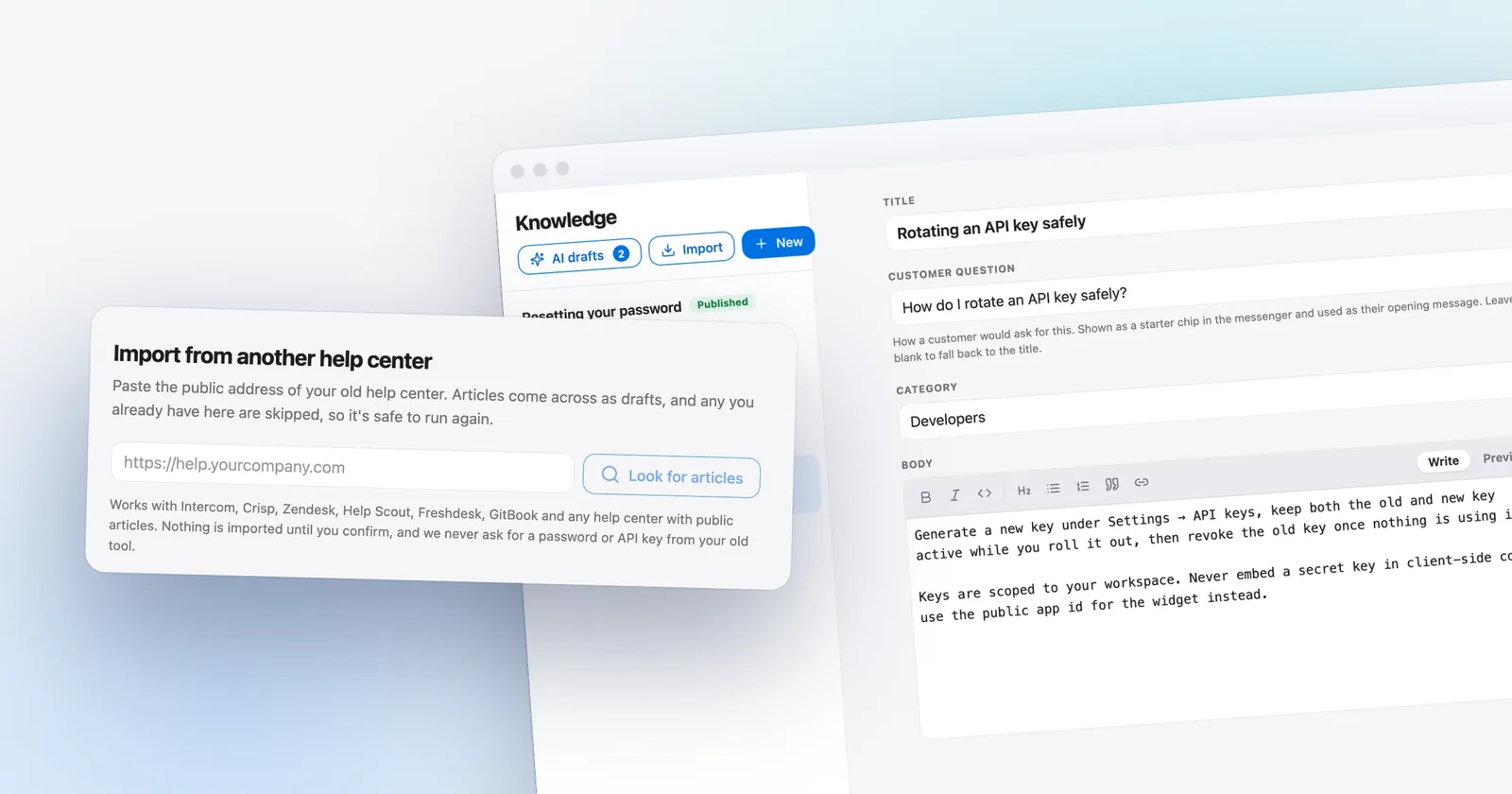
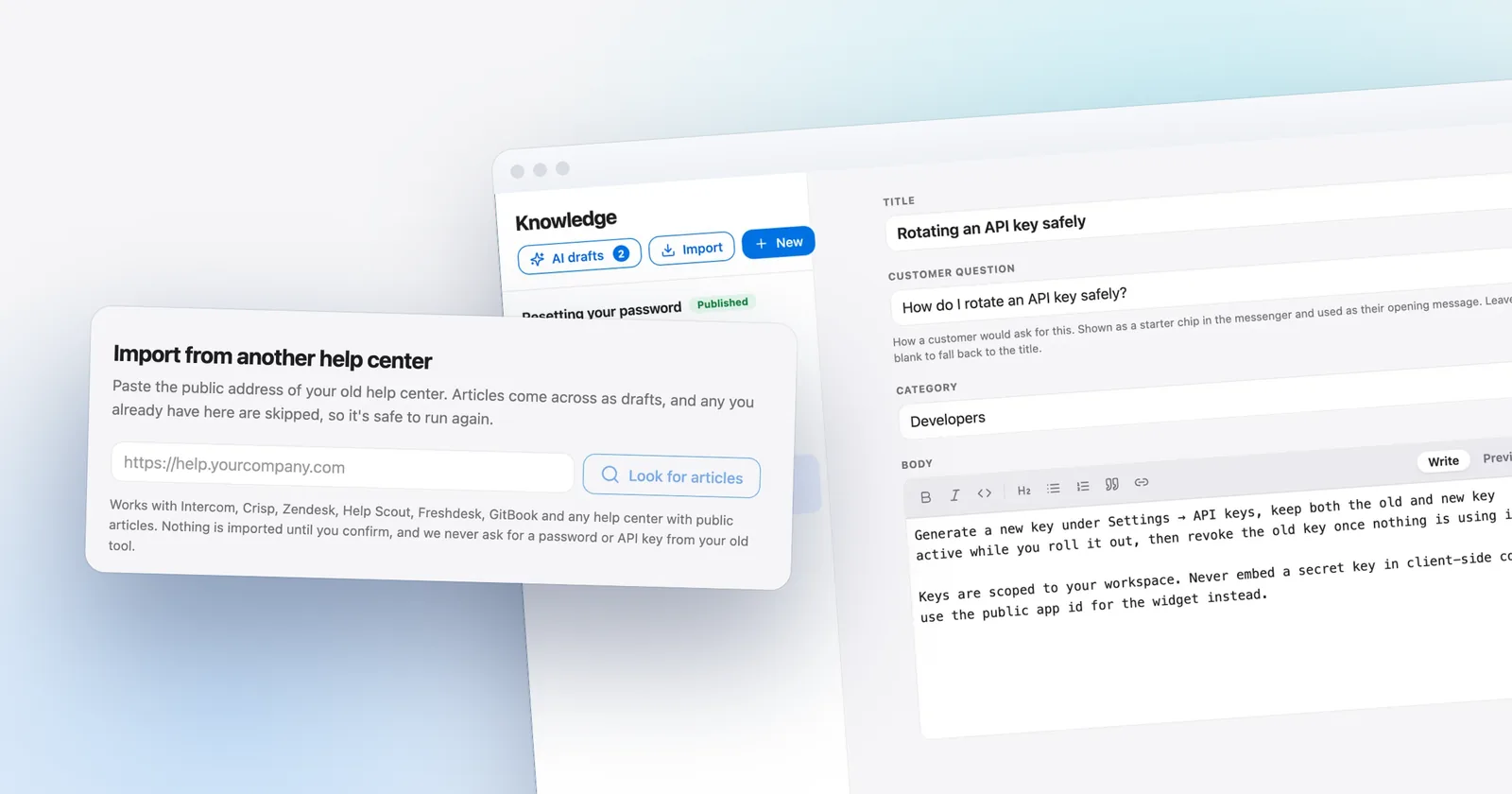
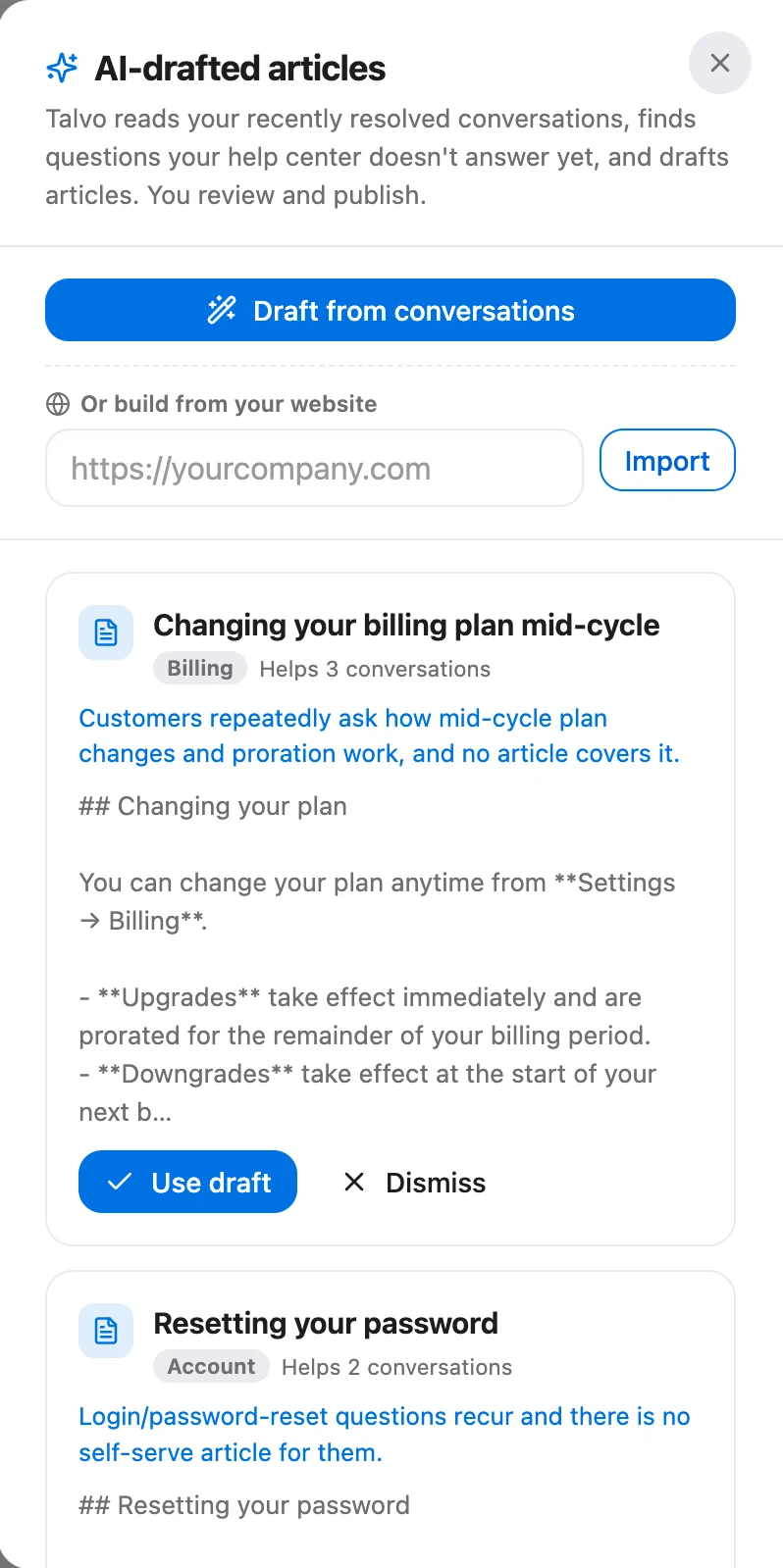
In Talvo you can crawl your website or documentation URL, in onboarding or under Settings → Knowledge base, or bring articles from tools like Intercom, Zendesk, Help Scout, Crisp, Freshdesk, GitBook, Document360 and HubSpot. See the site-crawl guide and switching from another help desk. Everything arrives as a draft, which is the point. Nothing is visible to customers or the AI until you publish it.
- Imports give you a first pass in minutes instead of hours
- A crawl surfaces content you'd forgotten you had
- Editing a draft is quicker than staring at a blank page
- A crawler can't tell your current refund policy from a 2023 blog post about it
- Marketing pages tend to produce articles that describe a feature instead of answering a question
- A stale article is worse than a missing one, because an AI will cite it with confidence
Go through each draft once and make one of three calls: publish, edit then publish, or delete. Be quick and be harsh. Most imported marketing copy needs trimming down to the answer.
Done when: every draft is published, edited or deleted, and nothing out of date remains.
Days 4 and 5: write the first twenty
Now fill the gaps. Twenty articles is enough to cover the bulk of what customers ask, as long as they're the right twenty. Build the set by type, not by what you find interesting.
| Type | Count | What belongs here |
|---|---|---|
| Getting started | 3 | Set up an account, first steps, how it works |
| Account and billing | 4 | Change plan or email, invoices, cancel, refunds |
| Top how-to questions | 6 | The six biggest items on your Day 1 list |
| Troubleshooting | 3 | Can't log in, something isn't loading, an error message customers see |
| Policies | 2 | Refunds, shipping, privacy, whichever apply |
| Contact and hours | 1 | How to reach a person, when, and what to include |
| What's new | 1 | A short note on recent changes |
That adds up to twenty: 3 + 4 + 6 + 3 + 2 + 1 + 1. Some will already exist from Day 3, which cuts the writing.
Do the arithmetic honestly. Twenty articles over two days is ten a day. If an article takes about 20 minutes (our assumption; time your first two), that's roughly three hours and twenty minutes a day. Plan for it, or spread the work across two people.
Don't redesign your writing style this week. Use one template, put the answer in the first sentence and say who the article applies to. Write help articles for AI has the style rules and a paste-ready template, and it matters because the same text feeds your chatbot. Include one article on how to reach a person. It's the article customers look for when everything else fails.
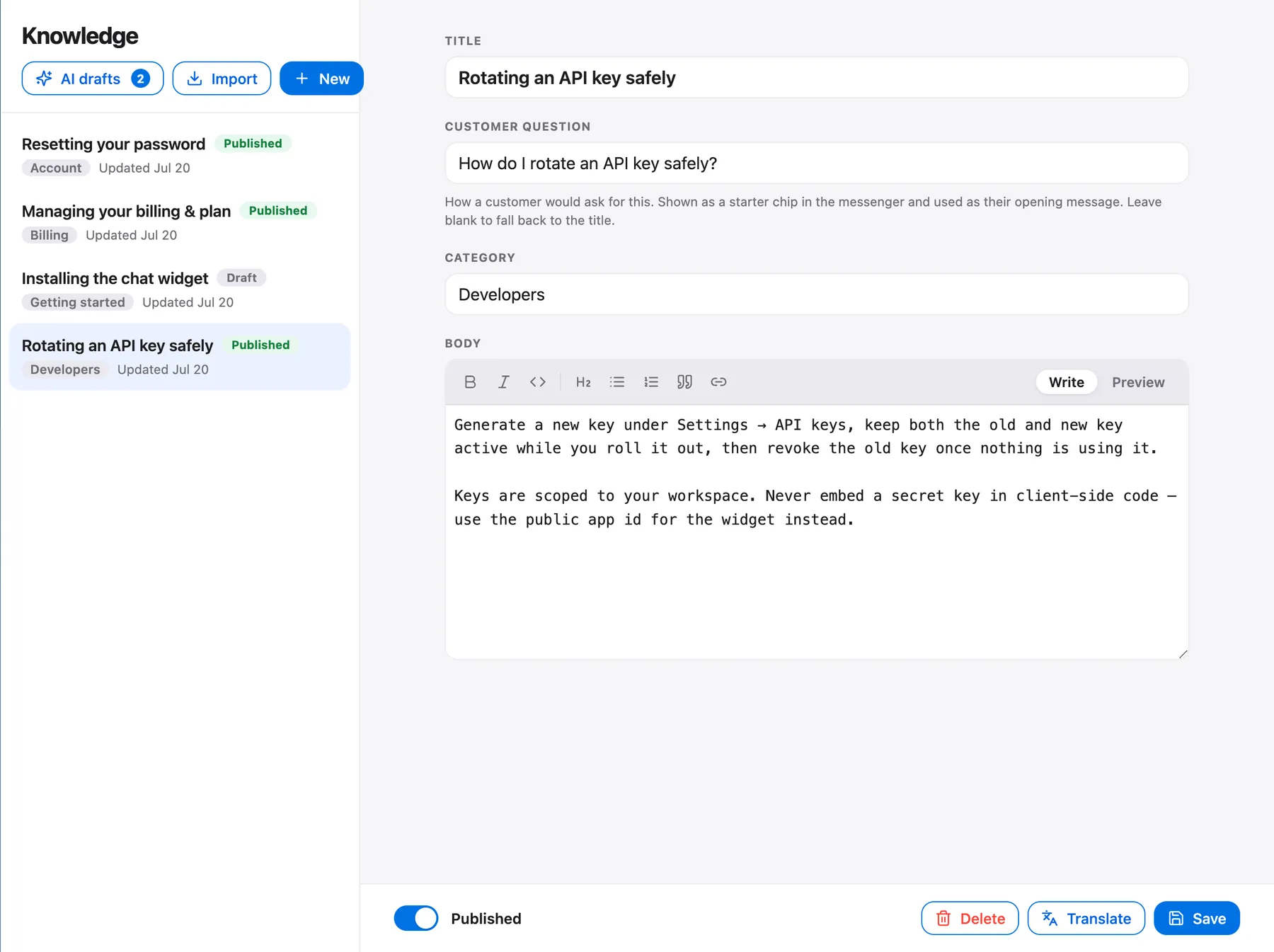
Done when: about twenty articles are published, each in a category, each titled as the question it answers.
Day 6: test it like a customer
You wrote these articles, so you're the worst person to test them. Use your own Day 1 list instead of your imagination.
| Test | How | Pass looks like |
|---|---|---|
| Search | Type ten real questions, worded as customers wrote them | The right article appears in the first few results |
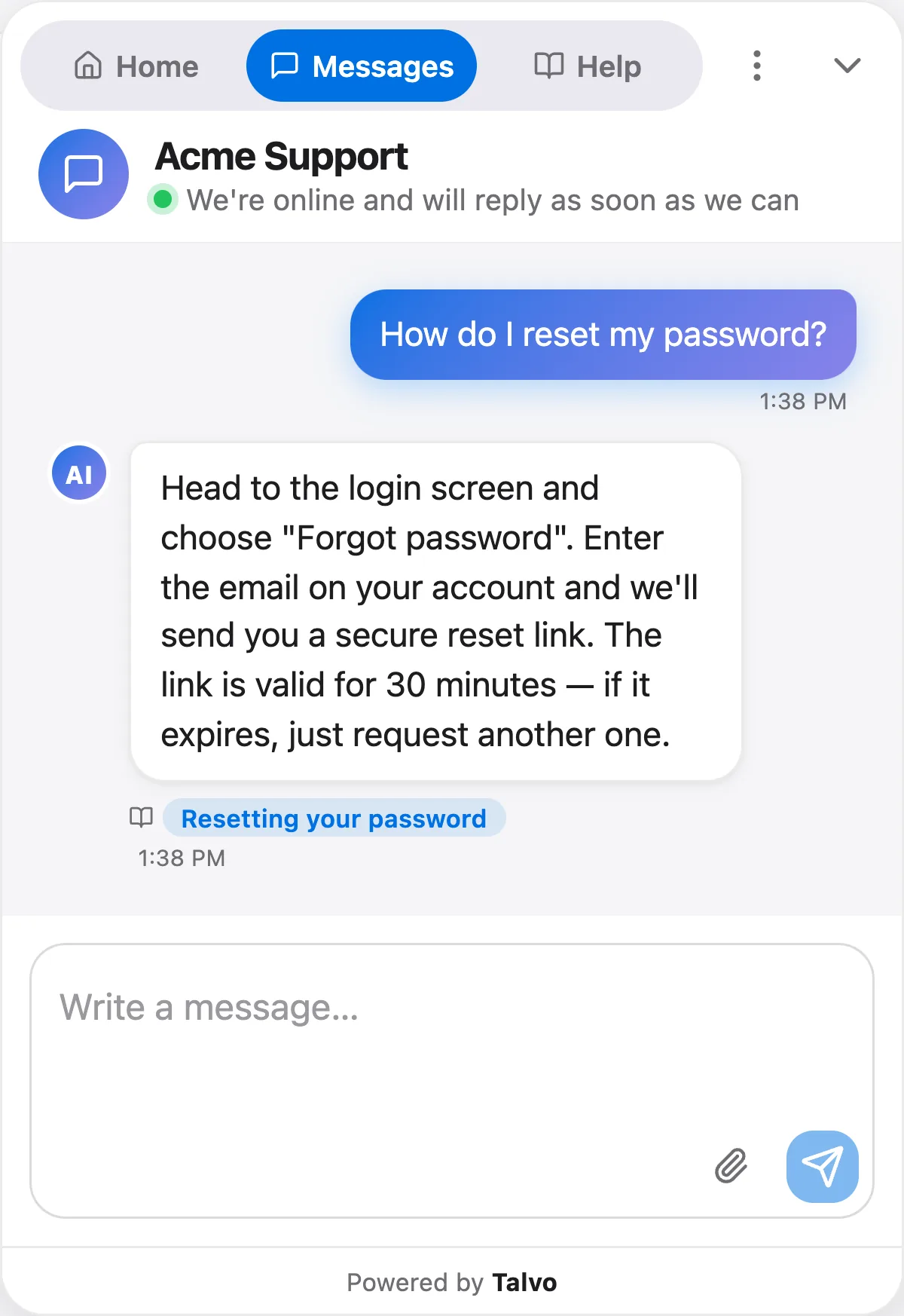
| AI answers | If you use an AI agent, send the same ten questions to the widget | A cited answer, or a hand-off when no article fits |
| A stranger | Ask someone who doesn't know your product to find three answers | They find each one within about two minutes, without asking you anything |
Talvo's help center filters articles as you type, so you can see at once whether a customer's wording lands. The two-minute mark for the stranger test is our own rule of thumb, not a standard.
For every failure, decide the cause. Wrong words in the title? Rename it. A question that has no article? Write one. An article that answers the question in paragraph four? Move the answer up. If you've turned on the AI agent, a failed test is also a hand-off, which is the right result when nothing covers the question.
Done when: at least eight of your ten test questions land on the right article, and you've fixed or logged the rest.
Day 7: launch where questions happen
A help center nobody finds is a hobby. Link to it from every place a customer is already stuck.
- Website header or footer: a plain "Help" link
- Inside your product, wherever people usually get confused
- The chat widget: Talvo's Help tab shows the same published articles, so there's nothing extra to maintain
- Your support email's auto-reply and signature
- Order confirmations and onboarding emails, linked to the two or three most relevant articles
- A team habit: when you answer a question, reply with the article link as well as the answer
Install the widget if you haven't (install guide). Opening an article from the widget keeps the visitor in the conversation instead of sending them away.
In Talvo the help center lives at an address like talvo.chat/help?app=YOUR-APP-ID, with articles at &article=slug on the end. That's not a pretty URL, so link to it with descriptive text and don't print it on anything. The custom-domain limit is covered below.
Done when: a customer can reach the help center from three different places without asking you for the link.
Week two: let the gaps tell you what to write next
Launch is the beginning. From here the best source of new articles is the conversations your help center didn't prevent.
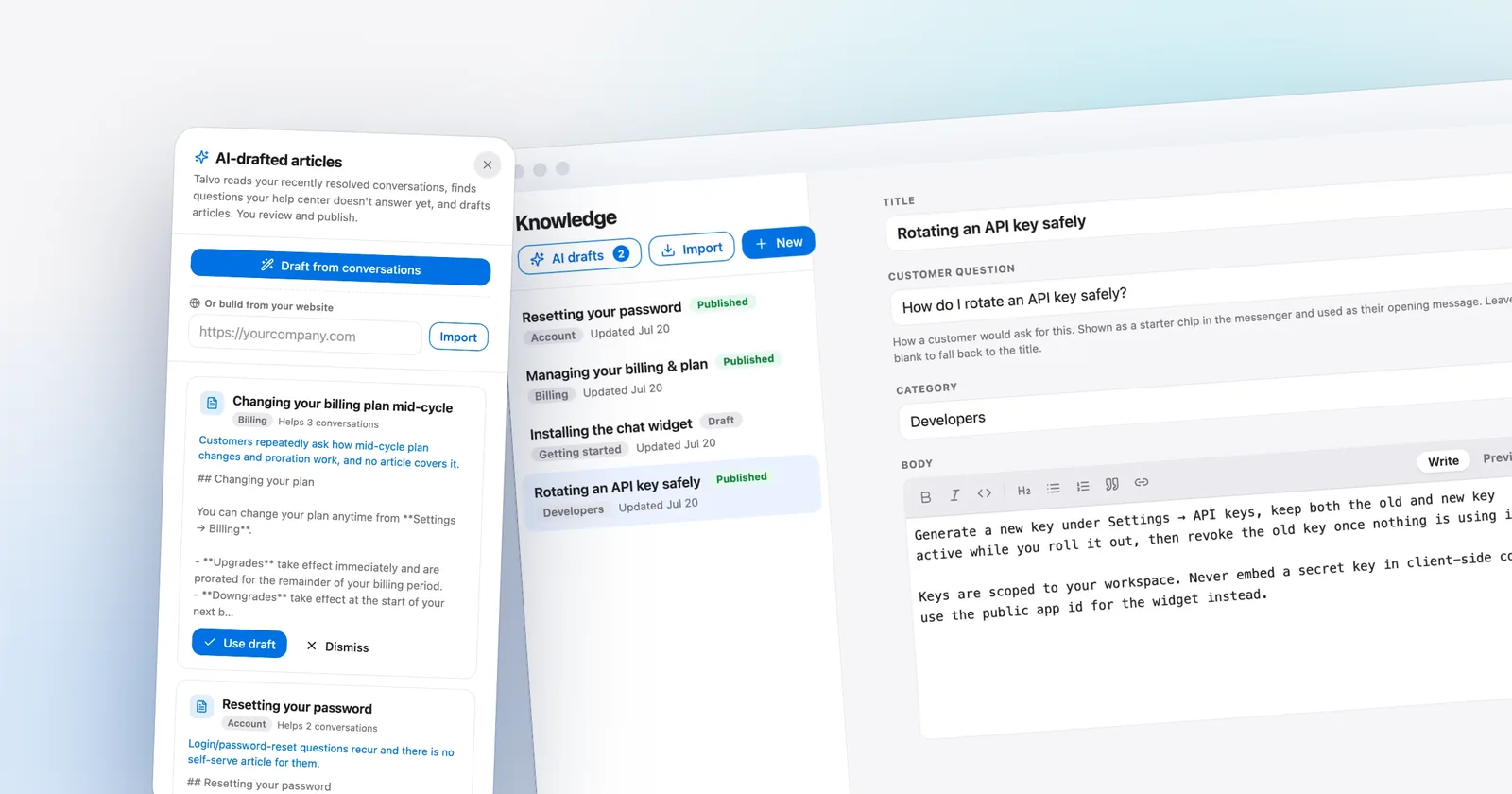
- Hand-offs. Each time an AI agent can't answer because no published article covers the question, that's a ready-made to-do. On the Growth plan and up, the self-writing knowledge base drafts articles from those questions for you to review. On the Scale plan, the AI performance dashboard ranks the hand-off topics.
- Conversations your team still answers. Anything you've typed out three times belongs in an article.
- A review date on every article. Atender suggests a 90-day review cycle; pick whatever interval you'll keep. A stale policy article is the most expensive kind.
To tell whether it's working, measure conversations per 100 customers on the topics you've covered, before and after, as described in customer support metrics. A page view isn't a deflection, because the customer may have written in right after.
Doing this in Talvo, and what it can't do
On the Free plan you get the hosted help center, the knowledge base editor, search-as-you-type, one level of categories and a public feedback board. There is nothing to deploy. Publishing an article puts it in the help center, in the widget and in front of the AI agent. In some other tools, setup has extra gates: Intercom's documentation says articles must belong to a collection to be searchable and the help center must be set to live to be visible (Intercom, May 2026).
SEO is handled for you but not editable. Talvo writes each article's page title as "Article title · Business name Help Center" and takes the meta description from the first paragraph, cut to about 155 characters. Every article page carries HelpArticle structured data, and tenant help pages aren't set to noindex. There are no SEO fields to edit.
The limits, plainly:
- No custom domain. The help center lives on talvo.chat, and the pages show "Powered by Talvo", which can't be removed. It isn't white-label.
- No "was this helpful?" feedback. You can't collect article ratings, so you learn from conversations instead.
- One level of categories, as above, and no private or audience-restricted articles.
- Brand color only. The workspace brand color is applied to the widget; don't expect deeper theming.
- Free is small. Two teammates, and 25 AI resolutions a month during the beta.
The AI is optional for this plan. If you want it past the beta allowance, a team of up to five people fits Starter: $49 a month, or $39 billed annually, with 100 AI resolutions included and $0.49 for each one beyond. At 150 resolutions in a month, Starter totals $49 + 50 × $0.49 = $73.50 monthly, or $39 + 50 × $0.49 = $63.50 annually. That's the lowest total of the plans with enough seats: Growth is $149 monthly or $119 annually, and Scale is $299 or $249. The knowledge base chatbot guide covers how the AI uses these articles.
Talvo is new and in beta, so we can't point to customer results from help centers built this way. The plan itself doesn't depend on the tool: pull the questions, structure them, cut the stale content, write the first twenty, test them like a customer and launch where people already are.
Frequently asked questions
How do I create a knowledge base for my customers?
Pull the questions customers actually asked in the last 30 to 60 days, group them into five to eight categories named in their words, write one article per question, and publish where customers already look. This guide breaks that into seven days with a check at the end of each.
How long does it take to build a knowledge base?
A first customer-facing version of about twenty articles fits in a week if you import existing content and are strict about scope. One vendor, ProProfs, suggests about a week with import and three to six weeks from scratch for a first set of topics; treat that as an opinion, not a benchmark.
How many articles should a knowledge base have at launch?
About twenty, chosen by type rather than by interest. Atender's recipe uses 25 drawn from the last 30 days of conversations. The right number is the set that covers your most common questions, then you add articles from hand-offs and repeated replies.
What is the difference between a knowledge base and a help center?
A knowledge base is the collection of articles; a help center is the public page where customers browse and search them. In Talvo they are the same published articles, shown in the hosted help center, in the chat widget's Help tab and to the AI agent.
Can I use Google Docs or Notion as a knowledge base?
For a handful of internal notes, yes. For a customer-facing help center you want search, categories and a clean public page, and if you use an AI agent you want it to answer from the same published set. That is the point where a dedicated help center is worth it.
Should my help center be on a custom domain?
It is nice to have, and some tools offer it. Talvo's hosted help center does not support a custom domain: it lives on talvo.chat and shows 'Powered by Talvo', which cannot be removed. Link to it with descriptive text from your site, widget and emails.
How do I get customers to use the help center?
Put links where questions happen: your website header or footer, inside the product, the chat widget, your support email's auto-reply and signature, and onboarding emails. Have your team reply with an article link each time they answer a question that has one.
Sources
Other products' prices and features change. We checked these pages; if something is out of date, tell us and we'll fix it.